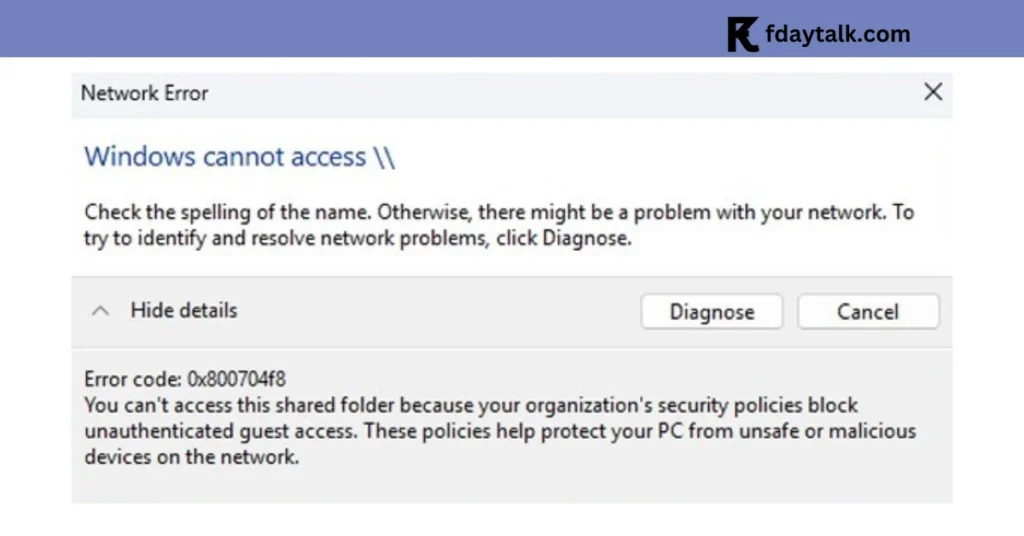
If you’ve encountered error code 0x800704f8 while trying to access a shared network folder, you’re not alone. This error usually happens when Windows blocks unauthenticated guest access due to stricter security updates. The message often reads:
“You can’t access this shared folder because your organization’s security policies block unauthenticated guest access.”
Microsoft introduced these changes to improve protection, but they can also cause compatibility issues with older NAS devices and shared folders.
What Causes Error Code 0x800704f8?
Recent Windows updates, including Windows 11 version 24H2, enforce stricter security rules for network communications:
- Require SMB (Server Message Block) signing for all connections.
- Disable guest access fallback to prevent unauthorized access.
- Enforce authentication policies that block unsecured access to shared folders and NAS devices.
- In some cases, firewall or antivirus settings may block SMB traffic.
- Older routers or unmanaged switches may also restrict SMB protocols, triggering this error.
How to Fix Error Code 0x800704f8 on Windows
Here are the main fixes to restore access:
1. Enable SMB Signing and Disable Guest Access on NAS
If you’re using a NAS or shared drive:
- Log in to the NAS management interface.
- Enable SMB Signing to secure communication.
- Disable Guest Access and require user authentication.
This ensures all users connect with valid credentials, aligning with Microsoft’s security policies.
2. Create User Accounts on NAS or Shared Drive
- Set up new user accounts with passwords on your NAS.
- Assign folder permissions to these accounts.
- Use these credentials when mapping the network drive in Windows.
This eliminates the need for guest access and prevents the error.
3. Update NAS Firmware
- Check your NAS manufacturer’s site or settings for updates.
- Install the latest firmware to ensure compatibility with new Windows SMB rules.
Updated firmware often includes security patches and SMB improvements.
4. Alternative Workarounds (Less Secure)
If changing NAS settings isn’t possible, you can relax Windows policies — but this reduces security.
Enable Insecure Guest Logons via Group Policy
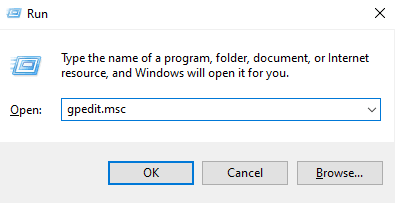
- Press Win + R, type
gpedit.msc, and press Enter. - Navigate to:
Computer Configuration > Administrative Templates > Network > Lanman Workstation - Double-click Enable insecure guest logons, set it to Enabled, then click OK.
- Restart your PC.
Disable SMB Client Signing Requirement
- Open Group Policy Editor again.
- Navigate to:
Computer Configuration > Windows Settings > Security Settings > Local Policies > Security Options - Find Microsoft network client: Digitally sign communications (always) → set it to Disabled.
- Restart your PC.
Use PowerShell (Windows Home Users)
Since Windows Home lacks Group Policy Editor, use PowerShell:
- Open Windows Terminal (Admin).
- Run these commands:
Set-SmbClientConfiguration -RequireSecuritySignature $false
Set-SmbClientConfiguration -EnableInsecureGuestLogons $true- The first command disables forced SMB signing.
- The second command allows insecure guest logons.
Troubleshooting Tips If Fixes Don’t Work
- Restart both your PC and NAS device.
- Ensure SMB 1.0/CIFS File Sharing Support is enabled in Windows Features (needed for very old NAS devices).
- Verify your network profile is set to Private (not Public) under Network Settings.
- Temporarily disable any third-party firewall/antivirus to test if it’s blocking SMB.
Error 0x800704f8 stems from Microsoft’s enhanced network security policies. While these updates improve protection, they can disrupt access to older NAS devices and shared folders. The best long-term fix is to update your NAS firmware, enable SMB signing, and use user authentication. Temporary workarounds like insecure guest logons may restore access, but they should only be used with caution.
If you’re facing a different issue, check our other guides: