Linux users are known for customizing their desktops in unique ways, but occasionally a tool appears that brings back a very specific piece of computing history. One such example is a Windows 8–style Start menu recreated for Linux, designed to mimic the tiled, full-screen interface introduced in Windows 8 and Windows 8.1.
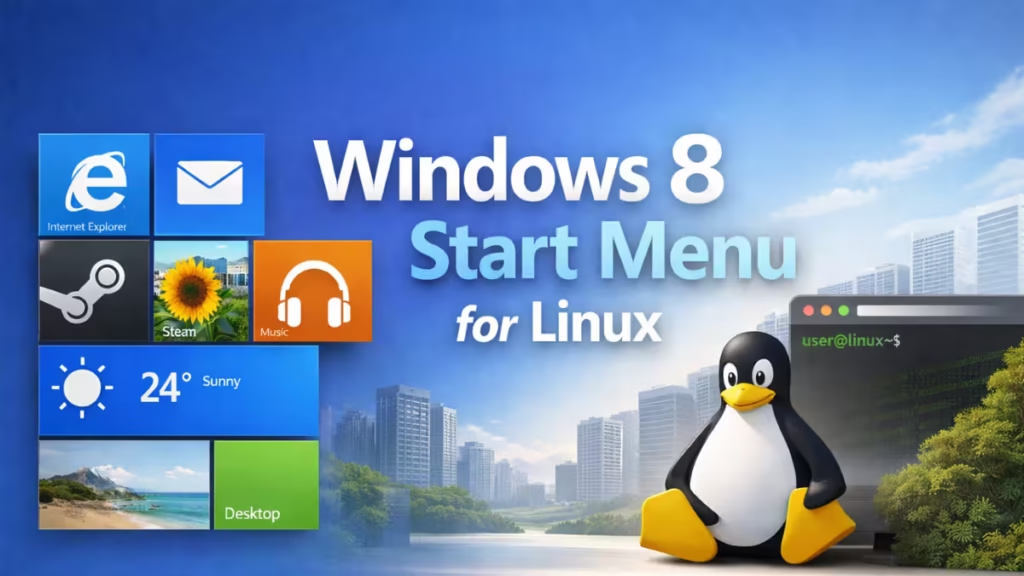
This Windows 8 Start menu for Linux is meant for users who genuinely liked the tile-based Start screen and want a similar experience outside Microsoft’s ecosystem. This guide explains what it is, why it exists, what features it offers, and how to use it safely, so readers can decide whether it fits their setup.
Windows 8 Start Menu for Linux
The Windows 8 Start menu for Linux is a Python-based desktop application that recreates the appearance and behavior of the Windows 8.1 Start screen. Instead of a traditional Linux application menu, it opens a full-screen tile layout where apps, scripts, and games can be launched.
It does not replace the Linux desktop or system menu. Instead, it runs quietly in the background and appears only when triggered using a keyboard shortcut. This design keeps the operating system untouched while offering a familiar interface on demand.
Key Features Available on Linux
Understanding what this Start menu can do helps set realistic expectations before setup.
Supported Application Types
The Start menu can launch:
- Python scripts, treated as standalone apps
- Flatpak applications
- Steam games
- Native system-installed Linux applications
This makes it a functional launcher rather than a visual mock-up.
Tile Customization and Layout Control
Users can:
- Move tiles freely across the screen
- Create tile groups and folders
- Change tile colors
- Replace the background with a custom wallpaper
These options closely resemble the customization available in Windows 8, minus live tile updates.
Keyboard-Based Activation
The interface remains hidden until activated using:
- Super + P
This prevents interference with everyday desktop usage.
What Is Missing Compared to Windows 8
While visually familiar, the Linux version does not replicate everything from Windows 8.
Current limitations include:
- No built-in search functionality
- No support for large or live tiles
- No deep integration with desktop environments
- Limited optimization outside GNOME-based desktops
The focus is on recreating the core tiled experience rather than matching every feature.
System Requirements and Compatibility
Before attempting to use the Windows 8 Start menu on Linux, users should confirm compatibility.
Required Software and Libraries
The application requires:
- Python 3
- PyQt6 6.10.1
- pynput 1.8.1
These handle the graphical interface and global keyboard shortcut detection.
Desktop Environment Considerations
The menu relies on GNOME Terminal, which means:
- GNOME-based desktops work best
- Other environments may require manual adjustments
- It is not designed as a universal Linux launcher
How to Use the Windows 8 Start Menu on Linux
Because this tool is not distributed through official repositories, setup is manual. The steps below explain how users typically run it and what to expect.
Before You Begin: Important Precautions
Keep the following points in mind:
- This is unofficial software
- There is no installer or automatic update system
- Code is shared informally
- Testing inside a virtual machine is recommended
Avoid using it on production systems without prior testing.
Step 1: Confirm Python Is Installed
Open a terminal and check your Python version:
python3 --versionIf Python is missing, install it using your distribution’s package manager before continuing.
Step 2: Install Required Python Libraries
Install the required dependencies using pip:
pip3 install PyQt6==6.10.1 pynput==1.8.1These libraries enable the tiled interface and keyboard shortcut handling.
Step 3: Download the Application Files
The source files are shared manually rather than through packaged releases.
Typical steps include:
- Download all provided Python files
- Place them into a dedicated folder, such as
~/win8-start-menu - Keep all related files in the same directory
Do not copy them into system folders.
Step 4: Launch the Start Menu
Navigate to the folder containing the main file and run:
python3 main.pyAfter launching:
- No window opens immediately
- The menu runs in the system tray
This behavior is expected.
Step 5: Open the Tiled Interface
To display the Start menu:
- Press Super + P
If nothing appears:
- Check for shortcut conflicts
- Confirm the required libraries installed correctly
- Try running it from a GNOME session
Step 6: Customize Tiles and Appearance
Inside the menu, users can:
- Right-click tiles to change colors
- Drag tiles to rearrange the layout
- Create groups and folders
- Set a custom background image
All changes apply instantly without restarting.
Common Issues and Known Limitations
Users may notice:
- Keyboard shortcut conflicts
- Missing search functionality
- No live tile updates
- Reduced compatibility on non-GNOME desktops
These are expected limitations rather than errors.
Is It Safe and Stable to Use?
Because this software:
- Is experimental
- Is not sandboxed
- Uses global keyboard hooks
It is best treated as an advanced-user tool. Running it in a virtual machine or on a secondary user account is the safest approach.
Who Should Try This (and Who Should Not)
This Start menu makes sense for users who:
- Liked Windows 8’s tile-based interface
- Enjoy desktop customization
- Are comfortable with Python-based applications
It is not recommended for:
- Beginners
- Mission-critical systems
- Users expecting full Windows 8 feature parity
FAQs
What is the Windows 8 start menu for Linux?
The Windows 8 start menu for Linux is a Python-based application that recreates the tile-style Start screen from Windows 8 and Windows 8.1. It provides a full-screen launcher with movable tiles for apps, scripts, Flatpak applications, and Steam games without replacing the Linux desktop.
Can I really use a Windows 8 style start menu on Linux?
Yes, you can use a Windows 8 style start menu on Linux by running this custom application. It works as a standalone launcher and appears only when activated using a keyboard shortcut, allowing users to keep their existing Linux desktop environment unchanged.
Is the Windows 8 start menu for Linux safe to use?
The Windows 8 start menu for Linux is unofficial and experimental. While it does not modify core system files, it is not sandboxed and uses global keyboard hooks. For safety, it is best tested on a virtual machine or secondary user account before using it on a primary system.
Which Linux desktop environments support this Start menu?
This Windows 8 start menu works best on GNOME-based desktop environments because it depends on GNOME Terminal. Other desktop environments may work, but compatibility is not guaranteed and may require manual adjustments.
Does the Windows 8 start menu for Linux support search and live tiles?
No, the Linux version does not currently include a search feature or live tiles. Tiles are static and focus on launching applications rather than displaying real-time information.
Can I customize tiles in the Windows 8 start menu on Linux?
Yes, users can customize tiles by changing colors, rearranging layout, creating groups and folders, and setting a custom background image. These changes apply instantly without restarting the application.
How do I open the Windows 8 start menu on Linux?
After launching the application, the Start menu opens using the Super + P keyboard shortcut. If it does not appear, users should check for shortcut conflicts or confirm that required libraries are installed correctly.
Is this Windows 8 start menu suitable for daily use?
This tool is best suited for advanced users who enjoy desktop customization and experimentation. It is not recommended for beginners or mission-critical systems due to its experimental nature and limited feature set.
Does using a Windows start menu affect Linux performance?
The application runs in the background and consumes minimal resources when idle. Performance impact is generally low, but behavior may vary depending on system specifications and desktop environment.
Why would someone want a Windows 8 start menu on Linux?
Some users liked the Windows 8 tile-based interface, especially for touch screens and tablets. This Linux implementation exists to bring that familiar experience to users who prefer Linux but miss the Windows 8 Start screen design.
If you enjoy experimenting with Linux interfaces and understand the risks of unofficial software, it is worth exploring carefully. Otherwise, it remains a fascinating example of how open-source software allows personal preferences to become functional tools.

