Windows errors rarely come out of nowhere. Slow performance, app crashes, update failures, random restarts, or blue screen errors are usually signs of deeper system issues. The challenge for most users is not the lack of solutions — it’s knowing which Windows troubleshooting tool to use and in what order.
This guide explains the best Windows troubleshooting tools for common errors, what each tool does, when to use it, and how they fit together. The goal is simple: help you fix problems without guesswork, unnecessary reinstalls, or risky third-party software.
Modern versions of Windows rely on many background components working together — drivers, services, system files, updates, and hardware. When something breaks, Windows usually records the failure somewhere.
Troubleshooting tools help you:
- Identify the real cause of errors
- Avoid repeating temporary fixes
- Reduce system instability over time
- Fix issues safely using official tools
Understanding these tools turns Windows troubleshooting from trial-and-error into a logical process.
Built-In Windows Troubleshooting Tools (Start Here)
Windows includes several powerful diagnostic tools by default. These should always be your first step before using external software.
See also: Best PC Repair Utilities for Windows 11
Windows Troubleshooters (Quick Automated Fixes)
Windows Troubleshooters are guided tools designed to detect and resolve common problems automatically.
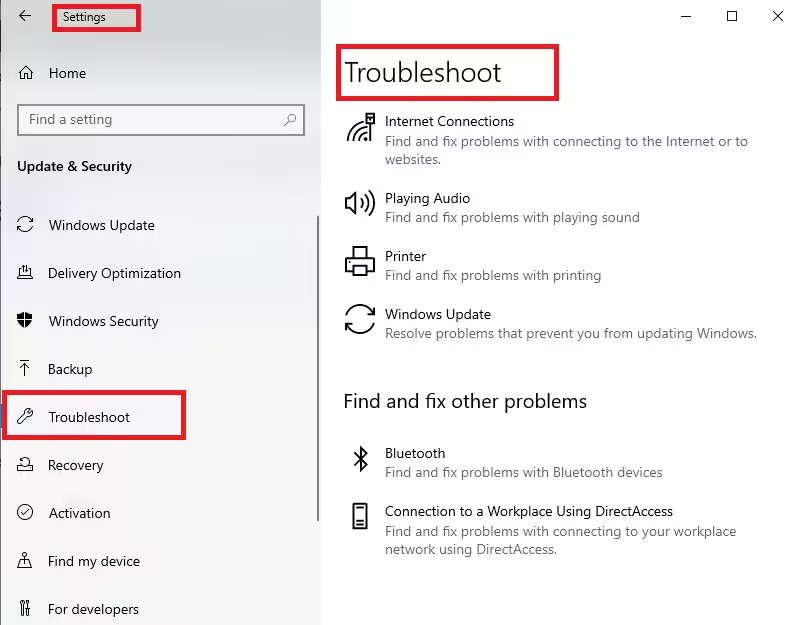
They are most effective for:
- Internet and Wi-Fi issues
- Audio not working
- Bluetooth connection problems
- Printer and hardware errors
- Windows Update failures
Where to find them
Settings → Update & Security → Troubleshoot → Other troubleshootersWhy they help: They apply safe configuration checks and resets without modifying system files, making them ideal for quick fixes.
Reliability Monitor (Find What Changed)
Reliability Monitor shows a timeline of system stability, including:
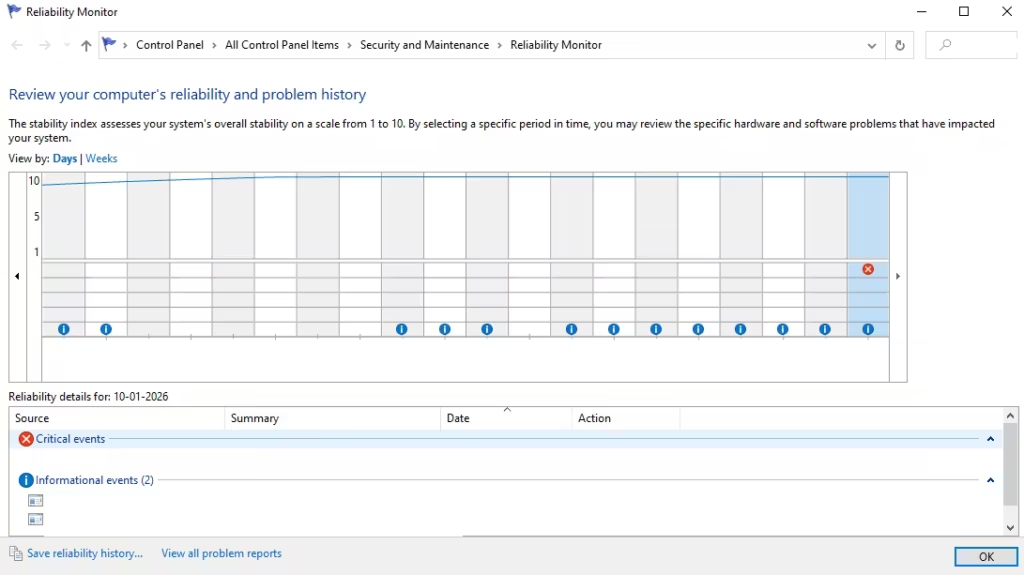
- Application crashes
- Windows errors
- Driver failures
- Software installations and updates
Instead of raw logs, it presents issues in a visual way that helps you connect cause and effect.
Best use cases
- Crashes that started after a recent update
- Apps that fail repeatedly over days or weeks
- Gradual system instability
Search for:
Reliability MonitorThis tool is often overlooked but extremely useful for reducing confusion.
Event Viewer (Understand What Failed)
Event Viewer records detailed logs whenever Windows detects a problem.
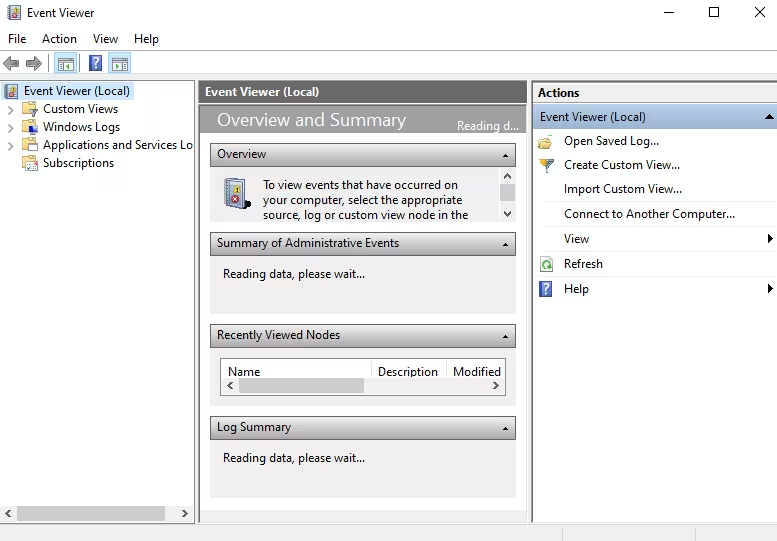
It is especially useful for:
- Application crashes without error messages
- System shutdowns or restarts
- Driver and service failures
- Update and installation errors
Where to look
Windows Logs → System
Windows Logs → Application
Focus on Error and Critical events that match the time the issue occurred. Event Viewer does not fix problems, but it tells you what went wrong, which is often the hardest part.
Task Manager and Resource Monitor (Performance Issues)
Task Manager
Task Manager helps identify:
- Apps using high CPU or memory
- Programs not responding
- Startup items slowing boot time
Resource Monitor (Deeper Analysis)
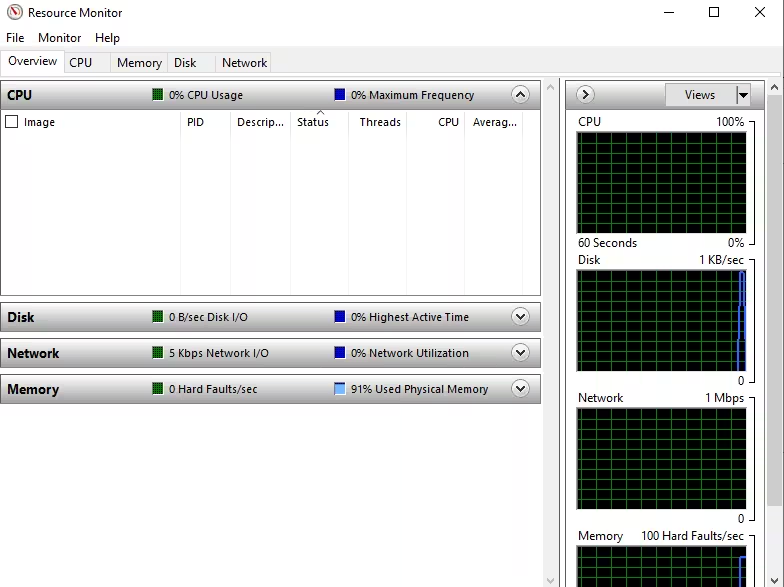
Resource Monitor provides detailed insight into:
- Disk activity and bottlenecks
- Memory usage patterns
- Network connections per process
- CPU thread behavior
When to use Resource Monitor
- PC feels slow without a clear reason
- Disk usage stays near 100%
- Memory usage keeps increasing over time
You can open it from:
Task Manager → Performance → Open Resource MonitorSystem File Checker (SFC) – Fix Corrupted System Files
Corrupted system files can cause:
- Apps to fail or crash
- Windows features to stop working
- Updates to fail repeatedly
Command
sfc /scannowWhat it does: SFC scans protected Windows files and replaces corrupted ones with clean versions. This is a safe and essential step when Windows behaves inconsistently.
DISM (Repair the Windows System Image)
If SFC cannot fix errors, the Windows system image itself may be damaged. DISM repairs this image so that SFC can work properly.
Common commands
DISM /Online /Cleanup-Image /ScanHealth
DISM /Online /Cleanup-Image /RestoreHealth
When to use DISM
- SFC reports unrepairable files
- Windows Update errors persist
- System issues survive reboots
Running DISM first, then SFC, resolves many stubborn Windows problems without reinstalling the OS.
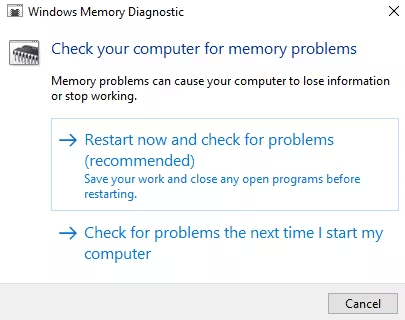
Windows Memory Diagnostic (RAM Issues)
Faulty memory can cause:
- Random freezes
- Unexpected restarts
- Blue Screen errors
- Data corruption
Windows Memory Diagnostic tests RAM during startup and reports issues afterward.
Search:
Windows Memory DiagnosticIf memory errors are found, hardware replacement is usually required.
CHKDSK (Disk and File System Errors)
Disk corruption can lead to:
- File access errors
- Freezing during disk activity
- Update failures
- Boot problems
Common command
chkdsk /f /rThis tool checks the file system and attempts to repair damaged sectors. It is especially useful for older systems or PCs with sudden power losses.
Advanced Troubleshooting Tools (For Deeper Diagnosis)
When basic tools are not enough, advanced diagnostics help identify deeper system behavior.
Sysinternals Suite (Microsoft)
The Sysinternals tools are officially maintained by Microsoft and widely used by IT professionals.
Key Tools
- Process Explorer – Advanced task manager with process trees and DLL tracking
- Process Monitor – Real-time monitoring of file, registry, and process activity
- Autoruns – Full view of everything that starts with Windows
- TCPView – Shows active network connections per process
These tools reveal what Windows is doing behind the scenes and are invaluable for diagnosing stubborn issues.
WinDbg (Blue Screen and Crash Dump Analysis)
WinDbg is used to analyze crash dump files created during Blue Screen errors. It helps identify:
- Faulty drivers
- Kernel-level failures
- Hardware-related crashes
This tool is advanced, but it provides the most accurate insight into system crashes when simpler tools fail.
Quick Guide: Which Tool Should You Use?
| Problem Type | Best Tool | Skill Level |
|---|---|---|
| App crashes | Event Viewer | Intermediate |
| Slow PC | Resource Monitor | Beginner |
| Update errors | DISM + SFC | Intermediate |
| Random restarts | Reliability Monitor | Beginner |
| Disk errors | CHKDSK | Beginner |
| Blue Screen errors | WinDbg | Advanced |
Recommended Troubleshooting Workflow
To minimize confusion and wasted effort, follow this order:
- Run Windows Troubleshooters
- Check Reliability Monitor
- Review Event Viewer
- Monitor system usage with Resource Monitor
- Run SFC
- Run DISM
- Check disk health with CHKDSK
- Use Sysinternals tools if needed
- Analyze crash dumps with WinDbg for BSODs
This structured approach solves most Windows problems without reinstalling Windows.
FAQs
What are the best Windows troubleshooting tools for common errors?
The best Windows troubleshooting tools include Windows Troubleshooters, Event Viewer, Reliability Monitor, System File Checker (SFC), DISM, Resource Monitor, and the Sysinternals Suite. These tools help diagnose and fix crashes, slow performance, update failures, and system instability.
Which Windows troubleshooting tool should I use first?
You should start with Windows Troubleshooters and Reliability Monitor. They are beginner-friendly and help identify recent changes or common configuration issues before moving to advanced tools.
Can SFC and DISM fix most Windows system errors?
Yes, many common Windows errors are caused by corrupted system files. Running DISM to repair the system image and then SFC to fix system files resolves a large number of Windows stability and update issues.
Which tool helps find the cause of Windows crashes?
Event Viewer and Reliability Monitor are the best tools for identifying the cause of Windows crashes. They show error logs, crash timestamps, and related system events that help pinpoint what failed.
What is the best Windows troubleshooting tool for slow performance?
Resource Monitor is the best tool for diagnosing slow performance. It shows real-time CPU, memory, disk, and network usage, helping identify apps or processes causing system slowdowns.
Are Windows troubleshooting tools safe to use?
Yes, built-in Windows troubleshooting tools like SFC, DISM, CHKDSK, and Event Viewer are safe to use. They are officially provided by Microsoft and do not harm user data when used correctly.
Which tool should I use for Blue Screen of Death errors?
For Blue Screen errors, start with Event Viewer and Reliability Monitor. For advanced analysis, WinDbg is the most accurate tool to identify faulty drivers or hardware-related crashes.
Do I need third-party repair tools to fix Windows errors?
In most cases, no. Built-in Windows troubleshooting tools are sufficient to diagnose and fix common errors. Third-party tools are only necessary in rare or advanced scenarios.
Can Windows troubleshooting tools fix update problems?
Yes, Windows Troubleshooters, DISM, and SFC are commonly used to fix Windows Update errors by repairing corrupted update components and system files.
What is the difference between Event Viewer and Reliability Monitor?
Event Viewer provides detailed technical logs, while Reliability Monitor shows a simplified timeline of system stability. Both tools complement each other and are often used together.
Windows troubleshooting does not require random “repair tools” or risky system cleaners. The operating system already includes powerful diagnostics — the key is knowing how and when to use them.
By following a logical troubleshooting process and relying on trusted tools like SFC, DISM, Event Viewer, and Sysinternals, most Windows errors can be identified and resolved safely.
This approach not only fixes problems but also improves long-term system stability.

