Many Windows 11 users are opening their PCs and noticing a very different Start menu. Apps appear in new sections, the layout looks taller, and the overall size feels harder to control. This change is not a bug. Microsoft is gradually rolling out a redesigned Start menu that introduces a Categories layout and a single-page design. The rollout happens in stages, so different PCs receive it at different times.
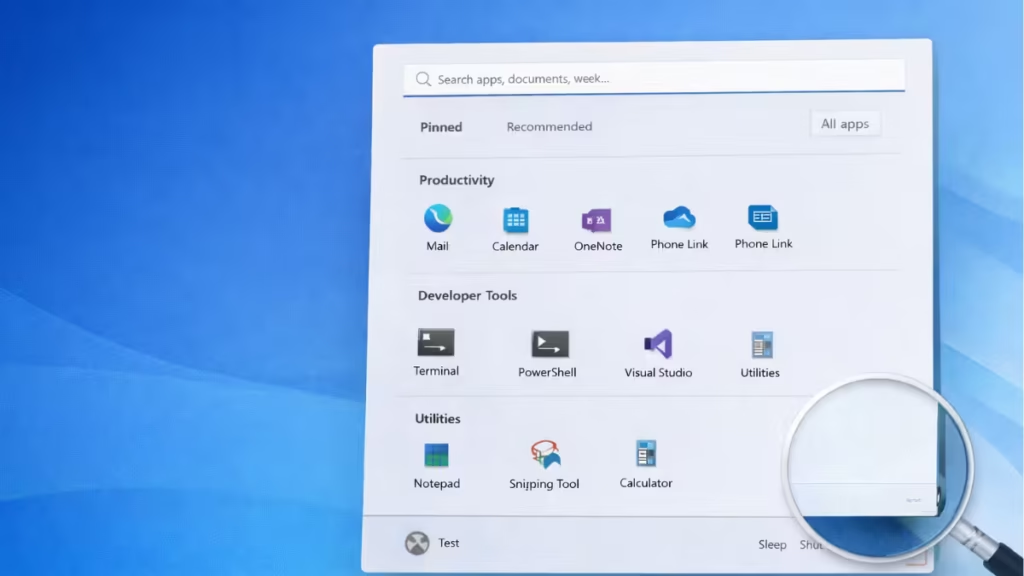
While the update improves navigation in some areas, one major limitation stands out: users cannot resize the Start menu. On smaller displays or laptops, the menu can feel oversized and cramped.
What Changed in the New Windows 11 Start Menu
Microsoft redesigned the Start menu to display everything on one screen instead of spreading content across multiple pages. The menu now organizes apps into three main sections:
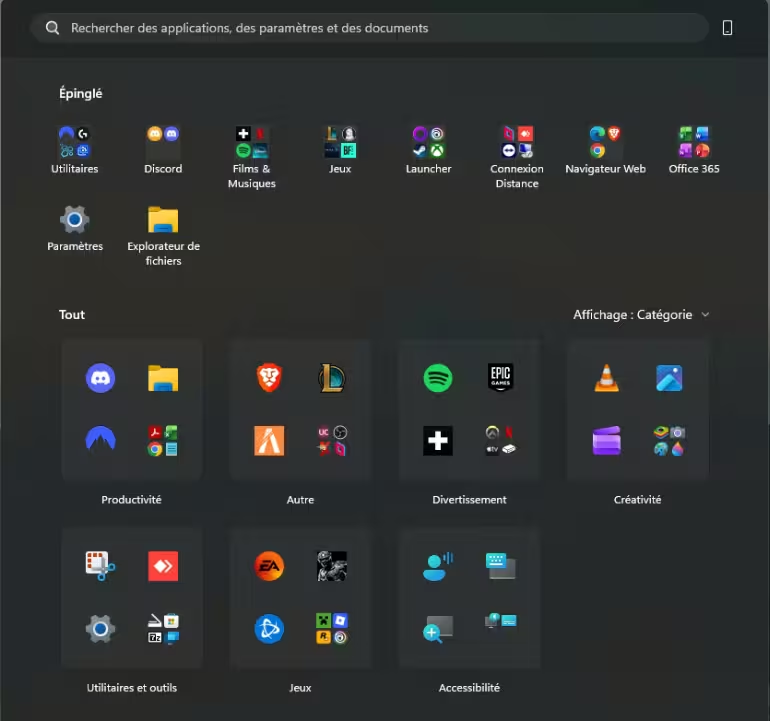
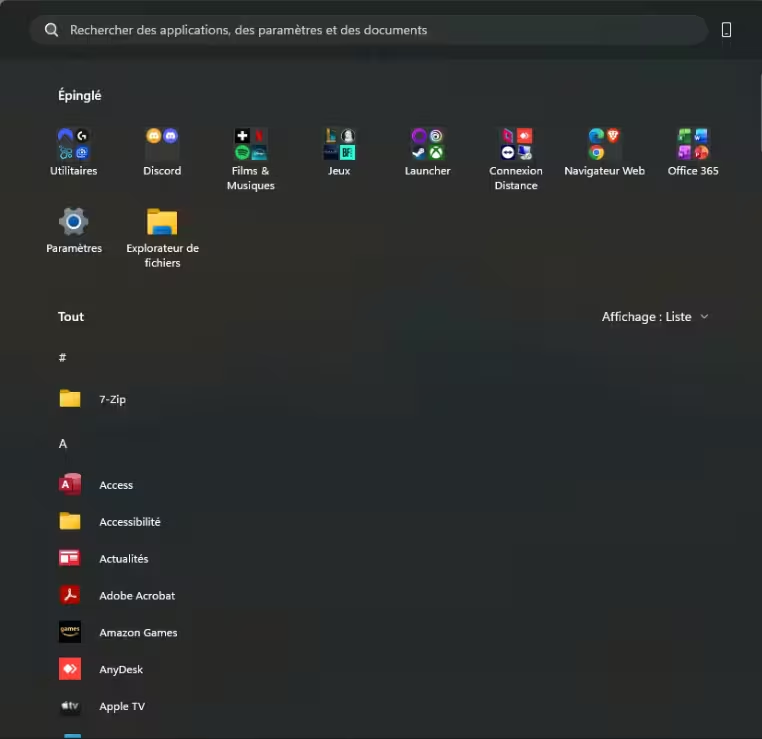
- Pinned – Your pinned apps appear at the top. By default, two rows show up, and each row can hold multiple app icons.
- Recommended – This area shows recent files, recently used apps, and sometimes Microsoft Store suggestions. You can turn this section off in Settings.
- All – All installed apps appear directly inside the Start menu without extra clicks. Windows automatically groups apps into categories such as Productivity or Developer Tools. You can also switch this area to a Grid view that lists apps alphabetically.
The layout adapts to screen resolution. On higher-resolution displays, the menu expands to show more content at once.
See also: Windows 11 KB5074109 Update for 25H2 Released: Major Fixes and Direct Download Links
This change reduces the number of clicks required to reach the full app list and makes browsing apps faster for many users.
Why the Start Menu Looks So Tall on Some PCs
Many users report that the new Start menu looks unusually tall, especially on 1080p displays or laptops.
This happens because Microsoft designed the Start menu as a single-page layout. It must fit pinned apps, headers, optional recommendations, category rows, and scrolling content all at once. To keep the layout stable and prevent constant resizing or jumping animations, Windows applies a minimum height target to the menu.
Even if you:
- Turn off the Recommended section
- Remove rows of pinned apps
- Switch between Category view and Grid view
…the overall height of the Start menu stays almost the same. Windows keeps the reserved space so headers and scroll areas remain consistent.
See also: Windows 8 Start Menu for Linux: How It Works and How to Use It
In practical use, this makes the menu feel oversized on smaller screens and limits how much desktop content remains visible behind it.
Why There Is No Resize Button (Yet)
Right now, Windows 11 does not allow manual resizing of the Start menu. Users cannot drag edges to shrink or expand it like they could in Windows 10.
Microsoft has not announced plans to add a resize option. The company argues that free resizing could interfere with animation behavior and visual consistency across devices. Windows also restricts moving the taskbar to the top or sides for similar design reasons.
For users who prefer tighter layouts or compact interfaces, this limitation creates frustration, especially on laptops and small monitors.
How to Check If You Have the New Start Menu
You usually receive the new Start menu after installing recent cumulative updates for Windows 11. The rollout happens gradually, so not every PC receives it at the same time.
To check:
- Open Start.
- Look for categories inside the All apps section.
- Verify whether the layout shows all sections on a single page.
If you see category groups or a grid-style All Apps layout without extra clicks, your system already has the new design.
How to Adjust the Layout (Current Workarounds)
Although you cannot resize the Start menu directly, a few small adjustments can improve usability.
Turn Off Recommended Content
- Open Settings.
- Go to Personalization → Start.
- Disable recommendations for recent files and apps.
This reduces visual clutter, even though the menu height remains the same.
Switch to Grid View for All Apps
- Open Start.
- Click the view selector in the All Apps area.
- Select Grid view if available.
Grid view can make app scanning faster for some users.
Use Third-Party Start Menu Tools (Optional)
Some users install third-party tools such as Start11 or StartAllBack to regain resizing and layout control. These tools modify system behavior.
Warning: Third-party customization tools can affect system stability, updates, or security compatibility. Always create a system restore point before installing them and download only from trusted sources.
If you rely heavily on compact workflows or small displays, this change may feel restrictive. If you prefer faster access to apps and structured browsing, the new layout may still offer practical benefits

