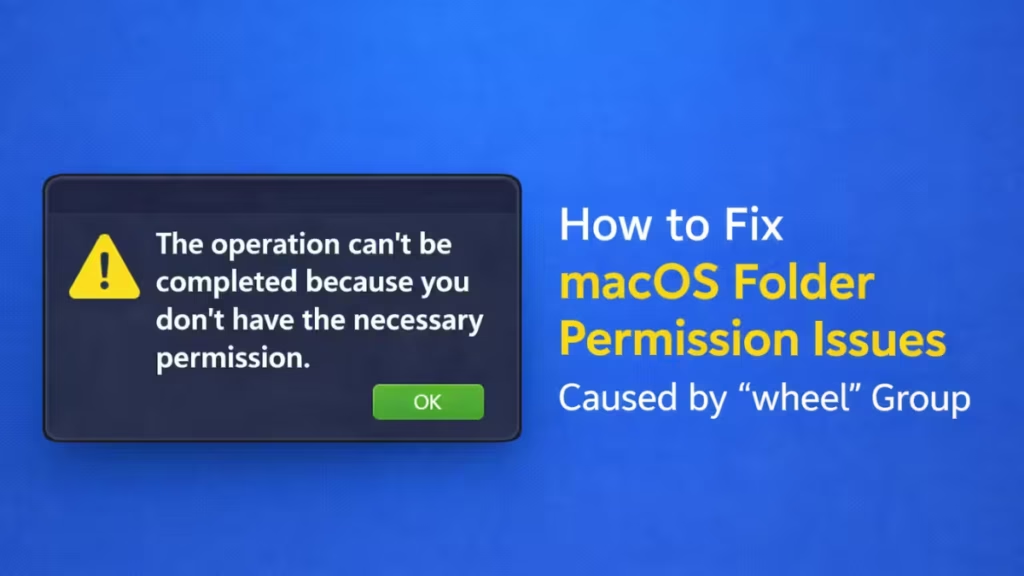
If macOS blocks you from deleting or modifying a folder and shows the error “You don’t have the necessary permission”, the issue often links to the wheel system group. This guide explains what’s happening and how to fix it safely without breaking your Mac.
What Causes the “wheel” Permission Problem?
macOS uses Unix-based permissions. Some folders and drives belong to the system and wheel groups instead of your user account.
This usually happens when:
- You copied files from another Mac
- You restored data from Time Machine
- You connected an external drive
- Ownership settings changed during migration
- The drive uses APFS encryption
Admin access alone does not override these permissions.
Method 1: Fix Permissions Using Finder (Safest Method)
Use this method first. It works for most external drives and folders.
Steps
- Right-click the folder or drive
- Select Get Info
- Scroll to Sharing & Permissions
- Click the lock icon
- Enter your admin password
- Add your user using the + button (if missing)
- Set your user to Read & Write
- Click the gear icon
- Choose Apply to enclosed items
- Close the window and try deleting again
This method keeps system groups intact and avoids risk.
Method 2: Enable “Ignore Ownership” (External Drives Only)
If the problem occurs on an external drive, use this option.
Steps
- Right-click the external drive
- Click Get Info
- Unlock permissions
- Check Ignore ownership on this volume
- Close Finder
- Reconnect the drive
macOS now treats all files as owned by your user.
Method 3: Take Ownership Using Terminal (Advanced Users)
Use this only if Finder methods fail.
Steps
- Open Terminal
- Enter this command (replace the path):
sudo chown -R yourusername /path/to/folder- Press Enter
- Enter your admin password
- After ownership changes, run:
sudo chmod -R u+rw /path/to/folderThis gives your user full control without touching system groups.
Why You Should Never Delete “wheel”
The wheel group is part of macOS security.
- macOS requires it for root access
- SIP blocks its removal
- Deleting it breaks permissions system-wide
- System updates may fail if it’s removed
Even Apple admins do not delete it.
Common Mistakes to Avoid
- Do not use
dsclto delete system groups - Do not disable SIP unless absolutely required
- Do not change permissions on Macintosh HD
- Do not force ownership on system volumes
These actions can cause boot failures.
FAQs
What is the wheel group in macOS?
The wheel group is a built-in macOS system group that controls privileged access to files and system resources.
Why does macOS show a wheel permission error?
macOS shows this error when a folder or drive is owned by the system or wheel group instead of your user account.
Can I delete the wheel group on macOS?
No. macOS protects the wheel group. Deleting it can break system permissions and cause serious issues.
Why can’t I delete a folder even as admin on macOS?
Admin access does not override file ownership. If the system or wheel owns the folder, macOS blocks deletion.
How do I fix macOS wheel permission error safely?
Assign your user Read & Write access, apply permissions to enclosed items, or take ownership using Terminal.
Does “Ignore ownership on this volume” fix the issue?
Yes. On external drives, enabling this option often resolves wheel-related permission problems instantly.
Is the wheel permission error a bug or malware?
No. It is normal macOS behavior and part of Unix-based security.
Will changing permissions damage my Mac?
No, as long as you avoid system folders and do not delete system groups.
Do I need to disable SIP to fix wheel permissions?
No. Disabling SIP is unnecessary and not recommended for this issue.
The wheel group is not a bug or malware. macOS uses it to protect system integrity. Instead of fighting it, assign ownership correctly or enable ignore ownership on external drives.
If Finder fails, Terminal provides a safe fallback. Once fixed, you won’t see the permission error again.

