If you see Google Error 403, it means the server understands your request but refuses to allow access. The error usually appears when you try to open a Google service, API, or webpage without the correct permission or authentication.
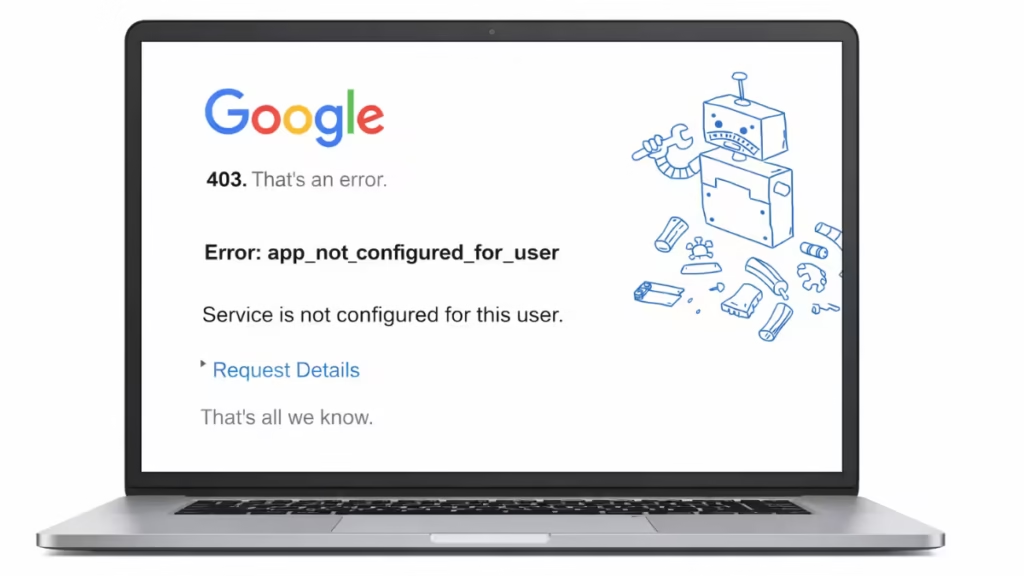
Many users encounter this issue while accessing Google Drive files, Google APIs, Google AI Studio, or restricted webpages. In most cases, the problem is related to permissions, blocked IP addresses, or incorrect API configuration.
Google Error 403 Explained: Access Denied Error
A 403 error is an HTTP response status code that indicates the server denies access to the requested resource. You may see messages like:
- 403 Forbidden
- Error 403: Access Denied
- HTTP Error 403 – Forbidden
- Permission Error 403
Unlike a 404 error, which means a page does not exist, a 403 error means the page exists but you do not have permission to view it.
Common Causes of Google Error 403
Before applying fixes, it helps to understand why the error appears.
1. Permission Restrictions
The resource may be restricted to specific users or accounts.
Example: Opening a Google Drive file without permission.
2. Incorrect Google API Key
Developers often see a 403 error when:
- API key is invalid
- API restrictions are enabled
- The API is not activated in Google Cloud
3. IP Address Blocking
Google may block requests if the system detects:
- Too many requests
- Bot-like traffic
- Suspicious activity
4. Account Authentication Issues
You may be logged into the wrong Google account or not signed in at all.
5. Browser Cache Problems
Corrupted cookies or cached data can prevent proper authentication.
How to Fix Google Error 403
Use the solutions below to resolve the issue.
1. Refresh the Page
Temporary server restrictions can cause the error.
Press:
Ctrl + F5This forces the browser to reload the page without using cached files.
2. Sign in to the Correct Google Account
Many Google services restrict access to specific accounts.
Steps:
- Sign out of all Google accounts
- Sign in again with the correct account
- Try opening the page again
This fix often resolves permission-related 403 errors.
3. Clear Browser Cache and Cookies
Corrupted cookies can prevent authentication with Google services.
Steps
- Open browser settings
- Go to Privacy and Security
- Click Clear browsing data
- Select Cookies and Cached Images
- Restart the browser
Then reopen the page.
4. Use Incognito Mode
Browser extensions or stored cookies can interfere with requests.
Open an Incognito / Private window and try accessing the page again.
If the page works in incognito mode, the issue likely comes from browser cache or extensions.
5. Disable VPN or Proxy
Google sometimes blocks requests from VPN or proxy servers.
Try this:
- Disable VPN
- Reload the page
- Test the request again
If the error disappears, the VPN IP address was blocked.
6. Request Access to the Resource
If the resource belongs to another user, you must request permission.
Example: Google Drive file.
Click:
Request AccessThe owner must grant permission before you can view the content.
7. Fix Google API Key Restrictions (Developers)
Developers often encounter 403 errors when using Google APIs or Gemini API.
Check these settings in Google Cloud Console:
Step 1
Open:
Google Cloud Console → APIs & Services → CredentialsStep 2
Select your API Key
Step 3
Verify:
- Application restrictions
- API restrictions
- Allowed referrers
For testing, set Application Restrictions to None.
Step 4
Enable the Required API
Go to:
APIs & Services → LibraryEnable the API used by your application, such as:
- Generative Language API
- Google Maps API
- Google Drive API
8. Wait if Google Servers Are Down
Sometimes the issue occurs due to temporary Google service outages.
Check:
https://status.cloud.google.comIf Google services report issues, wait until the problem resolves.
When the 403 Forbidden Error Comes From the Server
In some cases, users cannot fix the problem themselves.
Examples include:
- Website firewall blocking your IP
- Server misconfiguration
- Google service outages
If this happens, contact the website administrator or Google support.
FAQs:
What is Google Error 403?
Google Error 403 means the server understands your request but refuses access to the resource. This usually happens because of permission restrictions, authentication problems, or blocked IP addresses.
Why am I getting a 403 Forbidden error on Google?
You may see a 403 Forbidden error if you lack permission to access a page, use the wrong Google account, send too many requests, or use an API key with incorrect restrictions.
How do I fix Google Error 403?
You can fix Google Error 403 by refreshing the page, clearing browser cache, signing into the correct Google account, disabling VPN, or checking API permissions in Google Cloud Console.
Can Google API cause a 403 error?
Yes. A Google API can return a 403 error if the API key is invalid, the API is not enabled in Google Cloud, or the request exceeds quota limits.
Is Google Error 403 a server problem?
Sometimes. The error can occur due to server misconfiguration, firewall restrictions, or temporary service outages, even if your request is correct.
What is the difference between 403 and 404 errors?
A 403 error means the page exists but access is denied. A 404 error means the page cannot be found on the server.
Google Error 403 appears when a server refuses access to a requested resource. The issue usually happens because of permission restrictions, authentication problems, API misconfiguration, or blocked IP addresses.
Most users can fix the error by refreshing the page, clearing browser cache, signing into the correct account, or adjusting API permissions in Google Cloud Console. Once the correct permissions are applied, the request should work normally again.