Unexpected shutdowns can frustrate any Windows user. Many people open Event Viewer and see the message: “The system has rebooted without cleanly shutting down first.”
This warning usually appears with Kernel-Power Event ID 41. It means Windows detected that the system lost power, crashed, or shut down before completing the normal shutdown process.
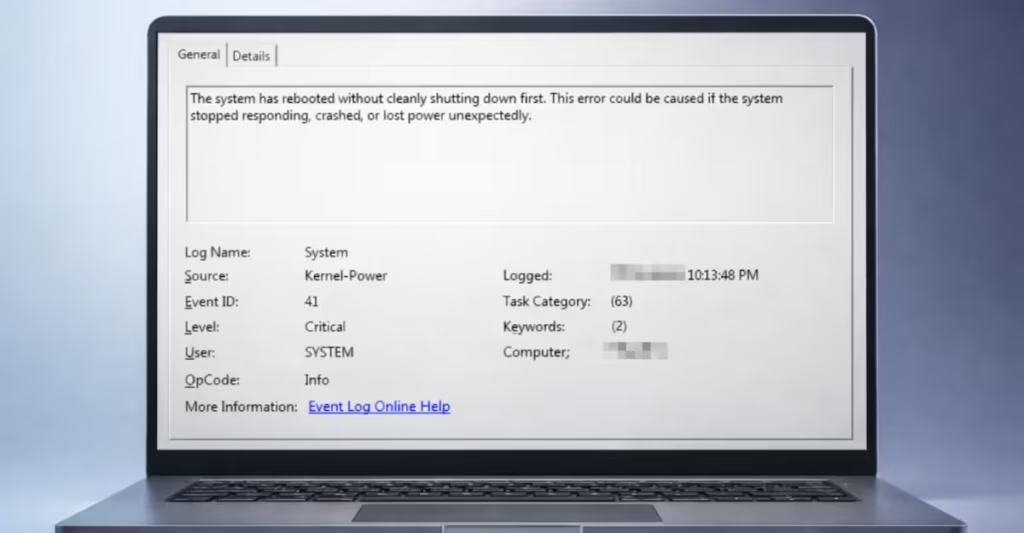
In many cases, the computer does not actually reboot. Instead, the system shuts down while idle, during sleep, or after inactivity, forcing users to power it on manually.
What Causes the “System Has Rebooted Without Cleanly Shutting Down First” Error
Windows records this message when the operating system detects an unexpected power loss or crash.
Common causes include:
- Sleep mode failures
- Power management conflicts
- Faulty GPU drivers
- BIOS or chipset issues
- Fast Startup conflicts
- Overheating or hardware instability
- Power adapter or battery problems
If the issue occurs only when the laptop is idle or asleep, the cause usually relates to power management or drivers.
Fix 1: Disable Hybrid Sleep
Hybrid Sleep combines sleep and hibernation. Some systems fail to wake properly from this state and shut down instead.
Steps
- Open Control Panel.
- Click Power Options.
- Select Change plan settings next to your active plan.
- Click Change advanced power settings.
- Expand Sleep.
- Set:
- Allow Hybrid Sleep → Off
- Hibernate after → Never
Restart the computer after applying the changes.
Fix 2: Disable Fast Startup
Fast Startup loads parts of Windows from a saved state. Driver conflicts can cause shutdown problems when the system wakes.
Steps
- Open Control Panel.
- Click Power Options.
- Select Choose what the power buttons do.
- Click Change settings that are currently unavailable.
- Uncheck Turn on fast startup.
- Click Save changes.
Restart the PC.
Fix 3: Prevent the Hard Disk from Powering Off
Windows can turn off storage devices during inactivity. Some systems fail to wake the drive properly.
Steps
- Open Control Panel.
- Go to Power Options.
- Click Change plan settings.
- Select Change advanced power settings.
- Expand Hard disk.
- Set:
- Turn off hard disk after → 0 (Never)
This change prevents storage sleep conflicts.
Fix 4: Reinstall or Roll Back Display Drivers
Graphics drivers control many background processes in Windows, including sleep and wake operations. A faulty driver can cause shutdowns during idle periods.
You can roll back the driver or reinstall a clean version from the GPU manufacturer.
Steps to reinstall the display driver
- Right-click the Start button.
- Open Device Manager.
- Expand Display adapters.
- Right-click your GPU.
- Select Uninstall device.
- Restart the computer.
- Download the latest driver from the GPU manufacturer website.
Install the driver and restart the system again.
Fix 5: Update BIOS and Chipset Drivers
Laptop manufacturers release firmware updates that fix power-management bugs.
Visit your laptop manufacturer’s support page and update:
- BIOS
- Intel or AMD chipset drivers
- System control interface drivers
- GPU drivers
These updates often resolve sleep-related shutdowns.
Fix 6: Disable USB Devices from Waking the Computer
External devices sometimes trigger faulty wake signals.
Steps
- Open Device Manager.
- Expand Universal Serial Bus controllers.
- Right-click each device and select Properties.
- Open the Power Management tab.
- Uncheck Allow this device to wake the computer.
Repeat the process for keyboards, mice, and network adapters.
Fix 7: Test by Disabling Sleep Mode
If the shutdown occurs only during inactivity, sleep mode may be the cause.
Steps
- Open Power Options.
- Set Put the computer to sleep → Never.
Use the system for several hours. If the shutdown stops, the issue relates to sleep or standby firmware.
Fix 8: Check the Power Adapter or Battery
Power interruptions can trigger the Kernel-Power error.
Check the following:
- Power adapter cable
- Charging port
- Battery health
- Loose power connections
A faulty adapter can cause random shutdowns when the laptop enters low-power states.
Additional Troubleshooting Tips
If the problem continues, try these checks:
- Run Windows Memory Diagnostic to test RAM.
- Check CPU and GPU temperatures.
- Scan the system with sfc /scannow.
- Perform a clean boot to identify conflicting software.
These steps help rule out hardware instability and software conflicts.
FAQs
What does “system has rebooted without cleanly shutting down first” mean?
The system has rebooted without cleanly shutting down first message means Windows detected that the computer shut down unexpectedly due to a crash, power loss, driver failure, or system freeze before completing the normal shutdown process.
What causes the “system has rebooted without cleanly shutting down first” error?
The system has rebooted without cleanly shutting down first error usually occurs because of sleep mode failures, GPU driver problems, power management conflicts, BIOS issues, overheating, faulty RAM, or sudden power interruptions.
How do I fix “system has rebooted without cleanly shutting down first” in Windows?
You can fix system has rebooted without cleanly shutting down first by disabling Hybrid Sleep, turning off Fast Startup, reinstalling display drivers, updating BIOS and chipset drivers, and adjusting power settings to prevent sleep-related shutdowns.
Is Kernel-Power Event ID 41 a hardware problem?
Kernel-Power Event ID 41 does not always indicate hardware failure. In many cases, driver issues, Windows power settings, or sleep mode conflicts trigger the error instead of faulty components.
Why does my laptop shut down during sleep instead of waking up?
If a laptop shuts down during sleep, it usually indicates a power management or driver issue, especially with GPU drivers, BIOS firmware, or Windows sleep settings.
Can faulty drivers cause the Kernel-Power 41 error?
Yes. Faulty or incompatible drivers, especially graphics, chipset, or power management drivers, can trigger system crashes or shutdowns that produce the Kernel-Power Event ID 41 error.
Does overheating cause the “system has rebooted without cleanly shutting down first” error?
Yes. If the CPU or GPU overheats, the system may shut down automatically to protect hardware, which can trigger the system has rebooted without cleanly shutting down first message in Event Viewer.
How do I check Kernel-Power errors in Windows?
Open Event Viewer → Windows Logs → System, then look for Critical events with Event ID 41 (Kernel-Power) to identify unexpected shutdowns recorded by Windows.

