By default, WordPress sidebar widgets show the same content on every post. This makes your sidebar static and less relevant.This method fixes that. It automatically shows different posts in your sidebar based on the category of the article being viewed. You do not need any plugin. The setup is lightweight, fast, and fully controlled through code.

How Dynamic Sidebar Posts Work in WordPress
This setup makes your sidebar dynamic and context-aware.
- Detects the current post
- Finds its category
- Fetches latest posts from the same category
- Excludes the current post
- Updates automatically for every article
Once added, your sidebar always shows relevant content without manual changes.
Why This Method Is Better Than Using a Plugin in WordPress
Most “related posts” or sidebar plugins add unnecessary overhead.
- Load extra scripts and styles
- Increase page size
- Slow down your site
- Limit customization
This code avoids all of that. It gives you full control with minimal impact on performance.
Where to Add This Code (Safe Method)
You should not edit your theme files directly if you are not comfortable with code. A small mistake in functions.php can break your entire site.
The safer and recommended method is to use a code snippet plugin.
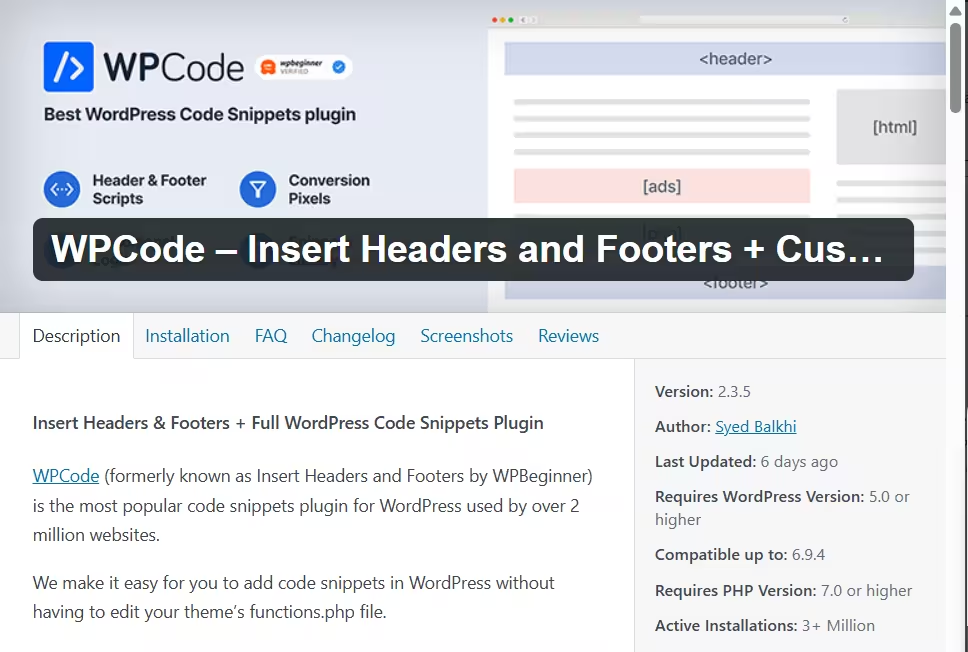
Install WPCode Plugin
WPCode lets you add custom PHP code without touching core theme files.
Step 1:
Go to: WordPress Dashboard → Plugins → Add New
Step 2:
Search for: WPCode – Insert Headers and Footers + Custom Code Snippets
Step 3:
Click Install and then Activate
Add the Code Using WPCode
Step 1:
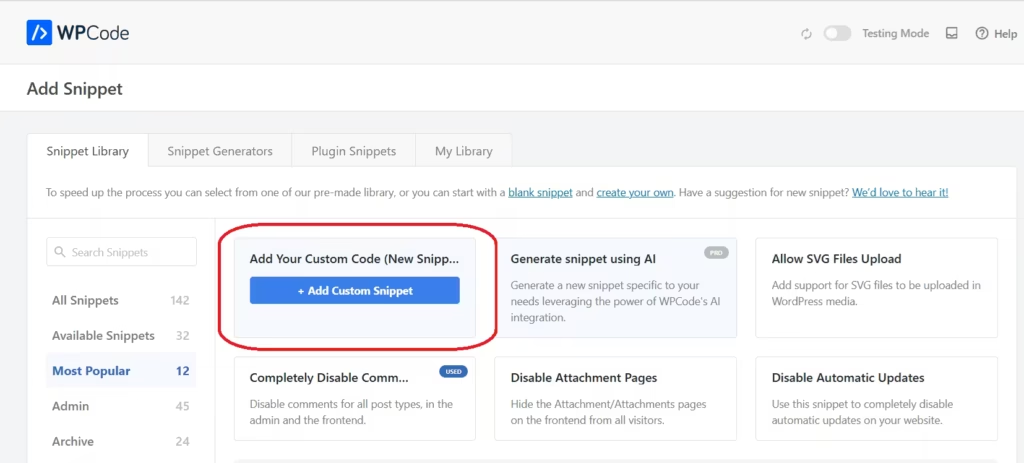
Go to: Code Snippets → Add Snippet
Step 2:
Click: Add Your Custom Code (New Snippet)
Step 3:
Set:
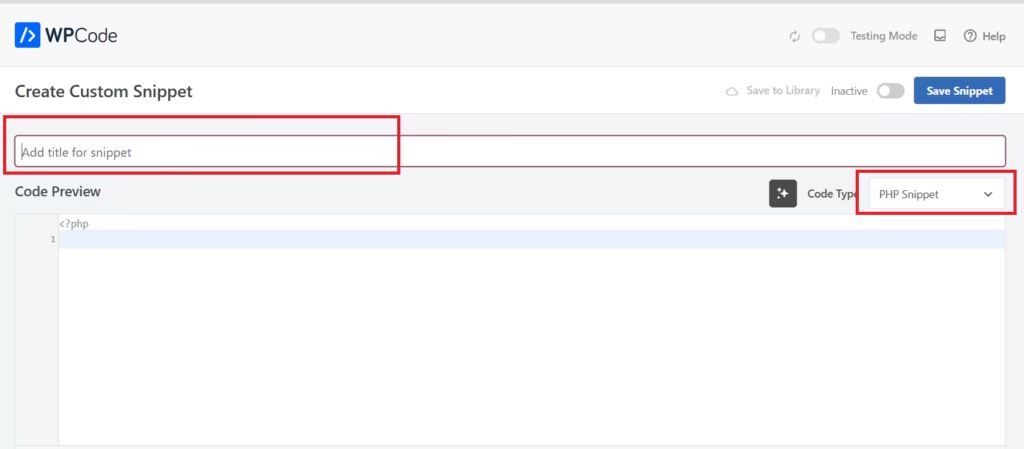
- Code Type: PHP Snippet
Step 4:
Give any name in the “Add Title” field for the snippet. Then paste your code into the code preview box. Make sure the Code Type is set to PHP Snippet.
add_shortcode('category_posts', function() {
    $args = [
        'posts_per_page'      => 6,
        'orderby'             => 'modified',
        'order'               => 'DESC',
        'post_status'         => 'publish',
        'ignore_sticky_posts' => true,
        'no_found_rows'       => true,
    ];    if (is_singular('post')) {
        $categories = get_the_category();
        if (!empty($categories)) {
            $args['cat']          = $categories[0]->term_id;
            $args['post__not_in'] = [get_the_ID()];
        }
    }    $query = new WP_Query($args);    if (!$query->have_posts()) return '';    $html = '<ul class="wp-block-latest-posts__list">';    while ($query->have_posts()) {
        $query->the_post();
        $html .= '<li><a href="' . esc_url(get_permalink()) . '">'
               . esc_html(get_the_title()) . '</a></li>';
    }    wp_reset_postdata();    $html .= '</ul>';    return $html;
});
Step 5:
Scroll down and set:
- Insertion: Auto Insert
- Location: Run Everywhere / Frontend Only
Set Location to “Run Everywhere” or “Frontend Only.” Both options work, but “Frontend Only” is enough for this use case.
Step 6:
Click “Save Snippet,” then “Activate.” Finally, purge your cache to ensure the changes take effect immediately.
Alternative (Advanced Users Only)
If you understand WordPress code and use a child theme, you can add this to:
Appearance → Theme File Editor → functions.php
Avoid editing the main theme file directly, because updates can overwrite your changes.
How to Use the Sidebar Widget
Once you have successfully saved and activated the PHP code, you need to display it in your sidebar.
Step 1:
Go to: Appearance → Widgets
Step 2:
Add a Shortcode block to your sidebar area
Step 3:
Paste this shortcode:
[category_posts]Step 4:
Click Save
This will activate the dynamic sidebar, and it will start showing posts based on the current article category.
What Happens After Setup
Once the setup is complete, the sidebar behaves differently based on where the user is on your site.


On Single Post Pages:
- If you open a tech category article, the sidebar shows tech posts only
- If you open a sports category article, the sidebar shows sports posts only
- If you open any other category article, the sidebar updates automatically to match that category
On Homepage, Archive, and Search Pages:
- The sidebar works like a normal latest posts widget
- It shows the most recent posts across all categories
Why This Improves User Experience
Without this setup:
- The sidebar shows a mix of latest posts from different niches
- Example: tech, sports, news all appear together
- This creates a less focused experience
With this setup:
- If a user opens a sports article, they see only sports-related posts
- If a user opens a tech article, they see only tech-related posts
This keeps the reader inside the same topic.
Real Advantage
Suppose you recently published 5 posts from different niches:
- Tech
- Sports
- Gaming
- News
- Guides
A normal sidebar shows all 5 mixed together.
But with this method:
- Opening a sports article → shows only sports posts
- Opening a tech article → shows only tech posts
This makes your content more relevant and increases engagement.
Customization Options
You can easily adjust behavior based on your needs.
Change number of posts
'posts_per_page' => 6,Change sorting
'orderby' => 'date',Show oldest instead
'order' => 'ASC',FAQs
What are dynamic sidebar posts in WordPress?
Dynamic sidebar posts automatically change based on the current article being viewed. Instead of showing the same content on every page, the sidebar displays posts from the same category as the active post.
How do I show sidebar posts based on category in WordPress without plugin?
You can use a custom PHP shortcode with WP_Query to fetch posts from the current post’s category. Add the code using a plugin like WPCode, then place the shortcode in your sidebar widget.
Does this method slow down WordPress?
No. This method is lightweight because it uses a simple WP_Query without loading extra scripts or styles. It performs faster than most related posts plugins.
Can I show posts from multiple categories instead of one?
Yes. You can modify the query to include multiple category IDs instead of using only the first category. This allows you to display a broader set of related posts.
Will this work on all WordPress themes?
Yes. This method works on any WordPress theme that supports widgets or shortcode blocks. It does not depend on theme-specific features.
How do I exclude the current post from sidebar results?
The code already handles this using post__not_in. It removes the current post from the query so it does not appear in the sidebar list.
Can I add featured images to sidebar posts?
Yes. You can extend the code to include get_the_post_thumbnail() inside the loop to display thumbnails along with post titles.
What happens if a post has no category?
If a post does not have a category, the query will not return results. You can add fallback logic to display recent posts instead.
Is this better than using a related posts plugin?
Yes for most cases. It avoids plugin bloat, improves performance, and gives you full control over how posts are displayed.
Can I control how many posts appear in the sidebar?
Yes. You can change the posts_per_page value in the code to show more or fewer posts based on your layout.
This approach replaces heavy plugins with a simple, efficient solution. Your sidebar becomes relevant to each article without any manual work.
Once implemented, it runs automatically and keeps your content aligned with what the reader is currently viewing. For most WordPress sites, this is all you need to maintain a clean and fast sidebar setup.

