If Windows 11 suddenly shows an AIXHost.exe error while opening Word or Excel, the pop-up can interrupt your workflow immediately. The message usually reads:
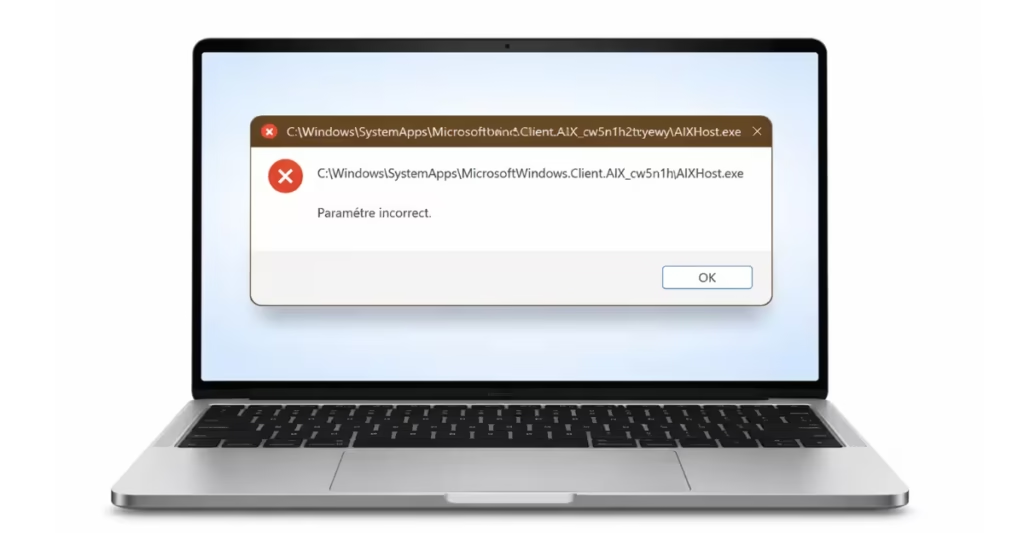
C:\Windows\SystemApps\MicrosoftWindows.Client.AIX_cw5n1h2txyewy\AIXHost.exe — The application is exiting and cannot service this request.This error comes from a built-in Windows AI system component called MicrosoftWindows.Client.AIX. When this component becomes corrupted or misconfigured, it triggers repeated error messages inside Office apps.
In this guide, you will learn exactly how to fix the AIXHost.exe error on Windows 11 step by step and stop the recurring pop-up permanently.
What Is AIXHost.exe?
AIXHost.exe belongs to:
MicrosoftWindows.Client.AIXThis is a protected Windows 11 system app. It supports AI-driven features like Copilot integration and background AI services.
You cannot uninstall it normally because Windows stores it inside the SystemApps folder.
When its system registration breaks, Windows throws the “application is exiting” message.
How to Fix AIXHost.exe Error on Windows 11
Follow these steps in order.
Step 1: Install All Windows Updates
Microsoft often fixes AIX issues silently through cumulative updates.
- Open Settings
- Click Windows Update
- Click Check for updates
- Install everything — including optional updates
- Restart your PC
Now test Word or Excel again.
Step 2: Repair Windows System Files
Corrupted system files commonly trigger this error.
- Right-click Start
- Select Terminal (Admin) or Command Prompt (Admin)
Run this command:
sfc /scannowWait until it reaches 100%.
Then run:
DISM /Online /Cleanup-Image /RestoreHealthRestart your PC.
These commands repair damaged Windows components.
Step 3: Repair Microsoft Office
Since the error often appears when opening Word or Excel, repair Office.
- Open Settings
- Go to Apps → Installed Apps
- Find Microsoft 365 / Office
- Click the three dots → Advanced Options
- Click Repair
- Restart
If the error continues, repeat the steps and choose Reset.
Step 4: Re-Register the AIX Component
If the problem persists, re-register the AIX system package.
- Right-click Start
- Select Windows Terminal (Admin)
- Run:
Get-AppxPackage -allusers MicrosoftWindows.Client.AIX | Reset-AppxPackageRestart your PC.
If Windows shows an error, re-register all system apps:
Get-AppxPackage -allusers | ForEach {Add-AppxPackage -DisableDevelopmentMode -Register "$($_.InstallLocation)\AppXManifest.xml"}This process may take several minutes.
Step 5: Perform an In-Place Repair Upgrade (Keeps Files)
If none of the above fixes work, refresh Windows system components.
- Download the latest Windows 11 ISO from Microsoft’s official site.
- Mount the ISO.
- Run setup.exe
- Choose Keep personal files and apps
- Complete installation.
This process reinstalls Windows core components without deleting data.
Step 6: Clean Reinstall Windows 11 (Last Resort)
If the error still appears after a repair upgrade, perform a clean install.
Users reported that a full reinstall permanently removed the AIXHost.exe error.
Before you proceed:
- Back up important files
- Export browser passwords
- Save Office activation details
- Note your Windows license
Then reinstall Windows 11 using the official Media Creation Tool.
Why This Error Happens
The AIX component runs with system-level permissions. When its package registration becomes corrupted, Windows does not always repair it automatically.
Office apps trigger AIX services. When the service fails, Windows displays the pop-up.
What You Should NOT Do
- Do not delete the SystemApps folder
- Do not remove AIXHost.exe manually
- Do not download third-party “DLL repair” tools
- Do not disable random Windows services
These actions can break Windows further.
Start with Windows Update and SFC scan. Most users fix the problem at that stage. If the issue continues, perform an in-place upgrade.
Use a clean reinstall only if every other method fails.

