After updating to macOS Sequoia 15.7.4, some users discover that their APFS-encrypted external SSD suddenly refuses to unlock. The drive still appears in Disk Utility, but Finder no longer shows it and attempts to unlock it trigger errors like “A problem was detected with the disk that prevents it from being unlocked.” In many cases, First Aid also fails, leaving users worried that their data is gone.
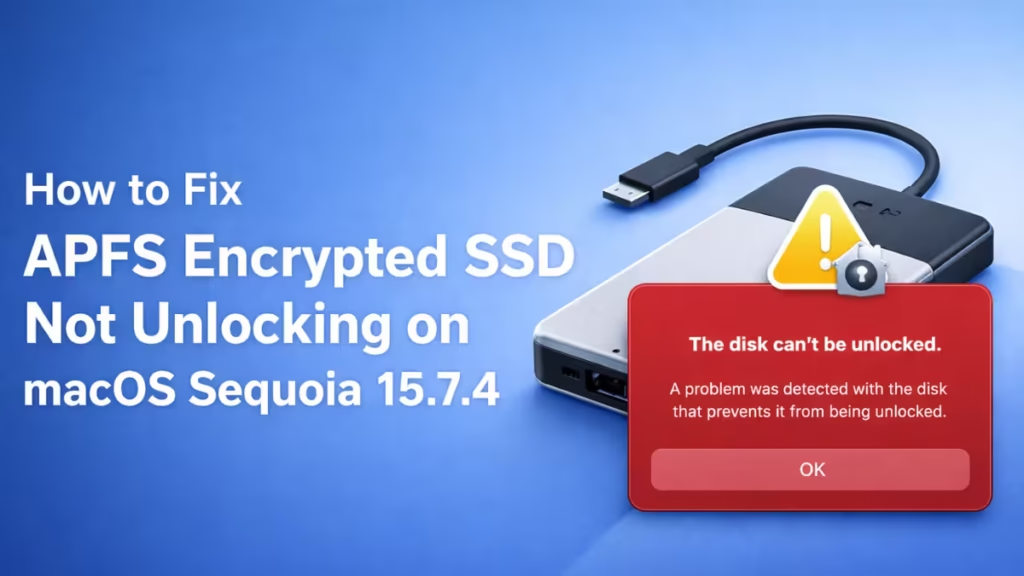
However, this issue rarely means data loss. It usually stems from an APFS encryption handling problem introduced with the Sequoia update. This guide explains why the error occurs and walks you through safe, step-by-step methods to unlock your SSD without risking permanent data damage.
Step 1: Try Unlocking via Terminal (Most Effective Fix)
Disk Utility often fails. Terminal works more reliably.
Open Terminal
Go to Applications → Utilities → Terminal
Identify Your Disk
Run:
diskutil listFind your encrypted volume. It will look like:
/dev/disk5s1 (APFS Volume, Encrypted)Take note of the identifier (example: disk5s1).
Unlock Manually
Run:
diskutil apfs unlockVolume disk5s1Enter your password carefully.
If successful, the drive mounts immediately.
Step 2: Unlock Using Volume UUID (Fix for -69552 Error)
If you see:
Error getting list of cryptographic users for apfs volume (-69552)Try unlocking using the UUID instead of the disk number.
Get the UUID
Run:
diskutil apfs listCopy the Volume UUID of the encrypted drive.
Unlock Using UUID
diskutil apfs unlockVolume <UUID>This bypasses certain device-path issues introduced in Sequoia.
Step 3: Unlock From macOS Recovery Mode
If normal macOS fails, use Recovery Mode. It loads a separate APFS environment.
On Apple Silicon (M1, M2, M3)
- Shut down your Mac.
- Press and hold the power button.
- Select Options → Continue.
- Open Utilities → Terminal.
Run:
diskutil list
diskutil apfs unlockVolume disk5s1
Recovery mode succeeds in many cases where standard macOS fails.
Step 4: Check If the Container Is Locked
Sometimes the container — not just the volume — is locked.
Run:
diskutil apfs listIf you see a container like:
APFS Container Reference: disk5Try:
diskutil apfs unlockContainer disk5Then attempt to unlock the volume again.
Step 5: Try the Drive on Another Mac (Ventura or Sonoma)
If Sequoia still refuses to unlock it:
- Connect the SSD to another Mac
- Preferably running Ventura or Sonoma
- Attempt to unlock normally
Older APFS stacks sometimes succeed where Sequoia fails.
Do Not Try These Fixes on an APFS Encrypted Drive
Do not:
- Erase the drive
- Reformat it
- Convert it to another format
- Force “repair disk” repeatedly
- Use random third-party repair tools
These actions can permanently destroy encrypted data.
When the Drive Still Won’t Unlock
If all methods fail and you continue to see:
Error getting list of cryptographic users (-69552)The likely cause is damaged APFS encryption metadata.
This does not automatically mean data loss. It means:
- The crypto user record cannot be read
- The encryption key may still exist
At this stage:
- Try another Mac
- Contact Apple Support
- Consider professional APFS-aware recovery tools
Do not experiment further.
FAQs
Why is my APFS encrypted SSD not unlocking on macOS Sequoia?
macOS Sequoia 15.7.4 can break APFS encryption metadata, preventing the system from reading the unlock records even when the password is correct.
Does this error mean my SSD data is lost?
No. In most cases, the data still exists on the disk. The issue affects the unlock process, not the encrypted files themselves.
Can Disk Utility First Aid fix an APFS encrypted SSD?
No. First Aid cannot repair encrypted APFS volumes that are locked. It often fails with error codes like -69502.
Is it safe to erase or reformat the encrypted SSD?
No. Erasing or reformatting permanently deletes all encrypted data and should only be done if recovery is no longer needed.
Why does Terminal show error -69552 when unlocking the disk?
Error -69552 means macOS cannot read the cryptographic user record required to unlock the APFS encrypted volume.
Can I unlock the SSD using the correct password?
Yes, in many cases. Using Terminal or macOS Recovery mode often succeeds even when Finder and Disk Utility fail.
Will connecting the SSD to another Mac help?
Sometimes. Older macOS versions like Ventura or Sonoma may unlock the drive when Sequoia cannot.
Should I disable encryption to fix the issue?
No. Disabling encryption requires unlocking the disk first and may cause irreversible data loss if forced.
macOS Sequoia 15.7.4 introduced subtle APFS changes that affect some encrypted external SSDs. The issue looks severe, but in many cases it resolves with manual unlocking through Terminal or Recovery Mode.
Start with the least invasive fix. Avoid destructive actions. Work methodically. If your SSD worked before the update, there is a strong chance your data is still recoverable.

