If you see the error “api-ms-win-core-winrt-l1-1-0.dll is missing” while opening Adobe Acrobat or Adobe Reader on Windows 7, the issue is not a corrupted file. The error happens because newer Adobe builds depend on Windows components that Windows 7 does not support.
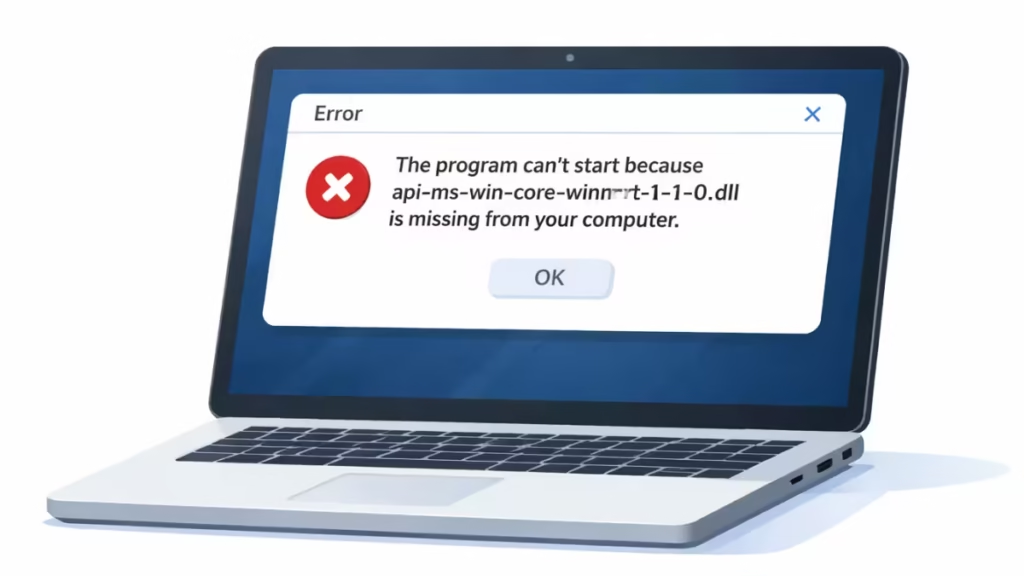
What Causes the api-ms-win-core-winrt-l1-1-0.dll Error
Windows 7 does not include modern WinRT (Windows Runtime) libraries. Recent Adobe Acrobat and Reader updates expect these libraries to exist.
When Adobe loads at startup, Windows fails to resolve the missing WinRT dependency. As a result, the app crashes before it opens and throws the DLL error.
Reinstalling the same Adobe version usually fails because the dependency problem remains unchanged.
Step 1: Confirm You Are on Windows 7
Before applying any fix, confirm your OS version.
- Press Windows + R
- Type winver
- Press Enter
If the window shows Windows 7, this guide applies to your system.
Step 2: Use System Restore (Fastest Fix)
If the error appeared after a recent Adobe update, System Restore often fixes it immediately.
- Click Start
- Type System Restore
- Select Restore your computer to an earlier time
- Choose a restore point created before the error started
- Complete the restore and restart the PC
After restart, launch Adobe Acrobat or Reader and confirm it opens normally.
Step 3: Fully Remove the Broken Adobe Installation
If System Restore is unavailable or ineffective, remove Adobe completely.
- Open Control Panel
- Go to Programs and Features
- Uninstall Adobe Acrobat or Adobe Reader
- Restart your computer
Do not reinstall Adobe yet.
Step 4: Install a Windows 7–Compatible Adobe Version
Some newer Adobe builds break Windows 7 compatibility. Installing a compatible older build resolves the error.
Important rules before installing:
- Use official Adobe installers only
- Avoid “DLL fix” or “patched” installers
- Do not copy DLL files manually into system folders
After installation, launch Adobe once to confirm it opens correctly.
Step 5: Disable Automatic Adobe Updates
Automatic updates can reinstall the broken version.
- Open Adobe Acrobat / Reader
- Go to Edit → Preferences
- Select Updater
- Choose Do not download or install updates automatically
- Save and exit
This prevents the error from returning unexpectedly.
Things You Should Avoid When Fixing This Windows 7 DLL Error
1. Do NOT Download DLL Files from Random Websites
Manually adding system DLL files can:
- introduce malware
- break system stability
- cause new startup errors
This error is not caused by a missing file, but by an unsupported Windows component.
2. Do NOT Copy DLL Files from Windows 10 or 11
Windows system DLLs are version-specific. Copying them can corrupt Windows 7 and lead to boot failures.
Alternative: Use a Non-Adobe PDF Reader
If Adobe continues to cause issues on Windows 7, switch to a lightweight PDF reader that still supports legacy systems.
This option avoids WinRT dependency problems and improves long-term stability on older hardware.
The api-ms-win-core-winrt-l1-1-0.dll error on Windows 7 does not indicate a damaged file. It occurs because newer Adobe builds rely on Windows features that Windows 7 does not support.
Use System Restore, reinstall a compatible Adobe version, and disable auto-updates to keep the fix stable. Avoid downloading DLL files or patched installers, as they create bigger problems later.

