Keeping device drivers up to date is essential for system stability, hardware compatibility, and overall performance. While Windows Update installs many drivers automatically, it does not always provide the latest versions for graphics cards, audio devices, network adapters, or peripherals.

This is where automatic driver update software becomes useful. These tools scan your system, identify outdated or missing drivers, and install compatible updates with minimal user effort—saving time and reducing manual work.
See also: Best Driver Update Tools for Windows 11 (2026 Guide)
Why You Need Automatic Driver Update Software?
Let’s understand why automatic tools are useful and when they make sense. Automatic driver update software is designed to:
- Scan your hardware and installed drivers
- Compare versions against large driver databases
- Download compatible updates
- Install drivers safely with restore or rollback options
They are especially helpful if:
- Device Manager shows missing or unknown devices
- Hardware features are not working correctly
- You recently reinstalled Windows
- You want faster updates without manual searching
Quick Comparison: Automatic Driver Update Software
| Software | Free Version | Automatic Install | Backup & Restore | Best For |
|---|---|---|---|---|
| Driver Booster | Yes | Yes | Yes | Best overall for most users |
| AVG Driver Updater | Trial only | Yes | Yes | Premium, hands-off experience |
| Snappy Driver Installer | Yes | Manual | Partial | Power users & offline installs |
| Driver Easy | Scan only | Pro only | Yes | Beginners |
| EaseUS DriverHandy | Yes | Yes | Yes | Lightweight alternative |
Driver Booster – Best Overall for Most Users
Driver Booster is one of the most popular driver update tools for Windows. It focuses on ease of use, automation, and safety.

Key Features
- One-click scanning and updating
- Large driver database covering graphics, audio, network, and input devices
- Automatic restore point creation before updates
- Driver backup and rollback options
Pros
- Beginner-friendly interface
- Free version available
- Works well on Windows 10 and Windows 11
Cons
- Free version limits updates per session
- Upgrade prompts for Pro version
Best for: Home users and gamers who want simple, mostly automatic driver updates.
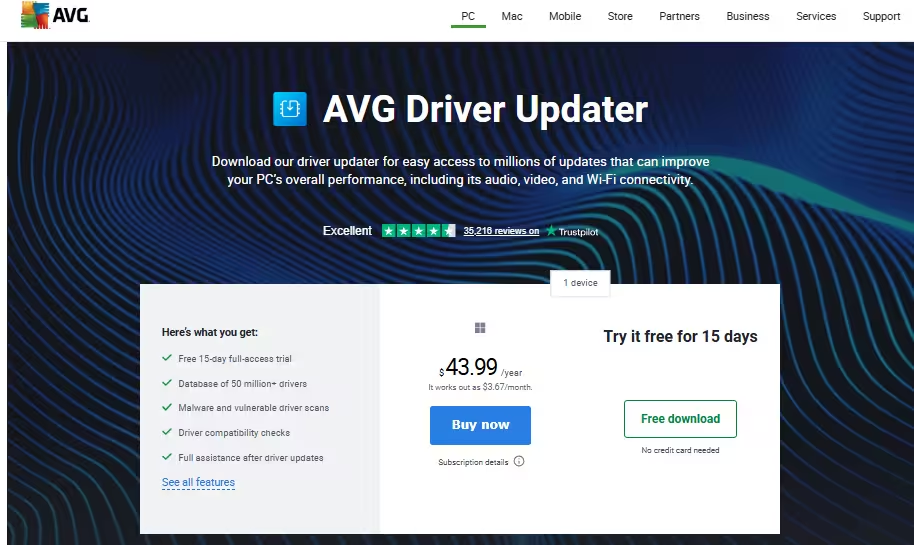
AVG Driver Updater – Best Premium Option
AVG Driver Updater is a paid tool designed for users who want a polished, subscription-based solution backed by a well-known security company.
Key Features
- Automatic background scanning
- Certified driver sources
- Real-time monitoring for driver-related issues
Pros
- Clean and professional interface
- Stable update process
Cons
- No fully free version
- Subscription required
Best for: Users who want a premium, low-maintenance driver update solution.
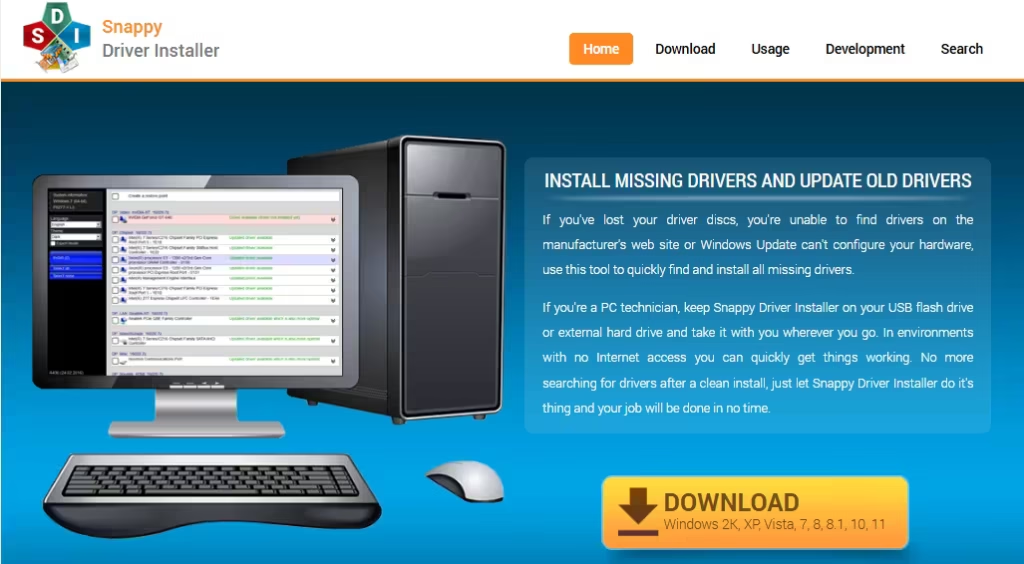
Snappy Driver Installer – Best Free & Open-Source Tool
Snappy Driver Installer (SDI) is a powerful open-source option with no ads or subscriptions.
Key Features
- Completely free and open-source
- Offline driver pack support
- Portable version available
Pros
- No ads or upsells
- Excellent for offline systems
Cons
- Interface is less beginner-friendly
- Requires careful selection of drivers
Best for: Advanced users and technicians who want full control.
Driver Easy – Simple and Beginner-Friendly
Driver Easy offers a clean and easy approach to driver updates, especially for less technical users.
Key Features
- Hardware detection and scanning
- Manual install (free version)
- Automatic install (Pro version)
Pros
- Easy to understand
- Reliable for common hardware
Cons
- Automatic installs require Pro version
Best for: Beginners who want a straightforward tool.
EaseUS DriverHandy – Lightweight Alternative
EaseUS DriverHandy focuses on simplicity and essential features.
Key Features
- Automatic driver scanning
- Backup and restore options
Pros
- Simple interface
- Free version available
Cons
- Smaller driver database
- Fewer advanced controls
Best for: Users looking for a basic, lightweight driver updater.
Are Driver Update Tools Safe?
Driver updater software can be safe when used correctly and downloaded from official sources. However, updating drivers unnecessarily can introduce issues.
Best practices
- Create a restore point before updating
- Update only drivers that are outdated or causing issues
- Use official GPU tools for graphics drivers when possible
In many cases, Windows Update already provides stable drivers, so third-party tools should be used selectively.
FAQs
What is automatic driver update software?
Automatic driver update software scans your PC for outdated drivers and installs compatible updates without manual searching.
Is automatic driver update software safe to use?
Yes, if downloaded from trusted sources and used with restore points, automatic driver update software is generally safe.
Does Windows Update already update drivers?
Windows Update installs many drivers, but it may not always provide the latest versions for all hardware.
Which is the best automatic driver update software for Windows?
Driver Booster is a popular choice for most users, while Snappy Driver Installer is preferred by advanced users.
Are free driver updater tools reliable?
Some free tools are reliable, especially open-source options, but users should avoid unknown or aggressive software.
Can driver updates improve PC performance?
Yes, updated drivers can improve stability, compatibility, and performance, especially for graphics and network hardware.
Do driver updates cause system problems?
Incorrect drivers can cause issues, which is why backup and rollback features are important.
Should I update all drivers automatically?
Only update drivers that are outdated or causing issues to avoid unnecessary system changes.

