Windows 11 is more stable and secure than earlier versions, but it is not immune to problems. Over time, users may face slow performance, system crashes, corrupted files, Windows Update failures, startup issues, or unexplained errors. This is where PC repair utilities for Windows 11 become essential.
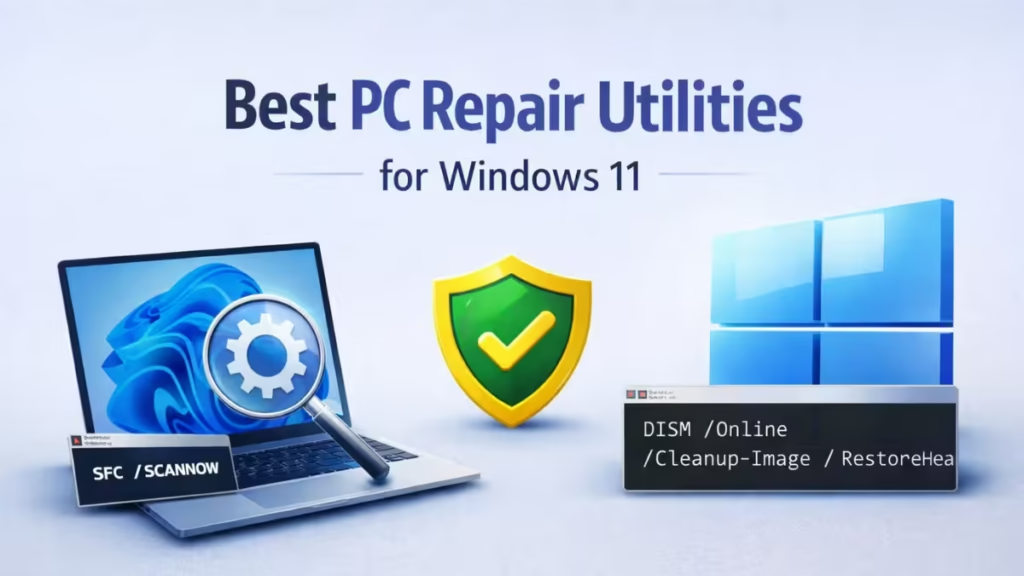
Some repair tools are built directly into Windows, while others are third-party utilities designed to automate fixes, clean system junk, repair registry issues, and restore damaged system files. Choosing the right tool depends on the type of problem you are facing.
Built-In Windows 11 Repair Utilities (Free & Official)
Before using third-party software, it is always recommended to start with Windows’ own repair tools. These are safe, reliable, and designed specifically for Windows 11.
1. System File Checker (SFC)
System File Checker scans protected Windows system files and automatically replaces corrupted or missing files with healthy versions stored by Windows.
Best used when: Windows apps crash, system features stop working, or errors appear after updates.

How to open and run SFC in Windows 11:
- Press Windows + S and type Command Prompt
- Right-click Command Prompt and select Run as administrator
- In the Command Prompt window, type:
sfc /scannow - Press Enter and wait for the scan to complete
This is often the first repair tool Windows 11 users should try.
2. DISM (Deployment Image Servicing and Management)
DISM repairs the Windows system image, which SFC depends on to function properly. If the system image is damaged, SFC may fail to fix errors.
Useful when: SFC cannot fix errors, Windows Update fails, or upgrade issues occur.

How to open and run DISM in Windows 11:
- Press Windows + S and search for Command Prompt
- Right-click it and choose Run as administrator
- Enter the following command:
DISM /Online /Cleanup-Image /RestoreHealth - Press Enter and allow the process to finish
For best results, run DISM first, then run SFC again.
3. System Restore and Windows Recovery Environment
System Restore allows you to roll Windows 11 back to a previous stable state without deleting personal files. Windows Recovery Environment (WinRE) provides advanced repair tools when Windows does not start normally.
Ideal when: Problems start after driver updates, Windows updates, or software installations.
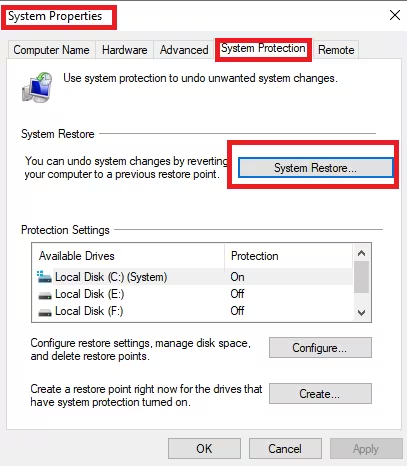
How to open System Restore in Windows 11:
- Press Windows + S and type Create a restore point
- Open it and click System Restore
- Choose a restore point and follow the on-screen steps
How to open Windows Recovery Environment:
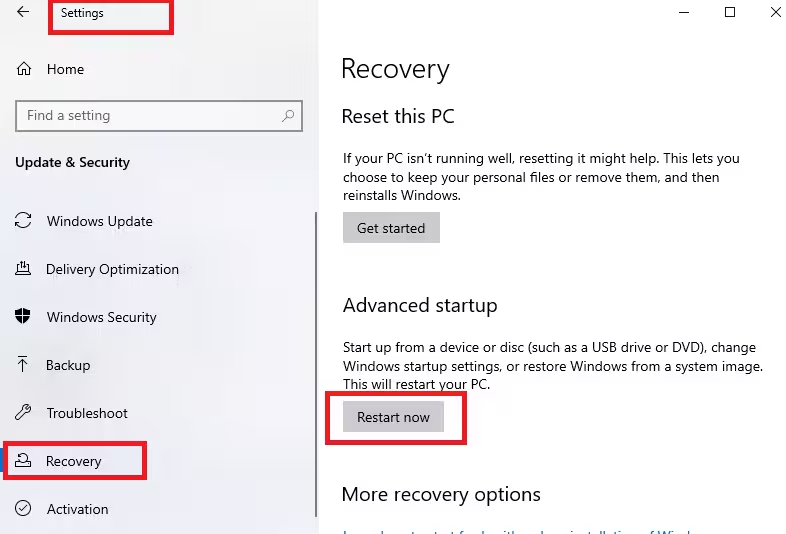
- Go to Settings → Update & Security → Recovery
- Under Advanced startup, click Restart now
- Choose Troubleshoot to access Startup Repair, Safe Mode, Reset options, and more
This is one of the safest recovery methods built into Windows 11.
4. Microsoft PC Manager
Microsoft PC Manager is an official Microsoft utility designed to improve system health and basic performance through cleanup and monitoring tools.
Useful for: Routine maintenance and quick system checks.
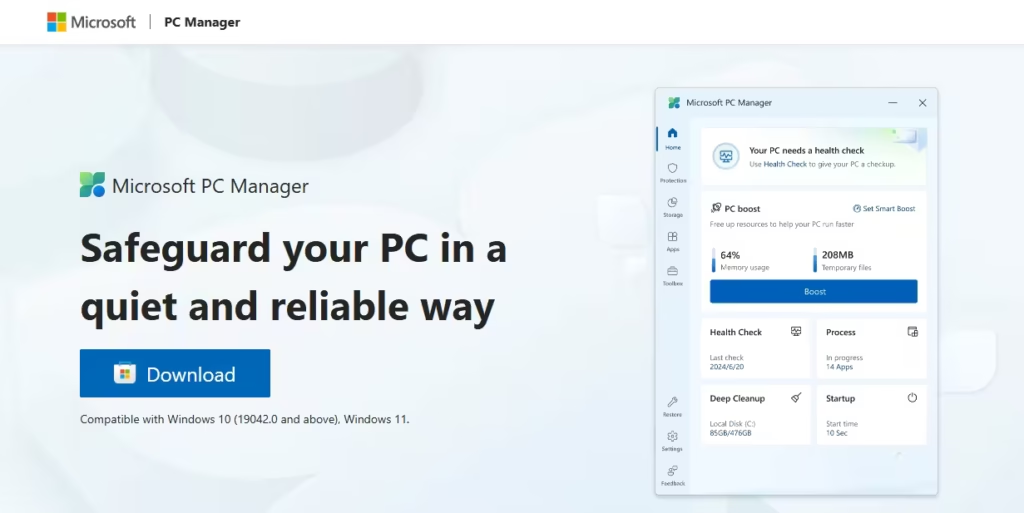
How to open Microsoft PC Manager in Windows 11:
Since Microsoft PC Manager is not preinstalled and may not appear in Windows Search or Microsoft Store in all regions, the safest way to get it is through Microsoft’s official website.
Download from the Official Microsoft Website (Recommended)
- Open any web browser on your Windows PC
- Visit the official Microsoft PC Manager page: https://pcmanager.microsoft.com
- Click the Download button on the page
- Run the downloaded installer and complete the installation
- Launch Microsoft PC Manager manually after installation
Once installed, Microsoft PC Manager will appear in Start Search, and you can open it like any other app.
Best Third-Party PC Repair Utilities for Windows 11
When built-in tools are not enough, third-party repair utilities offer advanced automation, system cleanup, and one-click fixes.
1. Windows Repair (All-in-One) by Tweaking.com
This tool focuses on repairing core Windows components rather than optimization.
- Repairs Windows Update, firewall, registry permissions, and services
- Creates automatic backups before applying fixes
- Suitable for systems with multiple Windows errors
It is one of the most trusted deep repair tools for Windows.
2. Advanced SystemCare
Advanced SystemCare is an all-in-one utility combining repair, cleanup, and performance optimization.
- Cleans junk files and invalid registry entries
- Improves startup speed and system responsiveness
- Includes real-time protection in paid versions
Best for users who want automatic maintenance and performance improvement.
3. CCleaner
CCleaner is widely known for system cleanup and startup optimization.
- Removes temporary files and browser clutter
- Manages startup programs
- Includes basic registry cleanup
It is ideal for routine system maintenance, not deep repairs.
4. AVG PC TuneUp
AVG PC TuneUp focuses on system optimization with automated maintenance.
- Removes unused files and background apps
- Improves boot speed
- Simplifies system cleanup for beginners
It is best for users who want a hands-off optimization experience.
5. Windows Repair Toolbox
Windows Repair Toolbox is a portable repair launcher used by technicians.
- Organizes multiple trusted repair tools in one interface
- Runs built-in Windows commands like SFC, DISM, and CHKDSK
- Downloads and updates third-party repair utilities automatically
This tool is best for advanced users and IT troubleshooting.
Which PC Repair Tool Should You Use?
Choosing the right tool depends on your problem.
- For system file corruption: SFC and DISM
- For Windows Update or service failures: Windows Repair (Tweaking.com)
- For cleanup and speed issues: CCleaner or Advanced SystemCare
- For professional troubleshooting: Windows Repair Toolbox
Always start with built-in Windows tools, then move to third-party utilities if needed.
FAQs
What are PC repair utilities for Windows 11?
PC repair utilities for Windows 11 are software tools designed to diagnose and fix system problems such as corrupted files, Windows update failures, slow performance, startup errors, and system crashes, helping keep the operating system stable and responsive.
Are PC repair utilities safe to use on Windows 11?
Yes, PC repair utilities are safe to use on Windows 11 when downloaded from official sources and used correctly, but users should always create a restore point or backup before running deep repair or registry-related fixes.
Which is the best PC repair utility for Windows 11?
The best PC repair utility for Windows 11 depends on the issue, as built-in tools like SFC and DISM are ideal for system file corruption, while third-party tools such as Windows Repair, FixWin 11, and Restoro are better suited for advanced or recurring problems.
Does Windows 11 have built-in PC repair tools?
Yes, Windows 11 includes built-in PC repair tools such as System File Checker (SFC), DISM, System Restore, Startup Repair, and the Windows Recovery Environment, which can fix many common system issues without third-party software.
Can PC repair software fix Windows 11 update errors?
PC repair software can help fix Windows 11 update errors by repairing corrupted system files, resetting update components, fixing service permissions, and resolving background service conflicts that block updates.
Do PC repair utilities improve performance on Windows 11?
PC repair utilities can improve performance on Windows 11 by cleaning junk files, fixing registry errors, disabling unnecessary startup programs, and repairing damaged system components that slow down the system.
Is registry cleaning safe on Windows 11?
Registry cleaning on Windows 11 is generally safe when done using trusted tools, but it should be used cautiously because aggressive or unnecessary registry changes can sometimes cause system instability.
Can PC repair tools fix blue screen errors in Windows 11?
Some PC repair tools can help fix blue screen errors in Windows 11 by repairing corrupted system files, resolving driver conflicts, and fixing Windows service issues, though hardware problems may require manual diagnosis.
Should I use free or paid PC repair utilities for Windows 11?
Free PC repair utilities are sufficient for basic issues like file corruption or minor bugs, while paid PC repair utilities are more useful for advanced repairs, automated maintenance, and persistent system errors.
How often should I use PC repair utilities on Windows 11?
PC repair utilities should be used only when needed, such as when errors occur or performance drops, rather than running aggressive repairs frequently, to avoid unnecessary system changes.
Can PC repair utilities replace reinstalling Windows 11?
In many cases, PC repair utilities can fix Windows 11 problems without reinstalling the operating system, but if system corruption is severe, a clean Windows reinstall may still be the final solution.
Are PC repair utilities better than resetting Windows 11?
PC repair utilities are often better than resetting Windows 11 because they target specific issues and preserve installed apps and settings, whereas resetting Windows removes programs and requires reconfiguration.
PC-repair utilities play a critical role in maintaining Windows stability, performance, and reliability. While Windows provides powerful built-in tools, third-party utilities add convenience, automation, and deeper repair options.
For best results, combine official Windows repair tools with trusted third-party utilities, and always use them responsibly. With the right approach, most Windows 11 problems can be fixed without data loss or costly repairs.

