A slow Windows PC is often not a hardware problem. Over time, temporary files, unused startup apps, background services, and leftover system data can quietly reduce performance. This is where system optimization tools for Windows PCs become useful — when used correctly.
What Are System Optimization Tools in Windows?
System optimization tools are utilities designed to improve how Windows runs by:
- Removing junk and temporary files
- Managing startup programs
- Optimizing background services
- Freeing system resources
- Improving boot and app launch times
- Repairing minor system inconsistencies
They do not magically upgrade hardware, but they do help Windows run cleaner and more efficiently.
Best System Optimization Tools for Windows PCs
1. Microsoft PC Manager – Best Free Official Tool for Windows PCs
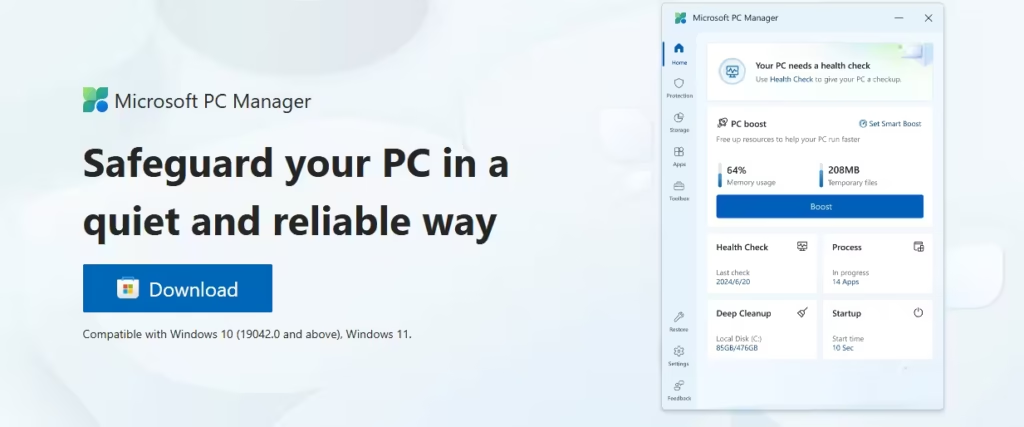
Microsoft PC Manager is Microsoft’s own optimization utility for Windows 10 and 11.
Key features
- Storage cleanup: Safely removes temporary files, cache data, and unused system files using Windows-approved cleanup methods.
- Startup app management: Lets users disable unnecessary startup programs to improve boot time and reduce background resource usage.
- Health checks: Scans for common performance issues like high memory usage, background processes, and storage clutter, then suggests safe fixes.
- Integrated with Windows security: Works smoothly with Windows Security and Microsoft Defender without causing conflicts.
Why it’s safe
- Developed by Microsoft: Follows official Windows performance and security guidelines for maximum compatibility and stability.
- No aggressive registry edits: Avoids risky registry cleaning that can cause crashes or system errors.
- Clean, simple interface: Offers clear options without misleading alerts or exaggerated performance claims.
Best for
- Windows 11 users: Optimized for modern Windows versions and updated alongside Windows feature releases.
- Users who prefer official tools: Ideal for those who trust Microsoft software over third-party optimizers.
- Basic optimization needs: Best suited for routine cleanup, startup control, and maintaining overall system stability.
See also: Best Driver Update Tools for Windows 11
2. CCleaner – Best for Safe, Everyday Cleanup
CCleaner remains one of the most widely used Windows optimization tools for a reason: it focuses on safe cleanup rather than aggressive system changes.
Key features
- Removes temporary files, cache, and unused data
- Browser cleanup for Chrome, Edge, Firefox
- Startup app manager
- Optional registry cleaner (use carefully)
Why it ranks well
- Very low risk
- Simple interface
- Good for routine maintenance
Best for
- Regular PC cleanup
- Older or mid-range Windows PCs
- Users who want control without complexity
3. IObit Advanced SystemCare – Best All-in-One Optimization Tool
Advanced SystemCare is designed for users who want one-click optimization without understanding technical details.
Key features
- Junk file and registry cleanup
- Startup optimization
- Performance boost mode
- Privacy protection tools
- Automatic maintenance (Pro version)
Why it stands out
- Beginner-friendly
- Combines multiple optimization tasks
- Works well on slower systems
Best for
- Non-technical users
- PCs that feel sluggish overall
- Automated maintenance needs
4. Ashampoo WinOptimizer – Best for Advanced Control
Ashampoo WinOptimizer offers a more modular and transparent approach to system optimization.
Key features
- Disk cleanup and privacy cleaning
- Startup and service manager
- Windows tuning modules
- System health monitoring
- Clear explanations for each fix
Why it’s trusted
- Shows exactly what it changes
- Good balance between automation and control
- Suitable for power users
Best for
- Users who want detailed optimization
- Custom Windows tuning
- Controlled performance improvements
5. AVG TuneUp – Best for Automatic Performance Maintenance
AVG TuneUp focuses on background optimization, keeping Windows responsive without manual effort.
Key features
- Sleep Mode for unused apps
- Startup optimization
- Disk and browser cleanup
- Automatic software updates
Why it’s effective
- Reduces background resource usage
- Improves boot time noticeably
- Minimal user interaction required
Best for
- Laptops and work PCs
- Long-term performance maintenance
- Users who prefer “set and forget” tools
See also: Best Driver Update Tools for Windows 11
6. Fortect – Best for Cleanup + System Repair
Fortect combines system cleanup with OS repair, which makes it different from standard optimizers.
Key features
- Junk and registry cleanup
- Malware detection
- Repair of corrupted system files
- Stability improvement tools
Why it matters
- Useful when Windows feels unstable
- Helps after crashes or failed updates
- Focuses on system integrity
Best for
- PCs with frequent errors
- System instability issues
- Users needing repair + optimization
7. Razer Cortex – Best Optimization Tool for Gaming PCs
Razer Cortex is not a general cleaner. It is a gaming performance optimizer.
Key features
- Closes background processes while gaming
- Frees RAM and CPU resources
- Game launcher and FPS monitoring
Why gamers use it
- Helps low-end or mid-range gaming PCs
- Reduces background interference
- Simple gaming-focused optimization
Best for
- Gaming PCs
- FPS-sensitive games
- Systems with limited RAM
Comparison: Which Tool Should You Choose?
| Best Tool | Use Case |
|---|---|
| Microsoft PC Manager | Free & official Windows tool |
| CCleaner | Simple cleanup |
| IObit Advanced SystemCare | All-in-one optimization |
| Ashampoo WinOptimizer | Advanced tuning |
| AVG TuneUp | Automatic maintenance |
| Fortect | Repair + optimization |
| Razer Cortex | Gaming performance |
Are System Optimization Tools Actually Safe?
Yes — when used responsibly.
Best practices
- Avoid aggressive registry cleaning
- Create a restore point before major changes
- Use trusted tools only
- Do not install multiple optimizers together
Windows already has built-in tools, but third-party optimizers save time and centralize maintenance.
FAQs
What are the best system optimization tools for Windows PCs?
The best system optimization tools for Windows PCs include CCleaner, IObit Advanced SystemCare, Ashampoo WinOptimizer, AVG TuneUp, Fortect, Razer Cortex, and Microsoft PC Manager, as these tools help clean junk files, manage startup programs, reduce background usage, and improve overall system performance without harming Windows stability.
Do system optimization tools really improve Windows PC performance?
System optimization tools can improve Windows PC performance by removing temporary files, disabling unnecessary startup apps, and freeing system resources, but they do not upgrade hardware; their main benefit is keeping Windows clean, responsive, and efficient over time.
Are system optimization tools safe to use on Windows 10 and Windows 11?
Yes, most reputable system optimization tools are safe to use on Windows 10 and Windows 11 when used correctly, especially tools from trusted developers, and users should avoid aggressive registry cleaning or installing multiple optimizers at the same time.
Which is the best free system optimization tool for Windows PCs?
Microsoft PC Manager is one of the best free system optimization tools for Windows PCs because it is developed by Microsoft, integrates well with Windows 10 and 11, and provides safe cleanup, startup management, and basic performance optimization without third-party risks.
What is the best system optimization tool for slow or old Windows PCs?
For slow or older Windows PCs, tools like CCleaner and IObit Advanced SystemCare are effective because they focus on junk cleanup, startup optimization, and background process control, which can noticeably improve responsiveness on limited hardware.
Do Windows PCs already have built-in optimization tools?
Yes, Windows PCs include built-in optimization tools such as Storage Sense, Disk Cleanup, Task Manager startup control, and Windows Update, but third-party system optimization tools provide a more centralized and user-friendly way to manage these tasks in one place.
Is registry cleaning necessary for Windows optimization?
Registry cleaning is not essential for Windows optimization and usually provides minimal performance benefits, which is why it should be used cautiously or avoided unless a tool clearly explains the changes and allows system restore options.
Which system optimization tool is best for gaming PCs?
Razer Cortex is one of the best system optimization tools for gaming PCs because it temporarily stops unnecessary background processes and frees system resources while games are running, helping improve stability and performance during gameplay.
How often should I use system optimization tools on Windows PCs?
Most system optimization tools should be used once every one to two weeks for cleanup and startup management, while automatic maintenance features can safely run in the background without daily manual scans.
Can system optimization tools fix Windows errors or crashes?
Some system optimization tools, such as Fortect, can help repair minor system issues and corrupted files, but they cannot fix serious hardware failures or replace proper troubleshooting for major Windows errors.

