CapCut relies on an active internet connection to load templates, effects, cloud assets, and account data. When the connection fails, the editor may show a “Network Error” or “No Internet Connection” message even when your Wi-Fi appears to be working normally.
This problem usually occurs because of outdated app versions, DNS issues, firewall restrictions, unstable internet, or temporary server outages. However, most users resolve the CapCut network error in a few minutes with the right troubleshooting steps.
Check CapCut Server Status First
Before changing any settings on your device, check whether CapCut’s servers are working normally. When CapCut services go down, the app cannot connect to its cloud systems, which immediately triggers a network error even if your internet connection works perfectly.
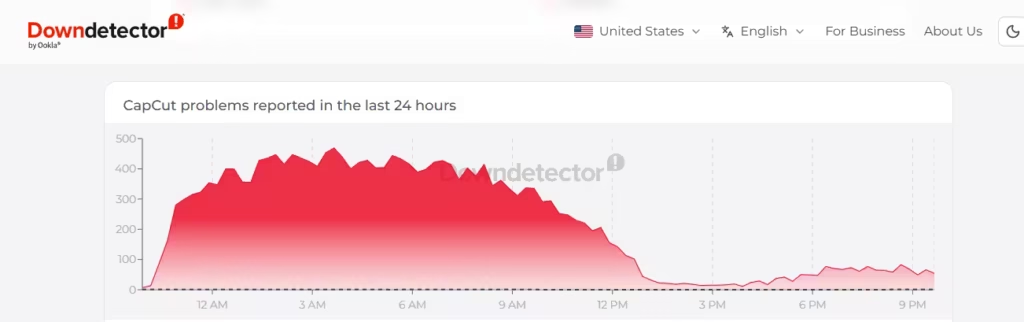
Server outages usually affect many users at the same time. During these periods, CapCut may fail to load templates, sign in to accounts, or sync cloud projects.
You can quickly confirm a possible outage by checking:
- Outage tracking websites like Downdetector
- Community reports on Reddit or X
- Official service announcements from CapCut
If many users report the same error at the same time, the best solution is to wait until CapCut restores service. Most outages resolve within a short period.
If no outage appears and CapCut servers seem stable, continue with the troubleshooting fixes below.
Fix 1: Check Your Internet Connection
Always start by confirming that your internet connection works properly.
Open a browser and run a speed test using speedtest.net or any similar tool. If the connection appears slow or unstable, CapCut may fail to load cloud resources.
Try these quick actions:
- Restart your router
- Switch between Wi-Fi and Ethernet
- Disable mobile hotspot if the signal is weak
- Close heavy downloads running in the background
After stabilizing the connection, restart CapCut and check if the error disappears.
Fix 2: Update CapCut to the Latest Version
An outdated CapCut version often causes connection failures because older builds cannot communicate with updated servers.
On Windows
- Open CapCut
- Look for an update notification in the top-right corner
- Download and install the latest version
- Restart the application
On Mac
- Open the App Store
- Go to Updates
- Update CapCut
- Relaunch the app
Developers regularly fix connection bugs through updates, so installing the latest version resolves many network issues immediately.
Fix 3: Restart CapCut and Your Computer
Temporary background glitches can interrupt network connections inside the app.
Close CapCut completely, then restart your computer. This clears temporary processes that may interfere with network communication.
After rebooting:
- Launch CapCut again
- Sign in to your account
- Test whether templates and assets load correctly
If the error continues, move to the network troubleshooting steps below.
Fix 4: Flush DNS (Windows Only)
DNS cache corruption can prevent CapCut from reaching its servers.
Flushing the DNS cache forces Windows to refresh network routes.
Steps
- Press Windows + S
- Search for Command Prompt
- Run it as Administrator
- Enter the command below:
ipconfig /flushdnsAfter clearing the DNS cache, restart CapCut and check the connection again.
Fix 5: Change DNS to Google DNS
Sometimes the default DNS provided by your internet service provider fails to resolve CapCut servers correctly.
Switching to a public DNS server can fix the issue.
Recommended DNS
Primary DNS:
8.8.8.8Secondary DNS:
8.8.4.4Windows Steps
- Open Control Panel
- Go to Network and Internet
- Select Network and Sharing Center
- Click Change Adapter Settings
- Open your active connection
- Select Internet Protocol Version 4 (IPv4)
- Enter the Google DNS addresses above
Restart CapCut after applying the changes.
Fix 6: Allow CapCut Through Firewall
Windows Firewall or security software sometimes blocks CapCut’s connection to the internet.
Allow CapCut in Firewall
- Open Windows Security
- Select Firewall & Network Protection
- Click Allow an app through firewall
- Find CapCut
- Enable both Private and Public network access
After allowing the app, reopen CapCut and test the connection.
Fix 7: Try Using a VPN
In some regions, CapCut servers may not connect properly due to routing restrictions. Using a VPN can bypass these network routes and restore connectivity.
Install a trusted VPN service and connect to a stable server such as:
- United States
- United Kingdom
- Singapore
After connecting to the VPN, restart CapCut and check if the network error disappears.
Fix 8: Reinstall CapCut
Corrupted installation files can also cause connection failures. Reinstalling the app refreshes all components.
Steps
- Uninstall CapCut from your system
- Restart your computer
- Download the latest version from the official site
- Install the app again
- Sign in and test the connection
A clean installation resolves many persistent errors.
CapCut network errors usually occur because of connection instability, outdated app versions, or network configuration problems. Updating the application, stabilizing your internet connection, flushing DNS, and allowing CapCut through the firewall resolve the majority of cases.
Work through the fixes in order, starting with the basic steps and moving to the advanced solutions if needed. Once the connection restores, CapCut will load templates, effects, and cloud resources normally so you can continue editing without interruptions.
