Google has officially started rolling out a long-awaited feature that allows users to change their @gmail.com email address without creating a new Google account. Until now, Gmail users had no way to modify their original address once it was created.
In a recent update to its support documentation, Google confirmed that the feature is gradually becoming available to users worldwide. If your current address is something like [email protected], you can now switch it to a new address such as [email protected], as long as the option appears in your account settings.
What Happens to Your Old Gmail Address After You Change It
When you change your Gmail address, Google keeps your previous address active as an alternate email (alias). Both addresses point to the same Google account. That means:
- You continue receiving emails sent to both your old and new addresses.
- Your data remains unchanged, including Gmail messages, Google Photos, Drive files, and account settings.
- You can sign in using either email address across services like Gmail, Maps, YouTube, Google Play, and Drive.
Google designed this system so users do not lose access to messages or linked services during the transition.
You Can Switch Back — But With Limits
Google allows users to revert to their original Gmail address if needed. However, the google placed restrictions to prevent abuse of the feature.
Key limitations include:
- You cannot create another new Gmail address for the same account for 12 months after changing it.
- You cannot delete the newly created Gmail address.
- Both addresses remain permanently linked to the same Google account.
These controls keep the system stable and reduce the risk of frequent identity changes or misuse.
See also: Microsoft Copilot Blamed for UK Police Intelligence Error After AI Hallucinates Fake Football Match
How to Change Your Gmail Address
If the feature is available for your account, you can change your Gmail address directly from your Google Account settings.
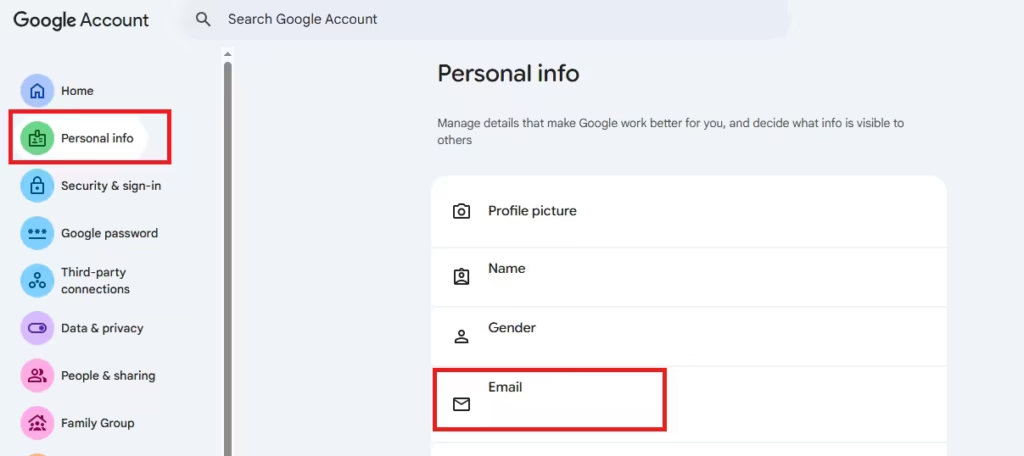
Follow these steps:
- Visit myaccount.google.com/google-account-email.
- Go to Personal Info → Email → Google Account email.
- Select Change Google Account email and follow the on-screen instructions.
If you do not see this option, Google has not enabled the feature for your account yet. The rollout continues in phases.
See also: How to Import Chrome Passwords to Microsoft Edge and Enable Autofill
Many users created Gmail accounts years ago using casual or outdated usernames. This update gives people a chance to adopt a more professional or personal address without losing access to their Google ecosystem.
The feature also reduces the need to migrate data, forward emails, or manage multiple Google accounts just to change an email identity.
As Google expands availability, more users should gain access to this setting in the coming weeks.

