If Clipchamp suddenly shows an empty dashboard and refuses to save new projects, don’t panic. Most cases involve sync failures, WebView2 corruption, or broken local storage — not permanent data loss.
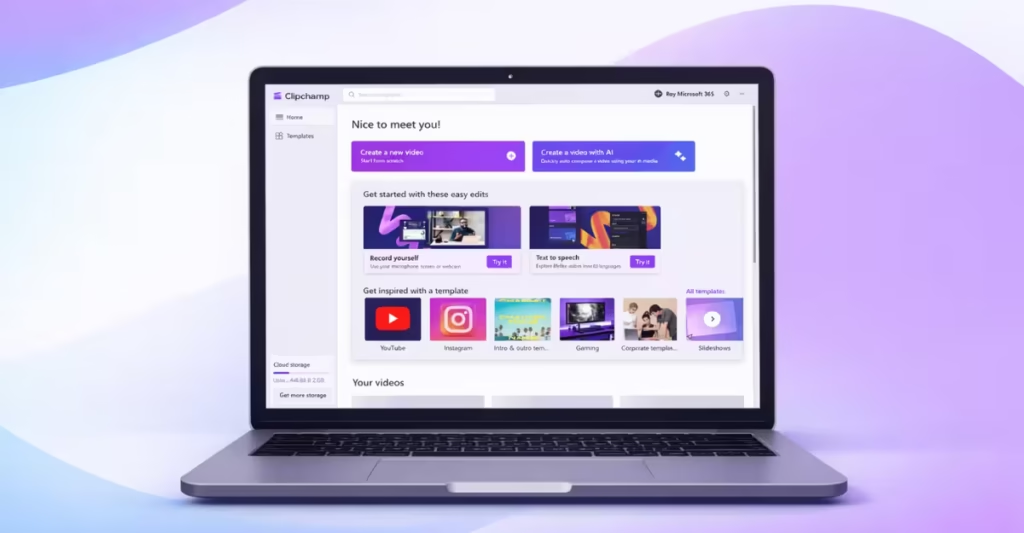
This guide walks you through exactly how to fix missing Clipchamp projects and restore saving functionality.
Why Clipchamp Projects Disappear
Clipchamp stores projects in three possible locations:
- Local Windows storage (IndexedDB)
- Microsoft account cloud sync
- OneDrive (if manually exported)
When sync breaks or WebView2 fails, the app loads normally but shows no projects. In some cases, it also blocks saving new files.
This issue usually happens after:
- A Windows update
- WebView2 corruption
- Microsoft account token failure
- Local storage permission errors
Now let’s fix it step by step.
Step 1: Confirm You’re Using the Correct Microsoft Account
Before doing anything technical, verify your account.
- Open https://account.microsoft.com
- Check the signed-in email address
- Confirm it matches the account used before projects disappeared
Windows sometimes auto-switches accounts after updates.
If you log into the wrong account, Clipchamp shows an empty dashboard.
Step 2: Check Clipchamp in Your Browser
Do this before repairing or resetting the app.
- Open Microsoft Edge
- Visit https://app.clipchamp.com
- Sign in
If projects appear in the browser version, your desktop app cache is corrupted.
In that case, repairing the app will fix it.
Step 3: Repair Clipchamp (Safe Method)
Repair does not delete local data.
- Open Settings
- Go to Apps
- Click Installed apps
- Find Clipchamp
- Click the three dots → Advanced options
- Click Repair
Restart Clipchamp and check your projects.
If projects return, the issue was corrupted app files.
Step 4: Check Microsoft Edge WebView2 Runtime
Clipchamp depends on WebView2 to render the interface and access storage.
If WebView2 breaks, Clipchamp cannot load or save projects.
Check if it’s installed:
- Press Win + R
- Type:
appwiz.cpl- Look for Microsoft Edge WebView2 Runtime
If missing or outdated:
- Download the latest version from Microsoft
- Install it
- Restart your PC
Many Clipchamp saving errors resolve immediately after reinstalling WebView2.
Step 5: Verify Local Storage Exists
Clipchamp desktop projects often remain in local storage even when the app shows nothing.
Check this path:
C:\Users\YOUR_USERNAME\AppData\Local\Packages\Look for a folder starting with:
Clipchamp.Clipchamp_Inside it, check for:
- LocalState
- IndexedDB
- EBWebView
If those folders contain files, your projects likely still exist locally.
Do NOT reset the app if those files are present.
Step 6: Test OneDrive Sync
Open OneDrive in browser: https://onedrive.live.com
Check:
- My Files
- App folders
- Clipchamp folder (if present)
If OneDrive appears empty but local folders contain data, the problem is sync — not deletion.
Step 7: Create a New Windows User (Advanced Test)
This test confirms whether your Windows profile is corrupted.
- Open Settings
- Go to Accounts
- Click Other users
- Add a new local user
- Log into that profile
- Open Clipchamp and sign in
If projects load under the new user, your original Windows profile has storage permission corruption.
Step 8: Reset Clipchamp (Last Resort)
Only reset after:
- Browser version shows nothing
- Local storage folders are empty
- Repair failed
To reset:
- Go to Settings → Apps → Installed apps
- Open Clipchamp → Advanced options
- Click Reset
Warning: Reset deletes local cache data.
Why Clipchamp Stops Saving New Projects
Clipchamp cannot save projects when:
- IndexedDB storage quota fails
- WebView2 cannot write to disk
- Microsoft account token expires
- App storage permission breaks
Repairing or reinstalling WebView2 usually fixes this issue.
Start with account verification and browser login. Then repair Clipchamp. Reinstall WebView2 if saving still fails.
Do not reset the app unless you confirm local project folders are empty. In most cases, projects are not deleted — Clipchamp simply loses access to the storage layer.

