Discord Error 3002 appears when the app shows a red banner saying “Well, it looks like Discord is not detecting any input from your mic.” This error means Discord can see your microphone device, but it is not receiving any audio signal from it. As a result, your voice does not transmit during calls, gaming sessions, or voice channels.
Discord Error 3002 occurs when the microphone is connected but no audio input reaches Discord. This is different from cases where the mic is completely missing. Here, Discord recognizes the device but receives zero input, which triggers the error banner.
Because Discord relies on WebRTC for voice communication, any break between your microphone, operating system, and Discord’s voice service can cause Error 3002.
Quick Checks Before Advanced Fixes
Before moving to detailed troubleshooting, try these quick checks:
- Restart Discord completely
- Unplug and reconnect your headset or microphone
- Select the correct mic in Settings → Voice & Video
- Test your microphone in another app like Zoom or Voice Recorder
If the error persists, continue with the fixes below.
Fix 1: Check Microphone Permissions (Most Important)
If Discord does not have permission to access your microphone, it cannot receive any input.
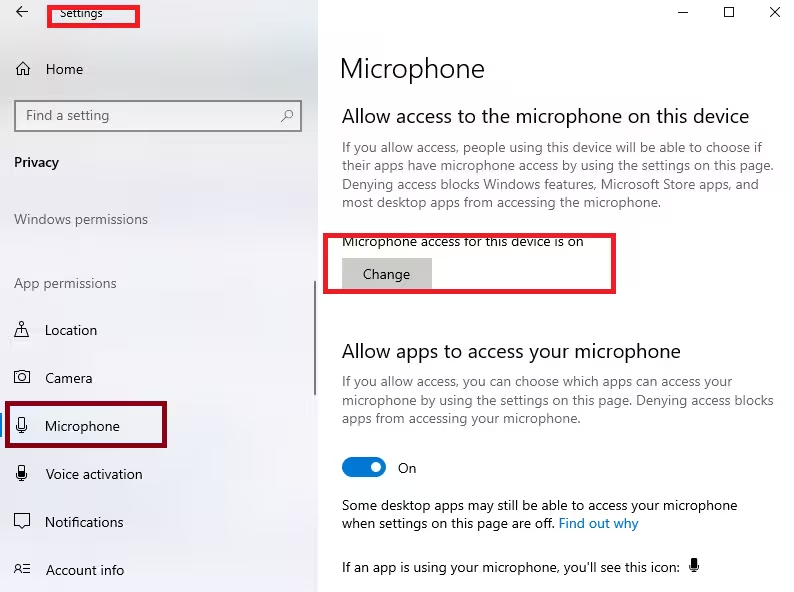
On Windows 10 / 11
- Open Settings → Privacy & Security → Microphone
- Turn Microphone access ON
- Ensure Let apps access your microphone is enabled
- Scroll down and confirm Discord is allowed
- If already enabled, turn access OFF, wait a few seconds, then turn it back ON
On macOS
- Open System Settings → Privacy & Security → Microphone
- Make sure Discord is checked
- Restart Discord after making changes
Fix 2: Verify Microphone Input Device and Volume
Discord Error 3002 often occurs when the microphone input volume is set to zero, even though the device is selected correctly.
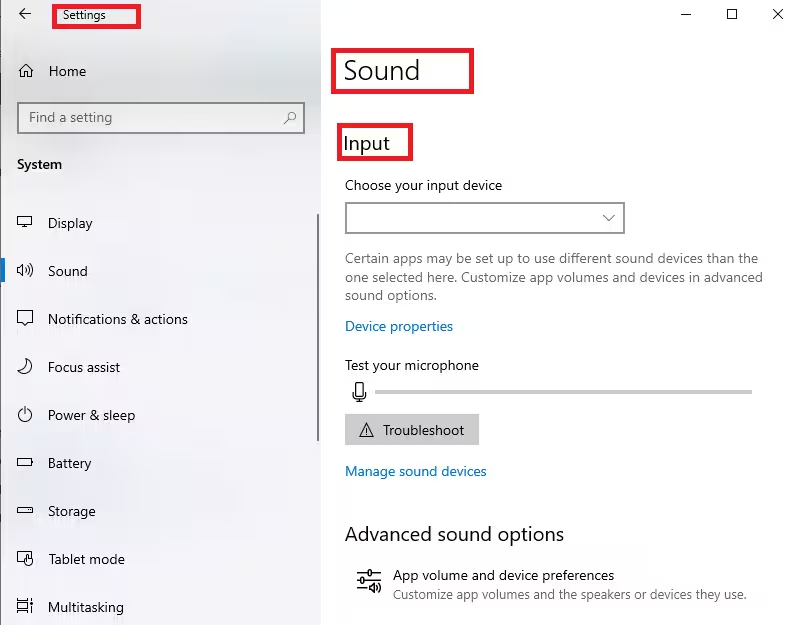
On Windows
- Go to Settings → System → Sound
- Under Input, select your active microphone
- Increase the Input Volume and make sure it is not muted
- Confirm the input level moves when you speak
On macOS
- Open System Settings → Sound → Input
- Select the correct microphone
- Increase the input level
Fix 3: Reset Discord Voice Settings
Incorrect Discord voice configurations can block microphone input.
- Open Discord → Settings → Voice & Video
- Scroll down and click Reset Voice Settings
- Reopen Discord and reselect your microphone
- Re-grant permissions if prompted
Fix 4: Disable Noise Suppression and Audio Enhancers
Discord’s noise suppression or third-party audio tools can sometimes block low-volume input.
- Go to Discord → Voice & Video
- Set Noise Suppression to None
- Disable any third-party tools like VoiceMeeter, Realtek effects, or audio mixers
- Temporarily turn off antivirus audio protection features if enabled
Fix 5: Update or Reinstall Audio Drivers
Outdated or corrupted drivers can prevent audio input from reaching Discord.
On Windows
- Press Win + X → Device Manager
- Expand Audio inputs and outputs
- Right-click your microphone → Update driver
- Restart your system
If updating does not help, download the latest driver from your PC or motherboard manufacturer’s website.
Tip: In microphone properties, disable “Allow applications to take exclusive control of this device” to prevent conflicts.
Fix 6: Run the Windows Recording Audio Troubleshooter
Windows includes a built-in tool that can automatically fix microphone issues.
- Open Settings → System → Troubleshoot → Other troubleshooters
- Find Recording Audio
- Click Run and follow the on-screen steps
Fix 7: Clear Discord Cache Files
Corrupted Discord cache files can cause Error 3002 by breaking audio detection.
- Close Discord completely
- Press Win + R, type %appdata%, and press Enter
- Delete the Discord folder
- Reopen Discord and log in again
Fix 8: Test Discord Web vs Desktop App
If the desktop app fails, try using Discord Web in Chrome or Edge.
- Visit discord.com
- Allow microphone permissions in the browser
- Select the correct mic from the address-bar device menu
If the web version works, reinstalling the desktop app may resolve the issue.
Fix 9: Check Hardware or USB Port Issues
If your microphone works on another device but not on your PC:
- Try a different USB port (rear ports are recommended for desktops)
- Avoid unpowered USB hubs
- Power-cycle external audio interfaces
- Test with a different microphone or headset
Linux Note (Optional)
On Linux systems, check PulseAudio or PipeWire settings to ensure the correct input device is selected and not muted. Restarting the audio service can also help.
When to Contact Discord Support
If Discord Error 3002 continues after all fixes:
- Confirm the mic works in other applications
- Note your OS version and microphone model
- Capture screenshots of Discord Voice settings
- Submit a request through the Discord Help Center
FAQs
What is Discord Error 3002 mic not detecting input?
Discord Error 3002 occurs when Discord recognizes your microphone device but receives no audio input from it. This usually happens due to blocked microphone permissions, muted input volume, incorrect device selection, or software conflicts.
Why does Discord show Error 3002 even though my microphone works?
This happens when the microphone works in other apps but Discord cannot access it. Common reasons include Discord not being allowed in system microphone permissions, input volume set to zero, or another app using the mic exclusively.
How do I fix Discord Error 3002 on Windows 11?
To fix Error on Windows 11, enable microphone permissions, confirm the correct input device is selected, increase input volume, reset Discord voice settings, update audio drivers, and clear Discord cache files.
Does Discord Error 3002 affect browser users?
Yes. Error can appear on Discord Web if microphone access is blocked in the browser. Allow microphone permissions in Chrome or Edge and select the correct input device from the browser’s site settings.
Can antivirus or firewall software cause Discord Error 3002?
Yes. Some antivirus or security tools restrict microphone access for apps. Temporarily disabling audio protection or adding Discord as an allowed app can resolve Error 3002.
Will reinstalling Discord fix Error 3002?
Reinstalling Discord can help if the issue is caused by corrupted cache files or broken app settings. However, permissions and system audio settings should be checked first, as reinstalling alone may not fix the problem.
Is Discord Error 3002 a hardware issue?
Not always. While faulty microphones or USB ports can cause the error, Discord Error-3002 is more commonly related to software settings, permissions, or driver issues.
Discord Error-3002 is primarily a microphone input issue caused by permissions, settings, or software conflicts. By following the fixes above in order, you can restore voice functionality and return to calls, gaming, and streaming without interruption

