If you need to install Windows 10 on a PC, reinstall a broken system, or create a backup installer for future use, downloading the official Windows 10 ISO file is the correct approach. Microsoft still provides legitimate ways to get Windows 10 ISO files directly from its servers.
Method 1: Download Windows 10 ISO Using Microsoft Media Creation Tool (Recommended)
This is the official and safest method provided by Microsoft. It works on all Windows PCs and does not require any technical tricks.
Steps to Download Windows 10 ISO
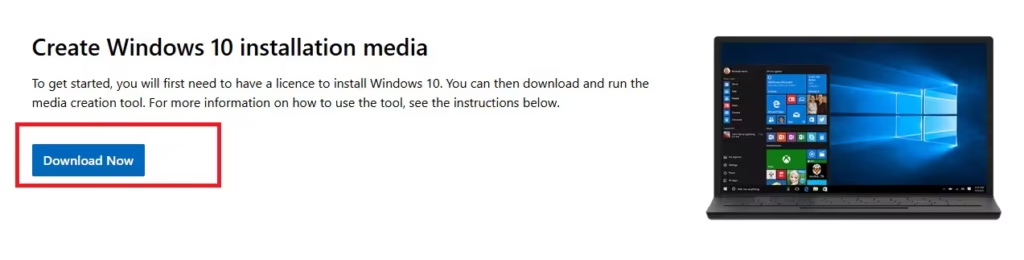
- Open your browser and visit the official Microsoft Windows 10 download page.
- Find the section Create Windows 10 installation media.
- Click Download tool now.
- Open the downloaded file (
MediaCreationTool22H2.exe). - Click Yes when Windows asks for permission.
- Accept the license terms.
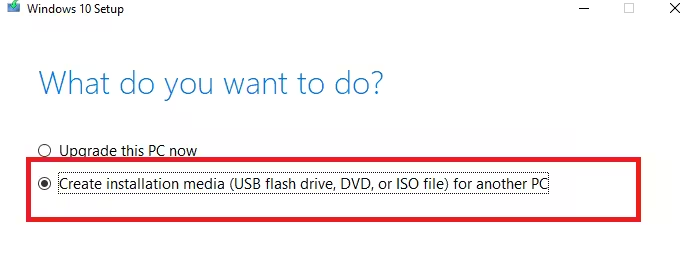
- Select Create installation media (USB flash drive, DVD, or ISO file).
- Click Next.
- Choose your Language, Edition (Windows 10), and Architecture.
- 64-bit is recommended for most PCs.
- Select ISO file.
- Choose a folder and click Save.
- The tool will download the Windows 10 ISO file.
Why This Method Is Recommended
- Fully official
- Automatically downloads the latest Windows 10 version (22H2)
- No risk of corrupted or modified files
Method 2: Download Windows 10 ISO Directly (Without Media Creation Tool)
This method allows you to download the ISO directly from Microsoft servers using your browser.
Steps to Get Direct ISO Download Links
- Open Google Chrome or Microsoft Edge.
- Go to the Microsoft Windows 10 download page.
- Press F12 to open Developer Tools.
- Open the three-dot menu inside Developer Tools.
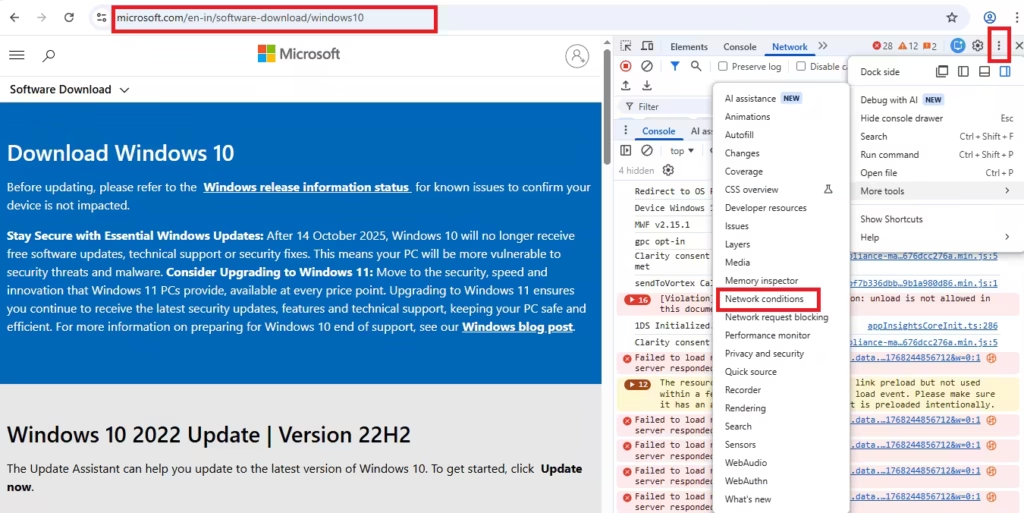
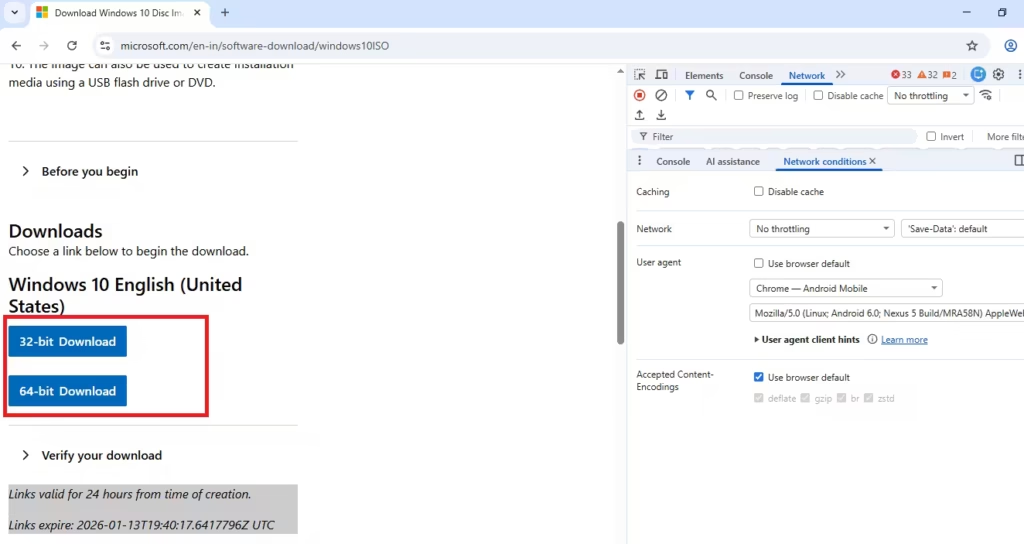
- Click More tools → Network conditions.
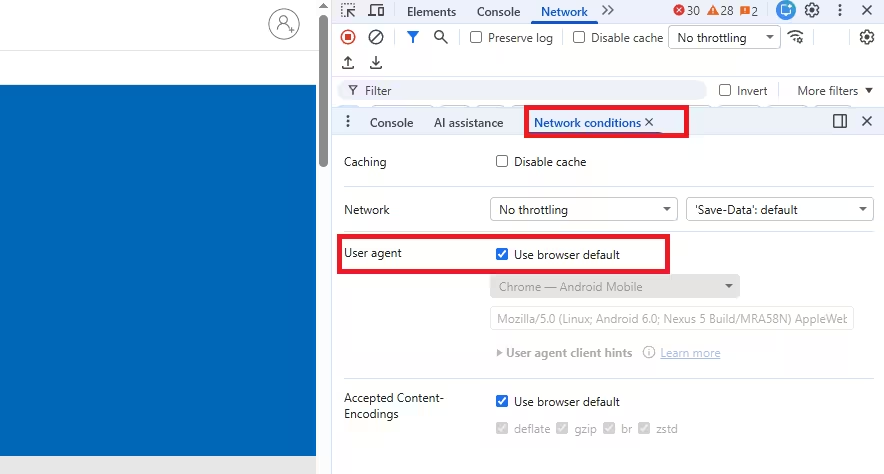
- Under User agent, uncheck Use browser default.
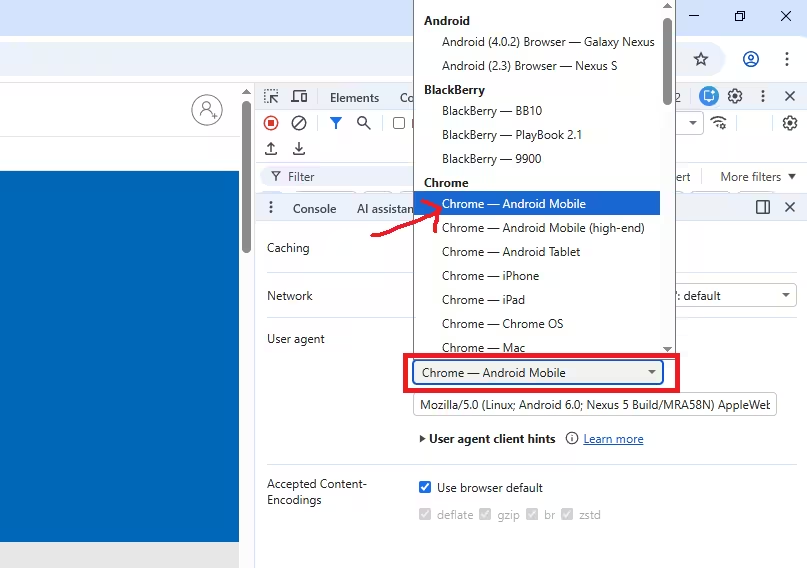
- Select a mobile user agent such as Chrome – Android Mobile.
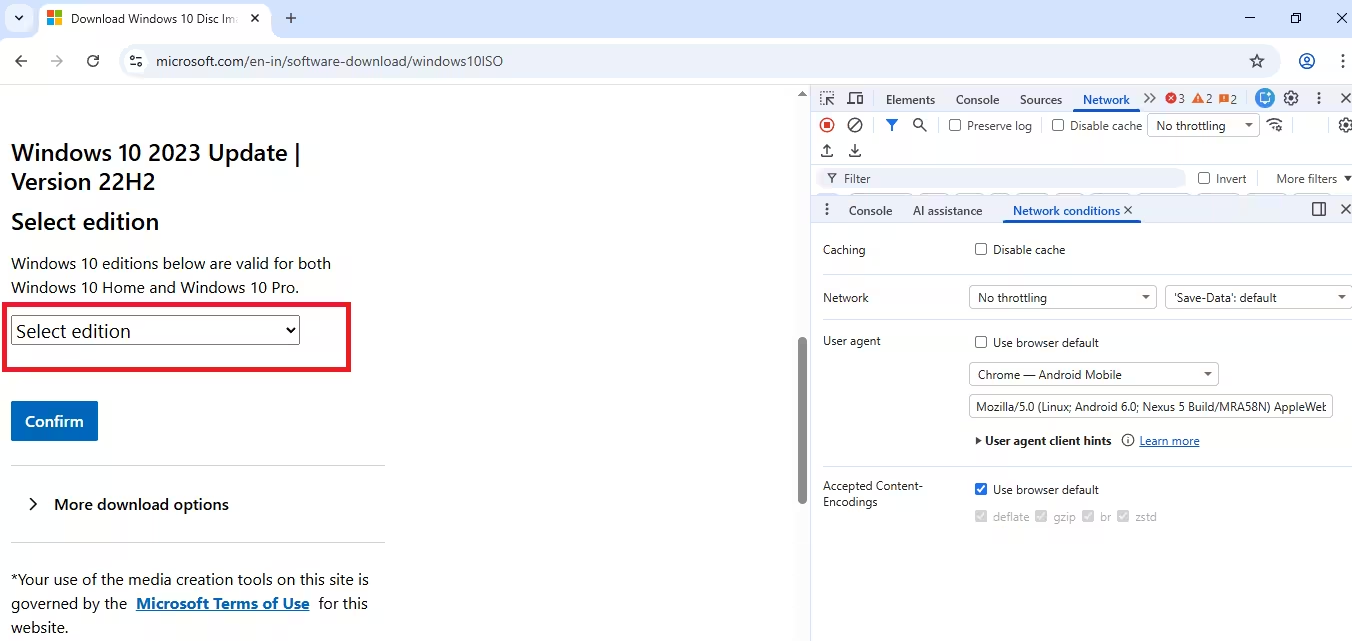
- Refresh the page (Ctrl + F5).
- The page will reload and show Windows 10 ISO download options.
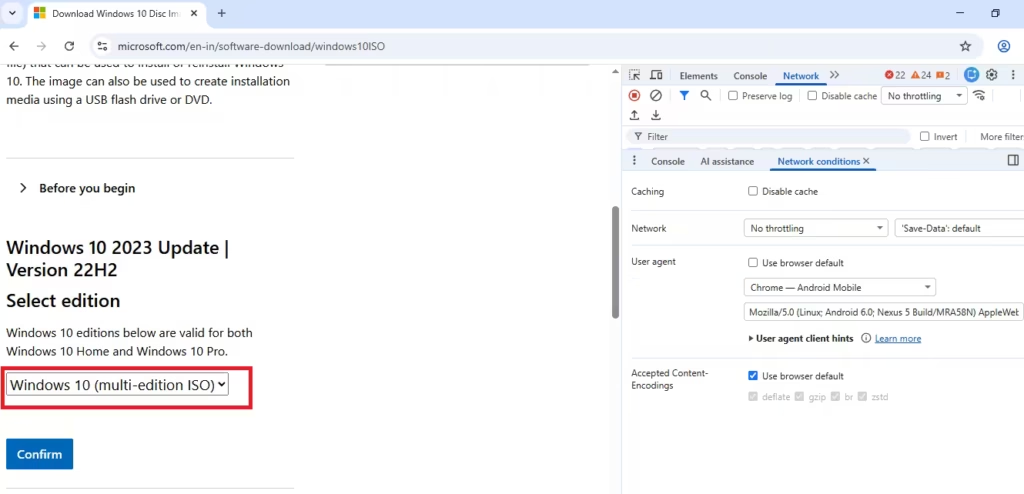
- Select Windows 10 (multi-edition ISO).
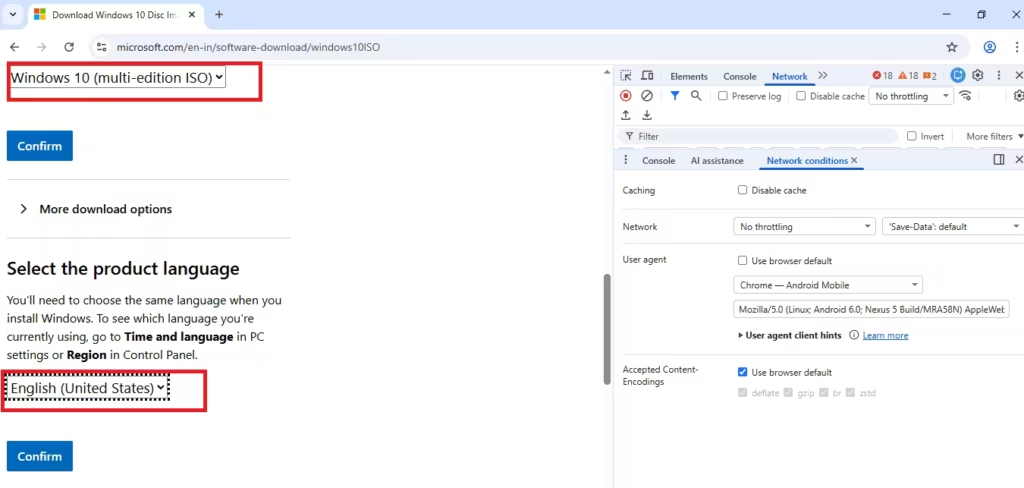
- Choose your language and confirm.
- Select 64-bit or 32-bit to start downloading.
Important Notes
- Download links are valid for 24 hours
- Files are downloaded directly from Microsoft
- No third-party websites involved
Which Windows 10 Version Should You Download?
- Windows 10 22H2 – Latest and final feature update
- 64-bit (x64) – Best for modern systems
- 32-bit (x86) – Only for very old PCs with limited RAM
Most users should choose Windows 10 22H2 (64-bit).
What You Can Do With a Windows 10 ISO File
After downloading the ISO file, you can:
- Create a bootable USB drive
- Perform a clean Windows 10 installation
- Reinstall Windows without losing files
- Install Windows 10 on another PC
- Use it in a virtual machine
Is It Legal to Download Windows 10 ISO Files?
Yes. Downloading Windows 10 ISO files from Microsoft is completely legal. You only need a valid product key to activate Windows after installation.
Common Problems and Fixes
- Download paused or slow: Check internet stability
- ISO file won’t open: Re-download the file
- Wrong architecture installed: Verify 32-bit vs 64-bit before installing
FAQs
What is a Windows 10 ISO file?
A Windows 10 ISO file is a complete disc image used to install or reinstall Windows 10 on a PC. It can be used to create a bootable USB drive, DVD, or run setup directly.
Is it safe to download Windows 10 ISO files?
Yes, it is safe as long as the ISO file is downloaded directly from Microsoft’s official website. Avoid third-party sources to prevent modified or unsafe files.
Can I download Windows 10 ISO for free?
Yes. Microsoft allows users to download Windows 10 ISO files for free. A valid product key is only required to activate Windows after installation.
Which Windows 10 ISO version should I download?
You should download Windows 10 22H2, which is the latest and final feature update. For most systems, the 64-bit version is recommended.
What is the Media Creation Tool used for?
The Media Creation Tool is Microsoft’s official utility that helps you download the Windows 10 ISO file or create a bootable USB drive for installation.
Can I download Windows 10 ISO without the Media Creation Tool?
Yes. You can download the ISO directly from Microsoft by accessing the download page with a mobile browser user agent.
How long are Windows 10 ISO download links valid?
Direct download links generated from Microsoft’s website are valid for 24 hours. After that, you need to generate a new link.
Can I use a Windows 10 ISO to reinstall Windows?
Yes. A Windows 10 ISO can be used to reinstall Windows while keeping files, or to perform a clean installation if needed.
Do I need a product key to install Windows 10?
You can install Windows 10 without a product key, but activation will be required later to unlock all features.
Can Windows 10 ISO be used on multiple PCs?
Yes. The same ISO file can be used on multiple PCs, but each device must have its own valid Windows license for activation.
What should I do after downloading the Windows 10 ISO?
After downloading, you can create a bootable USB drive, mount the ISO to upgrade Windows, or use it for a fresh installation.
Will Windows 10 ISO still work after support ends?
Yes. The ISO file will continue to work for installation even after support ends, but new security updates may no longer be available.
Always download Windows ISO files only from Microsoft. Avoid unofficial sources, as modified ISO files can cause installation failures or security risks.

