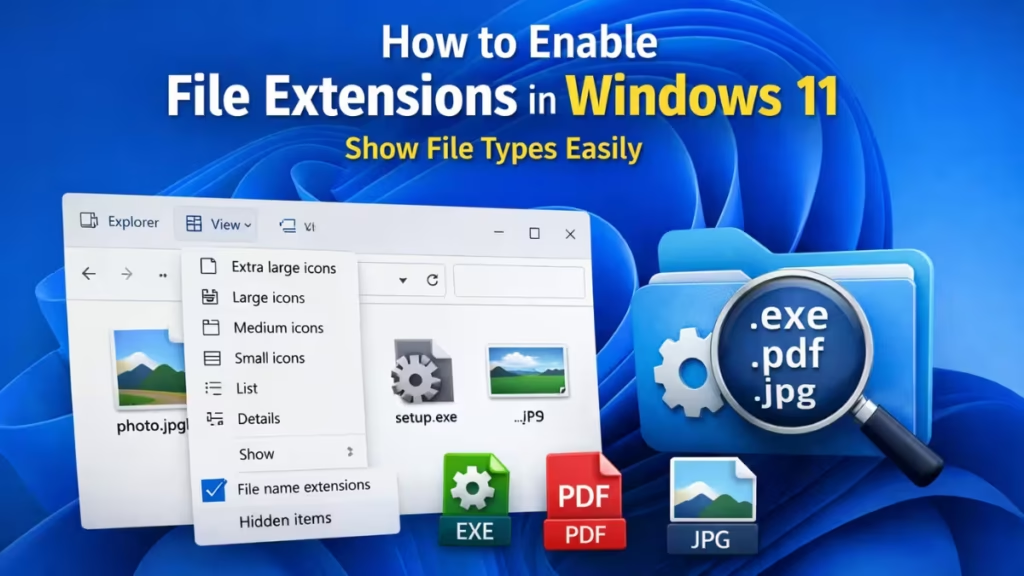
By default, Windows 11 hides file extensions like .jpg, .pdf, and .exe. This setting makes files look cleaner, but it also creates confusion and security risks. When you enable file extensions, you always know exactly what type of file you are opening or sharing.
Why You Should Enable File Extensions in Windows 11
File extensions tell Windows and users what kind of file they are dealing with. When extensions stay hidden, files can disguise themselves.
For example:
document.pdf.exemay appear asdocument.pdf- Malware often hides behind fake icons
- Troubleshooting becomes harder without knowing the real file type
Showing file extensions improves security, clarity, and control.
See also: Windows 11 Pro vs Home: Which Edition Is Right for You?
Method 1: Enable File Extensions Using File Explorer (Recommended)
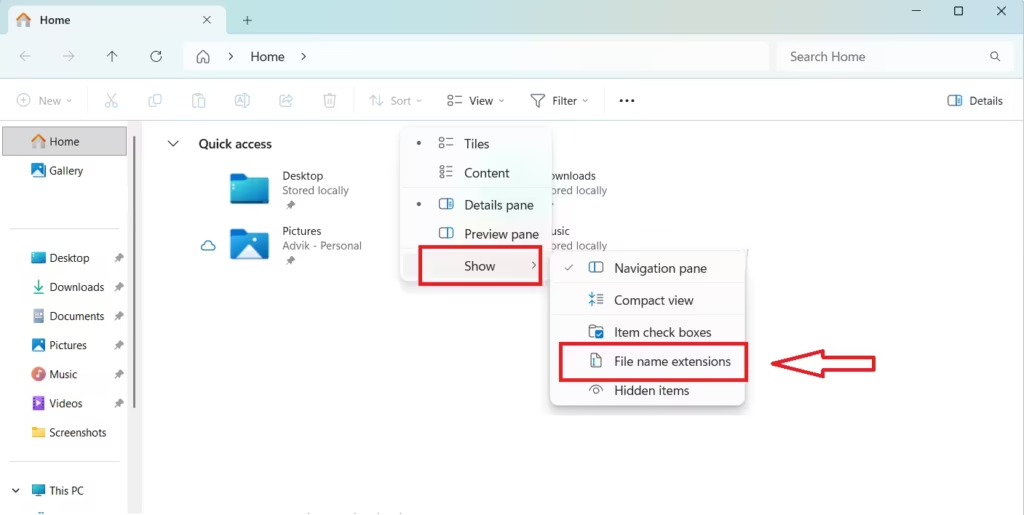
This is the fastest and easiest method.
- Open File Explorer (
Win + E) - Click View in the top menu
- Hover over Show
- Click File name extensions
Windows immediately displays extensions for all files.
You will now see:
image.jpginstaller.exearchive.zip
Method 2: Enable File Extensions from Folder Options
Use this method if you prefer classic Windows settings.
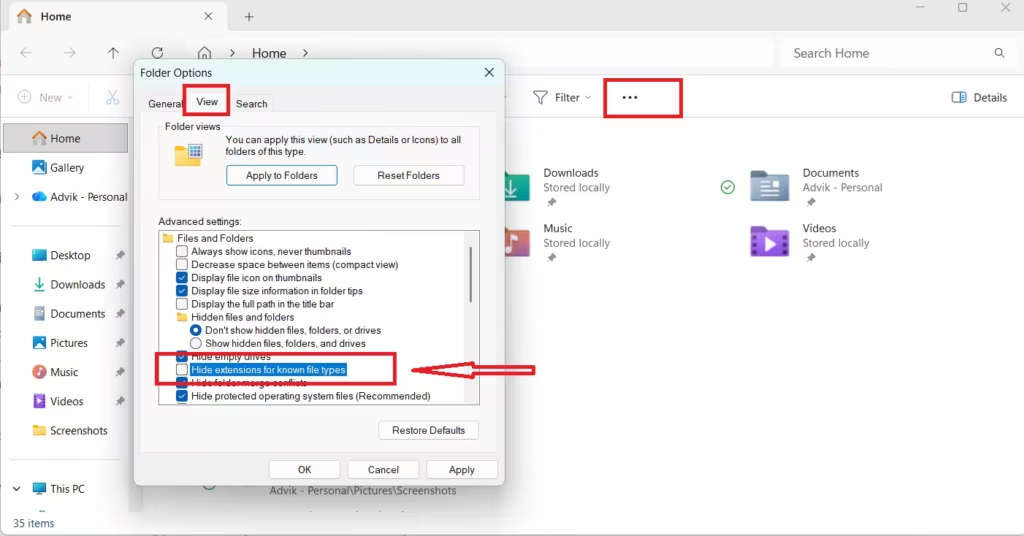
- Open File Explorer
- Click the three-dot menu (⋯) in the toolbar
- Select Options
- Open the View tab
- Uncheck Hide extensions for known file types
- Click Apply, then OK
Windows now shows file extensions system-wide.
How to Confirm File Extensions Are Enabled
You can confirm the setting in seconds. Open any folder and check file names.
If you see extensions like .txt, .exe, .pdf, or .jpg, the feature is active.
If file names still appear without extensions, restart File Explorer or reopen the folder.
Should You Ever Hide File Extensions?
No. Hiding file extensions offers no real benefit and increases risk. Microsoft enables hiding by default for beginners, not for safety.
See also: How to Fix “Windows License Will Expire Soon” Error on Windows 10 and 11
For everyday users, developers, gamers, and IT troubleshooting, keeping file extensions visible is the safer option.
FAQs
Will enabling file extensions break files?
No. This setting only changes visibility. It does not modify files.
Can I change a file extension after enabling it?
Yes, but you should only change extensions if you understand the file format.
Does this work on all Windows 11 versions?
Yes. The steps work on Windows 11 Home, Pro, and Enterprise.
Enabling file extensions in Windows 11 takes less than 10 seconds, but it protects you from hidden threats and confusion. Once enabled, you gain full visibility over every file on your system.
If you manage files regularly or troubleshoot Windows issues, this setting should stay ON permanently.

