AMD Error 195 appears when the AMD Software Installer cannot connect to required online resources. The installer stops before downloading or validating driver packages, which prevents the installation from completing. This issue usually occurs due to firewall restrictions, antivirus interference, unstable internet connections, or temporary AMD server outages.
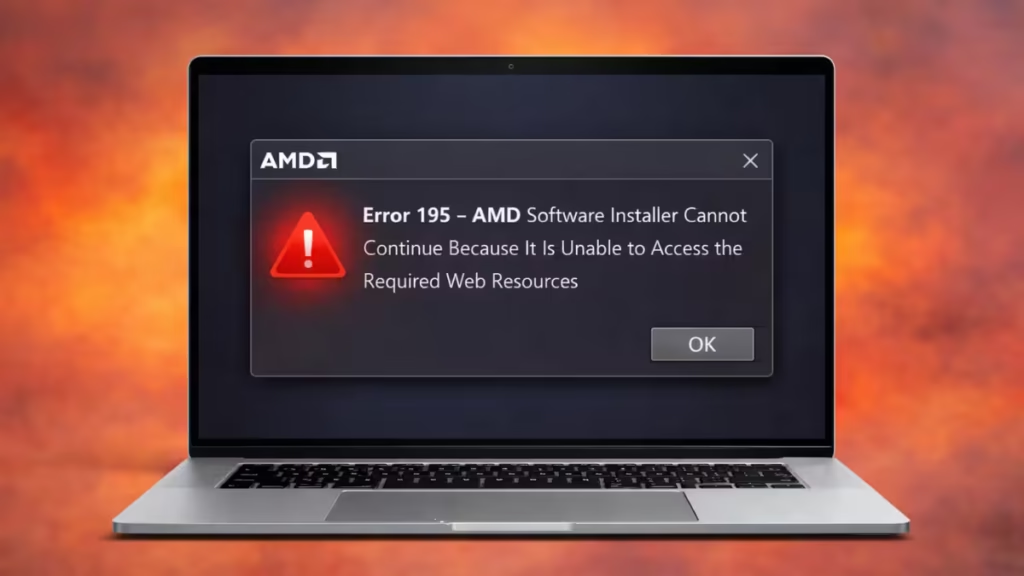
This guide walks you through proven fixes to resolve AMD Error 195 and successfully install your graphics driver.
Fix 1: Disable VPN, Proxy, and Security Software Temporarily
Network filters commonly block AMD download servers.
Steps:
- Turn off any active VPN connection.
- Disable proxy settings in Windows network settings.
- Temporarily pause third-party antivirus and firewall software.
- Restart your computer.
- Run the AMD installer again using Run as administrator.
Re-enable security software after the installation completes.
Fix 2: Download the Full Offline AMD Driver Package
The AMD Auto-Detect tool relies on live downloads, which can fail on restricted networks. Installing the full offline package avoids this problem.
Steps:
- Visit AMD’s official driver download page.
- Select your graphics card model manually.
- Download the full driver package instead of the auto-detect installer.
- Right-click the downloaded file and select Run as administrator.
- Complete the installation.
This method solves most Error 195 cases.
Fix 3: Remove Old AMD Drivers Using DDU
Corrupted or incomplete driver files can block new installations.
Steps:
- Download Display Driver Uninstaller (DDU).
- Boot Windows into Safe Mode.
- Launch DDU and select Clean and Restart (AMD).
- After reboot, install the latest AMD driver again.
This ensures a clean driver environment.
Fix 4: Reset Windows Network Components
If Windows networking becomes corrupted, downloads may fail.
Steps:
- Open Command Prompt as Administrator.
- Run the following commands:
netsh winsock reset
netsh int ip reset
ipconfig /flushdns- Restart your PC.
- Retry the AMD installation.
Fix 5: Verify Date, Time, and Windows Updates
Incorrect system time can block secure connections.
Steps:
- Open Settings → Time & Language.
- Enable automatic date and time.
- Click Sync now.
- Install pending Windows updates.
- Restart the system.
Fix 6: Install the Driver Through Device Manager
If the AMD installer still fails, install the driver manually.
Steps:
- Run the AMD installer until it extracts files, then cancel.
- Open Device Manager.
- Expand Display adapters.
- Right-click your GPU → Update driver.
- Choose Browse my computer for drivers.
- Select the extracted AMD driver folder.
Windows installs the driver without relying on the AMD installer interface.
Where to Find AMD Installer Logs
If the issue persists, check the installer log file for errors:
C:\Program Files\AMD\CIM\Log\Install.logThe log helps identify network or permission failures.
When to Contact AMD Support
If none of the fixes resolve Error 195:
- Capture the installer log file.
- Contact AMD Customer Care.
- Provide detailed system information and error screenshots.
Most systems fix AMD Error 195 by installing the offline driver package after cleaning old drivers with DDU. This removes network dependency and eliminates corrupted files.

