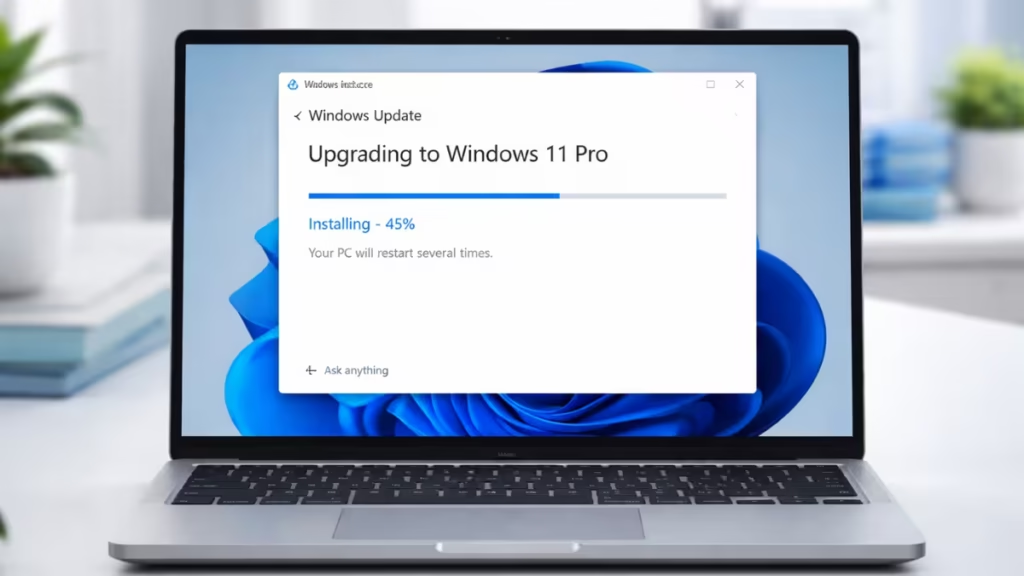
Upgrading from Windows 11 Home to Pro should be simple, but many users still face activation failure even after completing the purchase. You may notice that the purchase is successful, your system continues to show Windows 11 Home, and activation fails with error 0xC004F050. This issue does not mean your system is broken. In most cases, it simply means Windows is unable to apply the Pro license correctly.
What Causes Error 0xC004F050 in Windows 11 Pro Upgrade
Error 0xC004F050 appears when Windows cannot validate your product key or match the license with your device. In simple terms, your system is still running the Home edition, the Pro license has not been applied yet, and activation fails because of this edition mismatch.
This issue usually occurs when the product key is invalid or already used, the system has not been upgraded to the Pro edition, the Microsoft account license is not properly synced, pending Windows updates block the upgrade process, or antivirus software interferes with system changes.
How to Fix Error 0xC004F050 in Windows 11
Follow these steps in order. This method fixes most cases.
Step 1: Check for Windows Updates
Go to: Settings → Windows Update → Check for Updates
Install all pending updates.
Windows may block edition upgrades if updates are pending.
Step 2: Disable Third-Party Antivirus
- Temporarily disable any antivirus software.
- Security tools can interrupt activation and upgrade processes.
Step 3: Important Check Before Entering Key
If you purchased your key from a third-party site (like eBay, G2A, or Kinguin), the key may be invalid or already used.
Microsoft only guarantees activation for keys bought from the official Microsoft Store.
Step 4: Switch to Pro Using Generic Key
Go to: Settings → System → Activation → Change Product Key
Enter this generic key:
VK7JG-NPHTM-C97JM-9MPGT-3V66TThis key:
- Does NOT activate Windows
- Only switches your system from Home → Pro
Step 5: Restart Your PC
Restart your system after entering the key.
Your device should now run Windows 11 Pro.
Step 6: Activate Windows
Go to Settings → System → Activation and choose the correct method based on how you purchased your license.
Option A: Digital License (Microsoft Store Purchase)
Use this if you bought the upgrade directly from Microsoft.
- Connect to the internet
- Sign in with your Microsoft account
- Open the Activation page
Windows detects your license automatically and activates the system without requiring you to enter a product key.
Option B: Retail Product Key
Use this if you have a 25-character product key.
- Go to Settings → Activation → Change Product Key
- Enter your purchased key
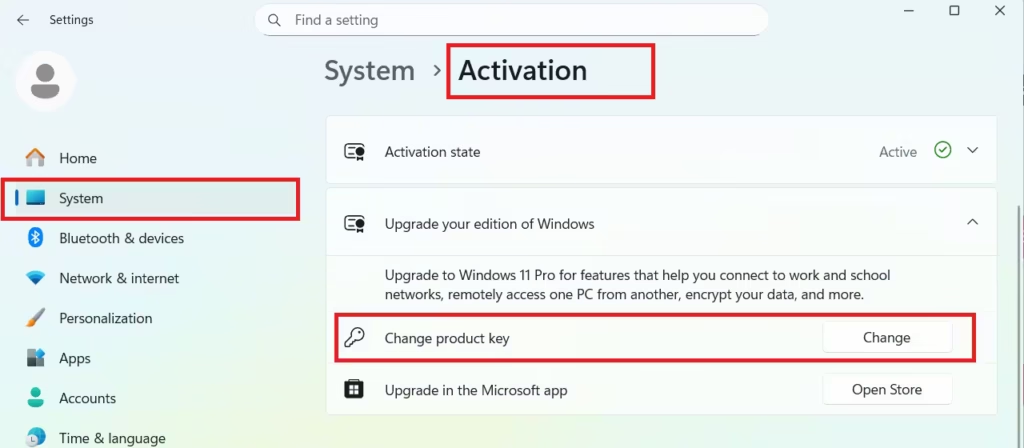
Windows validates your product key and completes the activation process manually.
Note: Windows will only accept a Pro activation key if your system is already running the Pro edition. So you first switch your system to Pro using the generic key (Step 4), and then enter your real key to activate.
If Activation Still Fails
Try these additional fixes.
1. Use Command Prompt Activation (Most Effective Fix).
Press: Win + R → type cmd → Run as Administrator
Enter:
slmgr /ipk YOUR-PRODUCT-KEY
slmgr /ato
This method forces activation and resolves most 0xC004F050 errors.
2. Run Activation Troubleshooter
Go to: Settings → System → Activation → Troubleshoot
This helps Windows match your license to your device.
3. Check Microsoft Account
Make sure you use the correct account.
Go to: Settings → Accounts → Your Info
Sign out and sign back in if needed.
4. Confirm Your Edition
Press:
Win + R → type winver → press EnterMake sure your system shows Windows 11 Pro.
If it still shows Home, repeat the upgrade step.
When to Contact Microsoft Support
Contact Microsoft Support if your purchase is complete but activation still fails, your product key is valid but not accepted, or your license does not appear in your Microsoft account. In these cases, Microsoft can verify your purchase, reissue the license if needed, or process a refund.
FAQs
How do I fix error 0xC004F050 in Windows 11?
Update Windows, switch to Pro using the generic key, and activate with your valid product key or digital license.
Why does Windows 11 show error 0xC004F050 during upgrade?
This error appears when Windows cannot validate the key or when your system is still on Home edition instead of Pro.
Can I upgrade from Windows 11 Home to Pro without reinstalling?
Yes, you can upgrade using a product key without reinstalling, and your files remain safe.
Does the generic Windows 11 Pro key activate Windows?
No, the generic key only upgrades your system to Pro and does not activate Windows.
What if my Windows 11 Pro key is not working?
Check if the key is valid and unused, then try activating via Command Prompt or contact Microsoft Support.
How do I force Windows activation using Command Prompt?
Run Command Prompt as administrator and use slmgr /ipk followed by slmgr /ato to force activation.
Why is my Windows 11 Pro upgrade not activating after purchase?
This usually happens when your system has not switched to Pro or your license is not synced with your account.
Do I need to reinstall Windows to fix error 0xC004F050?
No, most users fix this issue by upgrading the edition correctly and activating with a valid license.
Error 0xC004F050 looks serious, but it is usually just a license or edition mismatch. Once you update your system, switch to the Pro edition correctly, and activate using a valid license, the issue gets resolved. Your data remains safe, and in most cases, you do not need to reinstall Windows.

