If you try to install Team Explorer 2022 or certain Visual Studio tools on Windows 10, you may see an error saying:
“This application requires .NET Framework 4.6 or higher to be installed.”
After installing .NET Framework 4.6.2 or a newer version, the installer may still report that it cannot detect the required framework. In the Windows registry, the system often shows only the v4.0 folder, which creates confusion about whether the correct version is installed.
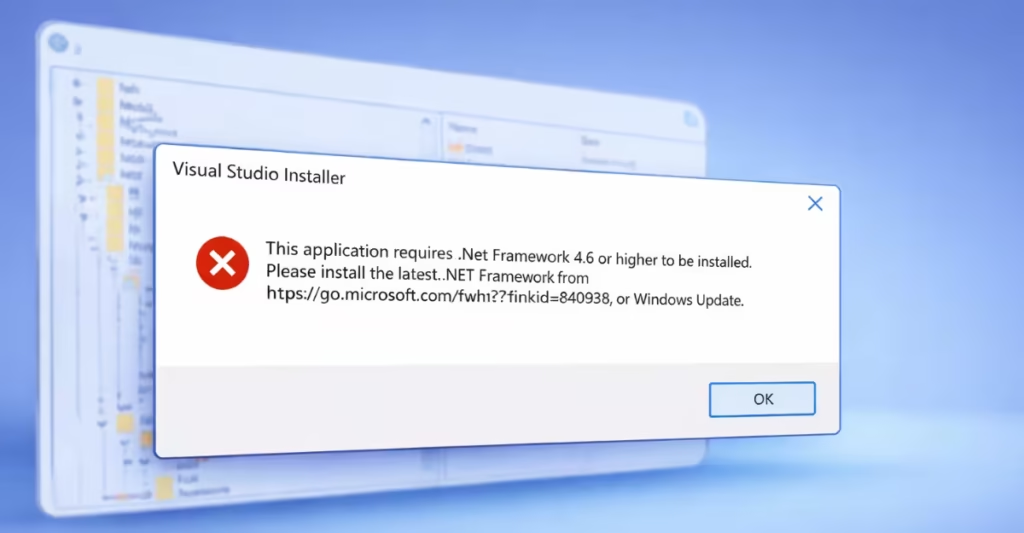
This guide explains why the issue happens and how to fix it step-by-step.
Why the .NET Framework 4.6 Error Appears
Starting from .NET Framework 4.5, Microsoft changed how Windows records .NET versions in the registry.
Even if you install 4.6, 4.7, or 4.8, Windows may still display:
Version: 4.0.0This value appears under:
HKEY_LOCAL_MACHINE\SOFTWARE\Microsoft\NET Framework Setup\NDP\v4\ClientHowever, modern .NET versions store the actual version information inside the “Release” value located here:
HKEY_LOCAL_MACHINE\SOFTWARE\Microsoft\NET Framework Setup\NDP\v4\Full
If an installer checks the wrong registry value, it may falsely report that .NET 4.6 is missing.
Step 1: Check Your Installed .NET Version
Before reinstalling anything, confirm which version of .NET Framework exists on your system.
Method 1: Check Using Registry
- Press Win + R
- Type regedit and press Enter
- Navigate to:
HKEY_LOCAL_MACHINE
   SOFTWARE
      Microsoft
         NET Framework Setup
            NDP
               v4
Full- Look for the value Release
Example values:
| Release Value | .NET Version |
|---|---|
| 394802 | .NET Framework 4.6.2 |
| 461808 | .NET Framework 4.7.2 |
| 528040 | .NET Framework 4.8 |
If the Release value is present, your system already has a newer .NET Framework version.
Method 2: Check Using PowerShell
Open PowerShell as Administrator and run:
(Get-ItemPropertyValue -LiteralPath 'HKLM:\SOFTWARE\Microsoft\NET Framework Setup\NDP\v4\Full' -Name Release)If the number is 394802 or higher, your system meets the .NET Framework 4.6.2 requirement.
Step 2: Install the Latest .NET Framework
If the registry does not show a Release value, install the latest version manually.
- Visit the official Microsoft download page
- Download .NET Framework 4.8 Offline Installer
- Run the installer
- Restart your computer
Installing the newest version solves most detection issues because .NET Framework 4.8 replaces earlier versions.
Step 3: Run Windows Update
Windows Update often installs required .NET components automatically.
To check:
- Open Settings
- Click Update & Security
- Select Windows Update
- Click Check for updates
Install any available .NET Framework updates and restart the system.
Step 4: Repair .NET Framework
If the installation exists but programs still cannot detect it, run Microsoft’s repair tool.
Steps:
- Download .NET Framework Repair Tool
- Run the tool as Administrator
- Allow it to detect and repair issues
- Restart your PC
This tool fixes broken registry entries and corrupted .NET installations.
Step 5: Check Windows Architecture Compatibility
Another common cause of this error involves system architecture. Team Explorer 2022 requires a 64-bit system.
If you run Windows 10 32-bit, the installer may fail even when .NET Framework 4.6+ exists.
To check your system type:
- Open Settings
- Go to System
- Click About
- Look at System type
If it says 32-bit Operating System, you cannot install Team Explorer 2022.
Step 6: Use an Older Compatible Version
If you cannot upgrade Windows to 64-bit, install an older version instead.
Supported alternatives include:
- Team Explorer 2019
- Visual Studio 2019 tools
- Older Visual Studio build components
These versions still support 32-bit Windows 10 systems.
If the problem continues after installing .NET Framework 4.8, uninstall the framework components from Windows Features, restart your PC, and reinstall the latest version again.
FAQs
What does the “.NET Framework 4.6 not detected” error mean?
The “.NET Framework 4.6 not detected” error appears when an application such as Team Explorer or Visual Studio requires .NET Framework 4.6 or newer, but the installer cannot detect the version correctly. This usually happens because the program checks the wrong registry location or the .NET installation on Windows is incomplete or outdated.
How can I check if .NET Framework 4.6 or higher is installed?
You can check the installed version by opening Registry Editor and navigating to HKEY_LOCAL_MACHINE\SOFTWARE\Microsoft\NET Framework Setup\NDP\v4\Full. Look for the Release value. If the value is 394802 or higher, your system already has .NET Framework 4.6.2 or newer installed.
Why does the registry show version 4.0 even when newer .NET is installed?
Windows always shows Version 4.0.0 under the v4\Client registry folder even when newer versions like 4.6, 4.7, or 4.8 are installed. Microsoft uses the Release value inside the v4\Full registry key to store the actual version number for newer .NET Framework releases.
What is the easiest way to fix the .NET Framework 4.6 not detected error?
The easiest fix is to install the latest .NET Framework 4.8 offline installer from Microsoft. The newest version replaces older versions and updates the required registry entries, which allows applications to detect the framework correctly.
Why does Team Explorer still show the .NET Framework error after installation?
Team Explorer may still show the error if you run Windows 10 32-bit, because Team Explorer 2022 requires a 64-bit operating system. Even if .NET Framework installs correctly, the application may refuse to run on unsupported system architectures.
Can Windows Update install the required .NET Framework automatically?
Yes. Windows Update often installs .NET Framework updates automatically. Opening Windows Update and installing all pending updates can resolve the .NET Framework detection problem without downloading the installer manually.

