If Outlook Classic suddenly freezes, refuses to reopen, or fails to record sent emails after installing the January 2026 Windows 11 update (KB5074109), you are not alone. Microsoft confirmed a bug that affects Outlook users who rely on POP email accounts on Windows 11 24H2 and 25H2.

This guide shows you exactly how to identify the problem, restore Outlook functionality, and safely remove the problematic update when necessary.
What Causes Outlook to Freeze After KB5074109?
The KB5074109 security update introduced a regression that interferes with how Outlook Classic handles POP account shutdown and background processes. When you close Outlook, Windows keeps the process running instead of terminating it properly. As a result, Outlook refuses to reopen and may stop recording sent messages in the Sent Items folder.
Microsoft acknowledged the issue and confirmed that its engineering teams are actively investigating a permanent fix.
Fix Outlook Freezes After KB5074109 Update
Follow these steps in order to restore Outlook functionality and prevent the freezing issue from returning.
Step 1: Confirm That KB5074109 Is Installed
Before applying fixes, verify that your system installed the update.

- Open Settings.
- Click Windows Update.
- Select Update history.
- Look for Security Update for Microsoft Windows (KB5074109).
If you see this update listed, continue with the steps below.
Step 2: Temporarily Restore Outlook Access (Quick Workaround)
Use this method if you need immediate access to Outlook.
- Press Ctrl + Shift + Esc to open Task Manager.
- Find Outlook under Background processes.
- Select it and click End task.
- Relaunch Outlook.
This restores access temporarily but does not fix the root problem. Outlook may freeze again after closing.
Step 3: Uninstall KB5074109 Using Windows Settings (If Available)
Some systems allow removal directly from Settings.
- Open Settings.
- Go to Windows Update → Update history.
- Click Uninstall updates.
- Locate Security Update for Microsoft Windows (KB5074109).
- Click Uninstall.
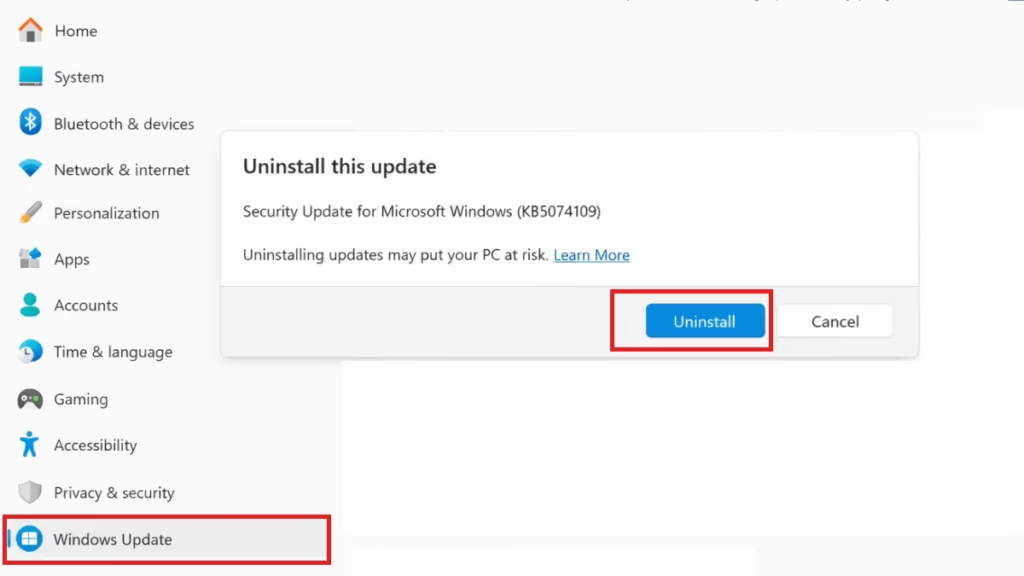
- Restart your computer.
After rebooting, launch Outlook and verify that it opens and closes normally.
If Windows does not allow you to uninstall the update here, continue to the advanced method below.
Step 4: Uninstall KB5074109 Using DISM (Advanced Method)
Proceed carefully. This method modifies system packages. Create a restore point or backup before continuing.
Open Command Prompt as Administrator
- Press Start.
- Type cmd.
- Right-click Command Prompt and select Run as administrator.
List Installed Update Packages
Run the following command:
dism /online /get-packages /format:tableScroll to the bottom of the list and locate a package similar to:
Package_for_RollupFix~31bf3856ad364e35~amd64~~26200.7623.1.xxCopy the exact package name from your system.
Remove the Update Package
Replace the package name in the command below with the one you copied:
dism /online /remove-package /PackageName:PASTE_PACKAGE_NAME_HEREWait for DISM to complete the operation.
Restart your computer once the removal finishes.
After reboot, test Outlook again. Most affected systems regain normal behavior after removing the update package.
KB5074109 contains security fixes. Removing it temporarily reduces system protection. Only uninstall the update if Outlook remains unusable and no alternative workaround helps.
Once Microsoft releases a corrected update, install it immediately to restore security coverage.
When Will Microsoft Fix This Issue?
Microsoft confirmed the Outlook freezing problem and classified it as an emerging issue. Engineers are actively investigating the root cause. The company has not announced a release date for a permanent fix yet.
Keep Windows Update enabled so your system receives the corrected patch when Microsoft publishes it.
FAQs
Why does Outlook freeze after KB5074109 update?
Outlook freezes after KB5074109 update because the Windows security patch introduced a bug that prevents Outlook Classic from closing its background process properly when using POP email accounts.
How do I fix Outlook freezes after KB5074109 update?
You can fix Outlook freezes after KB5074109 update by uninstalling the KB5074109 update from Windows Update settings or removing the update package using DISM if the uninstall option is unavailable.
Does KB5074109 affect all Outlook users?
KB5074109 does not affect all Outlook users. The issue mainly impacts Outlook Classic users who use POP email accounts on Windows 11 24H2 and 25H2.
Why does Outlook say it is already running after I close it?
Outlook shows as already running because the KB5074109 update prevents the Outlook background process from closing correctly, leaving the program active in memory.
Can uninstalling KB5074109 fix missing sent emails in Outlook?
Yes, uninstalling KB5074109 restores normal Outlook behavior and allows sent emails to appear correctly in the Sent Items folder.
Is it safe to uninstall KB5074109?
Uninstalling KB5074109 temporarily reduces system security because the update contains security patches. You should reinstall the corrected update once Microsoft releases a fix.
Can Office repair fix Outlook freezing after KB5074109 update?
Office repair does not fix Outlook freezing after KB5074109 update because the problem originates from the Windows update rather than the Office installation.
Will Microsoft release a fix for KB5074109 Outlook freezing?
Microsoft confirmed the issue and is actively investigating the problem. The company has not announced a release date for the permanent fix yet.
Does switching from POP to IMAP fix this Outlook issue?
Switching from POP to IMAP may avoid the freezing issue, but it requires reconfiguring your email account and migrating your data.
Will Windows reinstall KB5074109 automatically after removal?
Windows Update may reinstall KB5074109 automatically unless you pause updates or hide the update temporarily.

