The “Please update your AMD Radeon driver” error appears when a game or application cannot properly detect your installed AMD graphics driver. This often happens even when the driver is already updated, making the message confusing and frustrating.
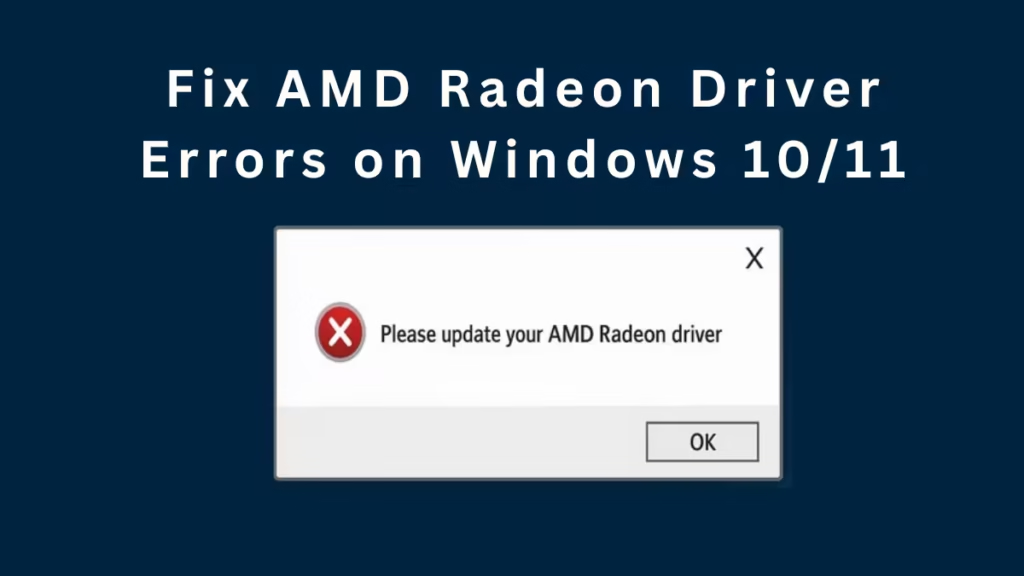
In most cases, the issue is caused by Windows replacing AMD drivers, corrupted installations, or incorrect GPU detection on laptops.
Fix 1: Clean Reinstall AMD Driver (Most Important Fix)
A clean reinstall solves the issue for most users.
Step 1: Remove existing AMD software
- Open Settings → Apps → Installed apps
- Uninstall AMD Software
- Restart your PC
Step 2: Use AMD Cleanup Utility
- Download AMD Cleanup Utility from AMD’s official website
- Run the tool (Windows may reboot into Safe Mode)
- Allow it to remove all AMD driver remnants
- Restart Windows normally
Step 3: Install the correct AMD driver
- Go to AMD Support
- Select your exact GPU or Ryzen APU
- Download the latest WHQL (recommended) driver for Windows 10 or 11
- Install and restart
After reboot, open AMD Software → System and confirm a valid driver version is shown.
Fix 2: Stop Windows Update From Replacing AMD Drivers
Windows Update often installs preview or generic drivers that break detection.
Windows 11 Pro / Enterprise
- Press Win + R, type
gpedit.msc - Navigate to
Computer Configuration → Administrative Templates → Windows Update - Enable Do not include drivers with Windows Updates
Windows 11 Home
- Pause Windows Update immediately after installing the AMD driver
- Resume updates only after confirming system stability
Fix 3: Laptop Users – Force the Game to Use AMD Radeon GPU
On dual-GPU laptops, games may launch on the wrong graphics processor.
- Open Settings → System → Display → Graphics
- Locate the game (or browse to its EXE)
- Click Options
- Select High performance (AMD Radeon GPU)
- Save and restart the game
Fix 4: Use OEM Drivers for Laptops (Very Important)
For HP, Dell, Lenovo, ASUS, Acer laptops:
- Download graphics drivers from the manufacturer’s support page
- OEM systems often require custom AMD drivers
- Generic AMD drivers can trigger this error on laptops
Fix 5: Check If AMD GPU Is Properly Detected
- Open Device Manager
- Expand Display adapters
If you see:
- Microsoft Basic Display Adapter → AMD driver is missing
- Unknown device → chipset or GPU driver not installed
Install AMD Chipset Drivers first, then install the GPU driver.
Fix 6: Fix False “Outdated Driver” Detection (Advanced)
Some games—especially new or beta releases—check the driver version string instead of actual compatibility.
If the error appears even after a clean WHQL install:
- The game may be misreading the driver version
- This is not always a real driver issue
What to do:
- Install the previous WHQL driver version
- Avoid Optional / Preview drivers unless required
- Wait for a game patch if the issue persists
Fix 7: Stability & Compatibility Tweaks
These steps help prevent the error from returning:
- Reset Shader Cache in AMD Software
- Disable overlays (Discord, AMD ReLive, MSI Afterburner)
- Update AMD Chipset Drivers on Ryzen systems
- Switch the game renderer once (DX12 → DX11 or vice versa)
Quick Verification Steps
After applying fixes:
- Press Win + R → dxdiag
- Open the Display tab
- Confirm the driver version shows a real number (not 0.0.0.0)
- Launch the game again
Below are 10 SEO-optimized FAQs you can add at the end of the article.
All answers are short, clear, and snippet-friendly.
FAQ: AMD Radeon Drivers
Q. Why does my game say my AMD driver is outdated when it’s already updated?
This usually happens when Windows replaces the AMD driver or the game fails to detect it correctly.
Q. What does AMD driver version 0.0.0.0 mean?
It means Windows or the game cannot read your installed AMD graphics driver.
Q. Can Windows Update break AMD Radeon drivers?
Yes. Windows Update often installs generic or preview drivers that override AMD Adrenalin.
Q. Is AMD Cleanup Utility safe to use?
Yes. It is an official AMD tool designed to remove corrupted driver files.
Q. Should I use Optional or WHQL AMD drivers?
Use WHQL drivers unless a game specifically requires an Optional version.
Q. Why does this error happen mostly on laptops?
Laptops may launch games using the integrated GPU instead of the AMD Radeon GPU.
Q. Do I need OEM drivers for AMD laptops?
Yes. Many laptops require manufacturer-specific AMD drivers for proper detection.
Q. Can overlays cause AMD driver detection issues?
Yes. Overlays like Discord or Afterburner can interfere with driver checks.
Q. Will reinstalling Windows fix this issue?
Usually no. A clean AMD driver reinstall fixes the problem without reinstalling Windows.
Q. Is this error caused by the game or the graphics driver?
In most cases, it’s caused by driver conflicts or Windows updates, not the game itself.
The “Please update your AMD Radeon driver” error is rarely caused by an outdated driver alone. In most cases, it’s triggered by Windows Update interference, corrupted installs, or incorrect GPU usage on laptops.
A clean AMD reinstall combined with blocking Windows driver updates resolves the issue for most users. For games with strict version checks, using a stable WHQL driver is the safest approach.
Read More:

