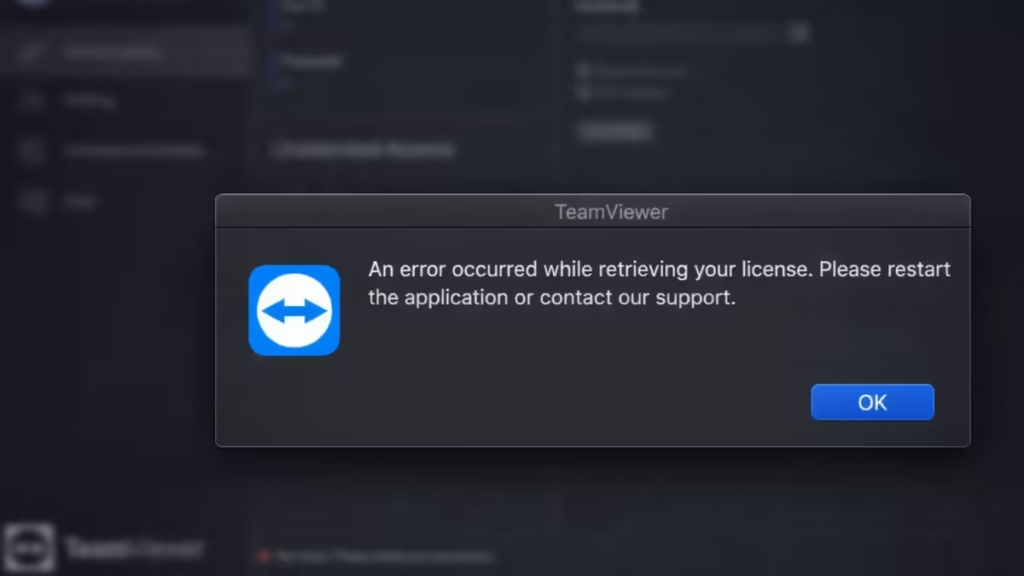
TeamViewer suddenly shows “An error occurred while retrieving your license” and blocks your connection. This error appears even when everything was working fine before. It stops remote access because TeamViewer cannot verify your license with its servers.
What Is This TeamViewer License Error?
This error appears when TeamViewer fails to sync your license status from its servers. It does not mean your account is banned. Instead, it indicates that your license could not be verified at that moment, your session is temporarily restricted, or your account or device is not syncing properly with TeamViewer’s system.
This issue usually occurs when your license is not linked to your account, has expired or become inactive, or when you exceed the allowed number of devices or sessions. It can also happen if your network blocks TeamViewer servers, or if you use a VPN or proxy that interferes with the connection.
In some cases, an outdated TeamViewer version or a temporary server or sync glitch can trigger the error. When TeamViewer cannot confirm your license in real time, it blocks the session to prevent unauthorized access.
Quick Troubleshooting Checklist
Before trying deeper fixes, check this:
- You are logged into the correct TeamViewer account
- Your internet connection is stable
- No VPN or proxy is active
- TeamViewer is updated
- You can open TeamViewer website normally
If all look fine, follow the fixes below.
How to Fix “An Error Occurred While Retrieving Your License”
Fix 1: Sign Out and Sign In Again
This is the most effective fix.
Steps:
- Open TeamViewer
- Click your profile icon (top-right)
- Click Sign Out
- Close the app completely
- Reopen and sign in again
This refreshes your license data from the server.
Fix 2: Verify Your License Status
If your license is not active or not assigned, this error will appear.
Steps:
- Go to TeamViewer Management Console
- Open User Management → Licenses
- Check:
- License is active
- License is assigned to your account
If not, reassign or reactivate it.
Fix 3: Remove Extra Devices or Sessions
TeamViewer limits devices based on your plan.
Steps:
- Open Management Console
- Go to Devices → Managed Devices
- Remove unused devices
- End active sessions
Exceeding limits blocks license verification.
Fix 4: Update TeamViewer
Old versions fail to sync licenses properly.
Steps:
- Open TeamViewer
- Go to Help → Check for updates
- Install latest version
Always use the latest version for stable license checks.
Fix 5: Disable VPN or Proxy
VPNs and proxies can block license verification.
Do this:
- Turn off VPN
- Disable proxy
- Restart TeamViewer
Try connecting again with a normal network.
Fix 6: Restart Network or Try Another Connection
Sometimes your IP or ISP blocks TeamViewer servers.
Try:
- Restart router
- Switch to mobile hotspot
- Use a different network
If it works on another network, your original IP is the issue.
Fix 7: Clean Reinstall TeamViewer
If nothing works, reinstall completely.
Steps:
- Uninstall TeamViewer
- Delete leftover folders:
%appdata%\TeamViewer%temp%\TeamViewer
- Restart your PC
- Install fresh version
This removes corrupted files and resets license sync.
Fix 8: Check for Commercial Use Detection
If you use the free version for business, TeamViewer may restrict you.
Solution:
- Submit a reset request (personal users)
- Or upgrade to a commercial license
This issue often looks like a license error.
When This Error Is a Server Issue
Sometimes the problem is not on your side. If multiple users report the same issue at the same time and your account, license, and network are all configured correctly, then the error is likely caused by a temporary server issue on TeamViewer.
In such cases, there is nothing to fix locally. The best solution is to wait for some time and try again later, as the service usually restores automatically once the server issue is resolved.
FAQs
How do I fix TeamViewer license error quickly?
To fix the TeamViewer license error, sign out and log back into your account, check that your license is active, update the app, and disable any VPN or proxy. In most cases, refreshing your login resolves the issue immediately.
Why does TeamViewer say “An error occurred while retrieving your license”?
This error appears when TeamViewer cannot verify your license from its servers. It usually happens due to account sync issues, expired licenses, device limits, or network restrictions blocking communication.
Does this TeamViewer license error mean my account is banned?
No, this error does not mean your account is banned. It only means TeamViewer failed to verify your license temporarily. Once the issue is fixed, your access will return to normal.
Can VPN cause TeamViewer license retrieval error?
Yes, a VPN or proxy can interfere with TeamViewer’s license verification process. It may route your connection through restricted IP addresses, which can block or delay license checks. Disabling the VPN often fixes the issue.
How do I check if my TeamViewer license is active?
You can check your license by logging into the TeamViewer Management Console. Go to User Management → Licenses and confirm that your license is active and assigned to your account.
What happens if I exceed TeamViewer device or session limit?
If you exceed your license limits, TeamViewer may block connections and show license-related errors. You need to remove unused devices or end active sessions to restore access.
Why does TeamViewer work on mobile data but not WiFi?
If TeamViewer works on mobile data but not WiFi, your WiFi network or ISP may be blocking or limiting access to TeamViewer servers. Switching networks or restarting your router usually resolves this issue.
Do I need to reinstall TeamViewer to fix license errors?
Reinstallation is not always required, but it helps if the issue comes from corrupted files or outdated configurations. A clean reinstall can reset the app and fix persistent license sync problems.
How do I fix TeamViewer commercial use detected error?
If TeamViewer detects commercial use on a free account, it may restrict access. You can submit a reset request or upgrade to a paid license to remove the limitation.
Is this TeamViewer license error a server issue?
Sometimes, yes. If multiple users experience the same issue, it may be a temporary TeamViewer server problem. In that case, wait and try again later.
The TeamViewer license retrieval error happens when the app cannot confirm your license in real time. In most cases, the issue comes from account sync, device limits, or network restrictions—not your account status.
Follow the fixes above in order. Start with login refresh, then check your license and network. This approach restores your access quickly without wasting time.
