If you see a Where Winds Meet Steam login error even though your internet connection works normally, the issue usually occurs when the game cannot authenticate your Steam account with the game servers.
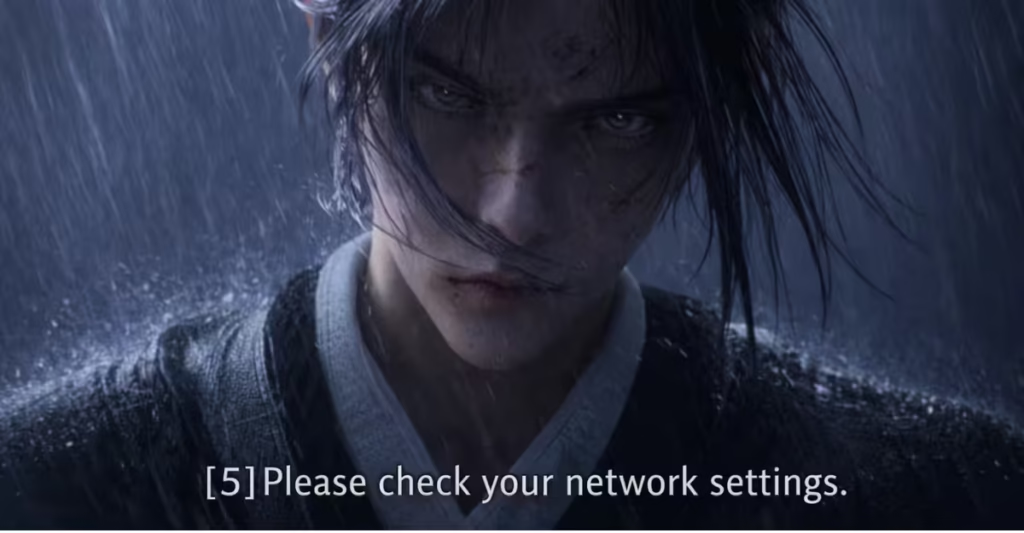
Standard troubleshooting steps such as verifying game files, restarting your router, or reinstalling the game usually do not resolve the problem. The error occurs when Steam authentication fails during the connection process between Steam and the Where Winds Meet servers.
Why the Where Winds Meet Steam Login Error Happens
The login error usually appears when the game cannot validate your Steam account token with the game servers.
Several situations can trigger this problem:
- Steam authentication service temporarily fails
- Game servers cannot validate Steam login tokens
- Server overload after updates or maintenance
- Temporary server outages
- Network routing conflicts between Steam and the game server
Many players report that mobile versions work while the Steam version fails, which strongly suggests a Steam authentication issue rather than a local device problem.
How to Fix Where Winds Meet Steam Login Error
Follow the solutions below in order. These steps resolve most login failures related to Steam authentication or network communication.
1. Check the Official Server Status
Before changing anything on your PC, confirm whether the servers are experiencing issues.
Developers sometimes announce login problems through official channels. When a server outage occurs, local fixes will not work.
What you should do:
- Check the game’s official Discord announcements.
- Look for maintenance or outage notices.
- Wait until the developers restore authentication services.
If the servers are down, the only solution is waiting for the developers to resolve the issue.
2. Restart Steam Completely
Steam authentication tokens sometimes become invalid during login attempts.
Restarting the Steam client forces it to request a new authentication token.
Steps:
- Close the Where Winds Meet game.
- Exit Steam completely.
- Open Task Manager.
- End any remaining Steam processes.
- Launch Steam again.
- Start the game.
This simple refresh often fixes authentication failures.
3. Log Out and Log Back Into Steam
If Steam authentication becomes corrupted, logging out and back in can refresh your account session.
Steps:
- Open Steam.
- Click Steam → Change Account.
- Log out of your account.
- Restart Steam.
- Log in again.
After logging back in, launch the game and test the login process.
4. Verify the Game Files
Corrupted game files can sometimes interrupt the login sequence.
Steam includes a built-in tool to verify the integrity of game files.
Steps:
- Open Steam Library.
- Right-click Where Winds Meet.
- Select Properties.
- Click Installed Files.
- Select Verify integrity of game files.
Steam will scan and replace any missing or damaged files automatically.
5. Disable VPN or Proxy Connections
VPN services sometimes interfere with authentication systems.
Steam servers may reject login requests if the connection appears suspicious.
Try this:
- Turn off your VPN.
- Disable any proxy settings.
- Restart Steam.
- Launch the game again.
Many login errors disappear once the connection returns to a normal route.
6. Restart Your Network
Network routing problems can also interrupt communication between Steam and the game servers.
Restarting your network can clear temporary routing errors.
Steps:
- Turn off your router and modem.
- Wait about 60 seconds.
- Turn them back on.
- Restart your PC.
- Launch Steam and try again.
7. Wait for Server Fixes if the Issue Continues
If none of the steps above work, the problem most likely exists on the game server side.
Large online games sometimes experience login failures after:
- major updates
- server maintenance
- authentication system errors
When this happens, the developers usually resolve the issue quickly.
Your best option is to wait for the next server update or fix.
Important Tip: Do Not Log Out if You Are Already Logged In
If you are currently inside the game, avoid logging out.
Developer announcements warn that logging out may prevent you from logging back in until the login issue is resolved.
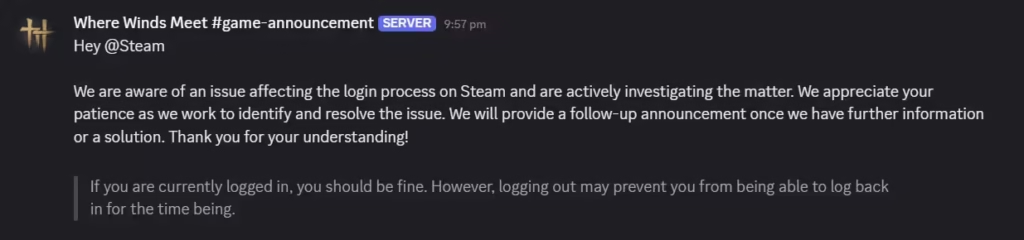
Staying logged in allows you to continue playing normally.

