If Gemini shows “Something went wrong, please try again (13)”, the problem is usually not your device. In most cases, Gemini fails to process text input due to an account-level issue, even while voice continues to work normally.
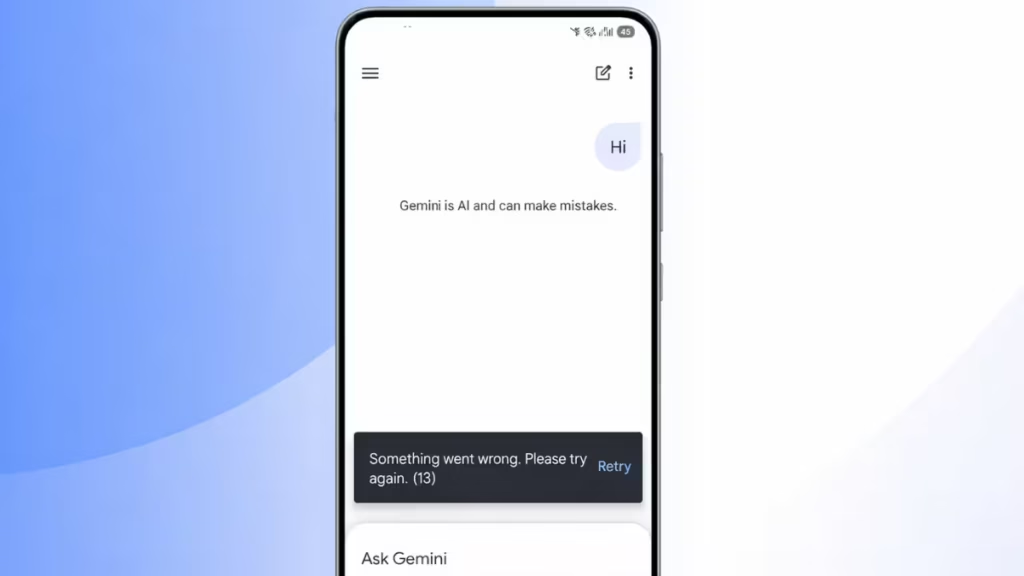
This error often appears across multiple devices and networks, which makes it confusing. But once you understand the cause, you can stop wasting time on the wrong fixes. This guide shows you exactly how to fix Gemini Error 13 step by step.
Gemini Error 13: Text Input Stops Working
Gemini Error 13 appears when the system fails to process your text request. You will notice that text input fails every time, while voice interaction continues to work normally. The error shows up instantly after you send a message and often occurs across multiple devices. This clearly indicates that Gemini cannot process text requests for your account.
This issue does not come from your internet connection. Gemini uses separate processing paths for voice and text. When your account data goes out of sync, text requests fail while voice requests continue to work without problems. As a result, Gemini keeps showing Error 13 repeatedly. In simple terms, your account becomes partially “stuck” on Google’s backend, which prevents text processing from working correctly.
How to Fix Gemini Error 13
Follow these steps in order. Start with quick fixes before moving to advanced solutions.
Fix 1: Start a New Chat
Sometimes the issue is tied to a specific conversation.
- Open Gemini
- Click New Chat (+ icon)
- Send a simple message
If this works, your previous conversation is corrupted. Leave that thread and continue using a new one.
Fix 2: Test on Another Google Account (Important Diagnostic)
Switch to another Google account, open Gemini, and send a message.
- If it works then the issue is account-specific
- If it fails then check your device or network
This step is critical. It tells you whether the problem is on your side or Google’s side.
Fix 3: Disable VPN, Ad Blocker, or Private DNS
Turn off any:
- VPN services
- Browser extensions (especially ad blockers)
- Private DNS settings
Security filters can silently block Gemini requests and trigger Error 13. Test after disabling each one.
Fix 4: Clear App Cache (Gemini + AI Core)
Corrupted cache often breaks request processing.
- Go to:
Settings → Apps → Gemini / Google App → Storage → Clear cache - Then:
Apps → Show system → AI Core → Storage → Clear cache
Clear cache for both apps, then restart your device. Do not skip the restart.
Fix 5: Update Gemini and the Google App
Open the Play Store or App Store and update:
- Gemini app
- Google app
Outdated versions often cause backend handshake failures.
Fix 6: Sign Out Everywhere, Then Sign Back In
Go to: Google Account → Security → Your devices
- Sign out of all devices
- Sign back in on one device only
Test Gemini before logging in elsewhere.
Fix 7: Clear Gemini Activity (Optional — Read First)
Go to: https://myactivity.google.com/product/gemini
Delete recent Gemini activity and restart the app.
Warning: This permanently deletes your conversation history. Skip this step if you want to keep your chats.
Still Not Fixed After 48 Hours?
At this point, the issue is almost certainly on Google’s backend. No local fix will fully resolve it.
Fix 8: Report the Issue to Google
Open Gemini → click Settings → select Send feedback
Include:
- Error code (13)
- Text input not working
- Voice working normally
- Issue happening across devices
- Other accounts working fine
This gives Google enough information to investigate your account.
Paid User? Use Direct Support
If you use Gemini Advanced (paid plan):
- Go to https://support.google.com/
- Navigate to Gemini Advanced → Contact support
You can reach a live support agent, which is much faster than waiting in the feedback queue.
FAQs
What is Gemini Error 13?
Gemini Error 13 occurs when the system fails to process text input requests. You can still use voice features, but text messages do not work. This usually indicates an account-level issue rather than a device or network problem.
Why does Gemini Error 13 only affect text input?
Gemini uses separate systems for text and voice processing. When your account data goes out of sync, the text pipeline fails while voice continues to work normally. That is why only text input shows Error 13.
Is Gemini Error 13 caused by internet problems?
No. Gemini Error 13 is not related to your internet connection. Even with a stable network, the error appears because of backend or account-level issues.
How do I confirm if Gemini Error 13 is account-related?
Switch to another Google account and test Gemini. If it works on a different account but fails on yours, the issue is tied specifically to your account.
Can clearing cache fix Gemini Error 13?
Yes, in some cases. Clearing cache for the Gemini app, Google app, and AI Core can fix temporary processing issues. However, it will not resolve deeper account-level problems.
Does reinstalling the Gemini app fix Error 13?
No. Reinstalling the app usually does not fix this error because the issue is not related to your device. It is typically tied to your account on Google’s servers.
Will deleting Gemini activity fix Error 13?
Sometimes. Deleting Gemini activity can resolve sync issues, but it permanently removes your conversation history. Only try this if you are okay losing your chats.
How long does Gemini Error 13 last?
If the issue is temporary, it may resolve within a few hours. If it is account-related, it can persist for days until Google fixes it from their side.
How do I fix Gemini Error 13 permanently?
If basic fixes do not work, report the issue through Gemini’s Send feedback option. This allows Google to investigate and fix your account. Paid users can contact support directly for faster resolution.
Can VPN or DNS settings cause Gemini Error 13?
Yes. VPNs, ad blockers, or private DNS settings can interfere with Gemini requests. Disabling them can resolve the error in some cases.
Does Gemini Error 13 affect all devices?
Yes. If the issue is account-related, it will appear across all devices, browsers, and networks where you use the same Google account.
Is Gemini Error 13 a bug or a permanent issue?
It is a bug or temporary account issue. It is not permanent. Once Google resolves the backend problem, Gemini text input starts working again automatically.

