If you see the error “There has been an error with this session” in Grand Theft Auto Online, your connection to Rockstar’s servers has failed. This issue usually appears when joining a session, switching lobbies, or playing with friends.
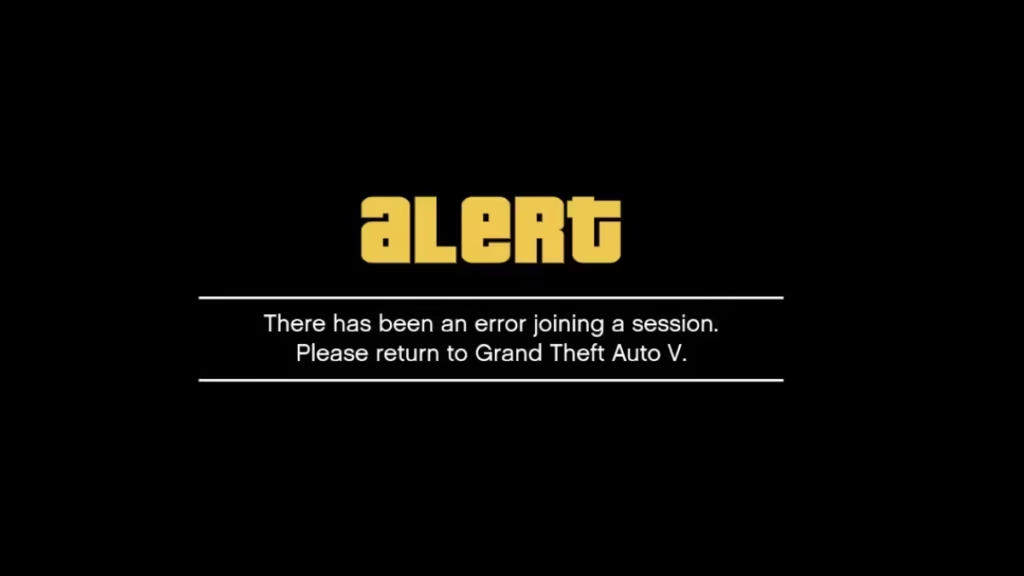
The error usually appears due to server problems, NAT restrictions, or unstable internet connections. In this guide, you will learn step-by-step fixes that actually work in 2026 across PC, PlayStation, and Xbox.
What Causes GTA Online Session Error?
The GTA Online session error happens when your connection to Rockstar servers breaks. This can occur while joining sessions, switching lobbies, or during gameplay.
Common causes include:
- Rockstar server overload or downtime
- Weak or unstable internet connection
- Strict or Moderate NAT type
- Firewall or antivirus blocking the game
- Corrupted game files or cache
Fix 1: Restart the Game and Enter Online via Story Mode
The simplest fix first. A full restart clears any stuck session data and resets your connection to Rockstar’s servers. Entering Story Mode before switching to Online gives the game time to establish a clean session.
Steps:
- Close GTA Online completely
- Restart the game
- Load into Story Mode first
- Open menu → switch to Online
This forces a fresh connection to Rockstar servers.
Fix 2: Check Rockstar Server Status (Important)
If Rockstar’s servers are down, no amount of local troubleshooting will help. Major game updates, DLC launches, and peak weekend hours can cause widespread session errors for all players simultaneously.
What to do:
- Visit Rockstar Service Status page at support.rockstargames.com/servicestatus
- Check whether GTA Online or the Social Club service shows any incidents.
- If an outage is listed, wait for Rockstar to restore services — this typically resolves within a few hours.
Tip: During peak hours (Friday evenings, DLC weekends), session errors spike even when servers are technically “up.” Trying again during off-peak hours often works.
Fix 3: Restart Your Router to Fix GTA Online Session Error
A stale or overloaded router connection is one of the most common causes of session errors. A full power cycle — not just a quick reboot button press — clears the router’s connection table and often resolves the issue immediately.
Steps:
- Turn off your router
- Wait 2–3 minutes
- Turn it back on
- Reconnect and launch the game – Wait for your connection to fully re-establish, then relaunch GTA Online
If you’re on Wi-Fi, consider switching to a wired ethernet connection for better stability.
Fix 4: Join a New Session Manually
Auto-matchmaking sometimes locks you into a broken or overcrowded server instance. Forcing the game to find a fresh session bypasses this.
Steps:
- Open Pause Menu
- Go to Online
- Select Find New Session
This connects you to a fresh server.
Fix 5: Fix NAT Type (Most Important Long-Term Fix)
NAT (Network Address Translation) type controls how your device communicates with other players’ consoles and PCs. A strict or moderate NAT type prevents GTA Online from forming stable peer connections, causing frequent session errors.
| NAT Type | Connection Quality | Action |
|---|---|---|
| Open | Best | No change needed |
| Moderate | Medium | Enable UPnP |
| Strict | Poor | Port forwarding required |
How to check your NAT type
PC: Open the Rockstar Games Launcher and check the connection status, or test in-game via the pause menu network settings.
PS5: Settings → Network → Connection Status → View Connection Status.
Xbox: Settings → General → Network Settings → Current Network Status.
How to fix NAT:
- Enable UPnP
- Log into router (
192.168.1.1or192.168.0.1) - Turn ON UPnP
- Log into router (
- Use Port Forwarding (if needed)
- Forward:
TCP 443TCP/UDP 6672UDP 61455–61458
- Forward:
- Restart Router
- Restart and re-check NAT type
Open NAT removes most session errors permanently.
Fix 6: Allow GTA Online Through Firewall (PC Only)
Windows Firewall and third-party antivirus software can silently block Rockstar’s game traffic, causing session errors that appear random. The fix is to create a permanent exception rather than disabling protection entirely.
Steps:
- Open Windows Defender Firewall → Allow an app through firewall
- Click Change settings → Allow another app
- Add:
GTA5.exePlayGTAV.exe
(Allow both Private & Public access)
- Add Rockstar Launcher (
LaunchPad.exe) - Whitelist the same files in third-party antivirus (if used)
Fix 7: Verify Game Files (PC)
Corrupted or missing game files can cause session errors even if the game launches normally. Verifying forces the launcher to check and restore any damaged files without reinstalling the whole game.
- Steam:
- Right-click GTA V in your library → Properties → Local Files → Verify integrity of game files.
- Epic Games Store:
- Click the three dots next to GTA V → Manage → Verify.
- Rockstar Games Launcher:
- Click the Settings gear next to GTA V → Verify Integrity.
Wait for the verification to complete (this can take 10–20 minutes), then relaunch the game.
Fix 8: Clear Console Cache (PS5 / Xbox)
Consoles store temporary game data that can become corrupted over time, leading to connection errors. Clearing the cache is safe and does not delete your saved data or GTA Online progress.
PlayStation 5
- From the home screen, navigate to Settings → Storage → Console Storage → Saved Data.
- Alternatively, fully power off the PS5 (not rest mode), wait 30 seconds, and restart. This clears the system cache automatically.
Xbox Series X|S & Xbox One
- Hold the power button on your console for 10 seconds until it fully shuts off.
- Unplug the power cable and wait 30 seconds.
- Plug back in and restart. The cache clears on boot after a hard shutdown.
Fix 9: Disable VPN
VPNs route your traffic through intermediate servers, which increases latency and can confuse Rockstar’s regional matchmaking — causing session errors or preventing connection entirely. If you have a VPN running, disable it completely before launching GTA Online.
Fix:
- Turn off VPN completely
- Restart game
If you need a VPN for privacy while gaming, look for one with GTA Online support and a low-latency gaming mode — most standard VPNs are not optimized for Rockstar’s servers.
Best Working Fix (Recommended Order)
If you want the fastest fix, try this order
This combination resets both your local network state and the game’s session handling in one pass — it works for the majority of players.
- Restart router
- Launch Story Mode
- Switch to Online manually
- Check NAT type if still failing
When Nothing Works
If you’ve worked through all nine fixes and the error persists, the problem is almost certainly on Rockstar’s end. Server-side session errors are particularly common during major GTA Online updates, holiday periods, and following Rockstar’s weekly content drops on Thursdays.
In these cases, your best option is to wait a few hours and try again. You can monitor the situation in real time on the Rockstar Service Status page or check community reports on the r/gtaonline subreddit, where players frequently post about widespread outages as they happen.
If the error is specific to one friend’s session rather than public lobbies, ask them to run through the same checklist — particularly the NAT type and router restart steps, as these are the most common causes of friend-session failures.
FAQs
Why does GTA Online say “error with this session”?
This happens when your connection to Rockstar servers fails due to network issues, NAT problems, or server overload.
How do I fix GTA Online connection error?
Restart your router, enter Online via Story Mode, and ensure your NAT type is Open.
Is GTA Online down today?
Check Rockstar Service Status. If servers are down, you must wait until they are restored.
Does VPN cause GTA Online session error?
Yes. VPN increases latency and can block proper matchmaking, causing session errors.

