If you encounter HBO Max error code 1400503, the app cannot properly establish a connection with Max servers during playback or account verification. This issue usually appears when you try to start a movie, open the app, or sign in on a streaming device.
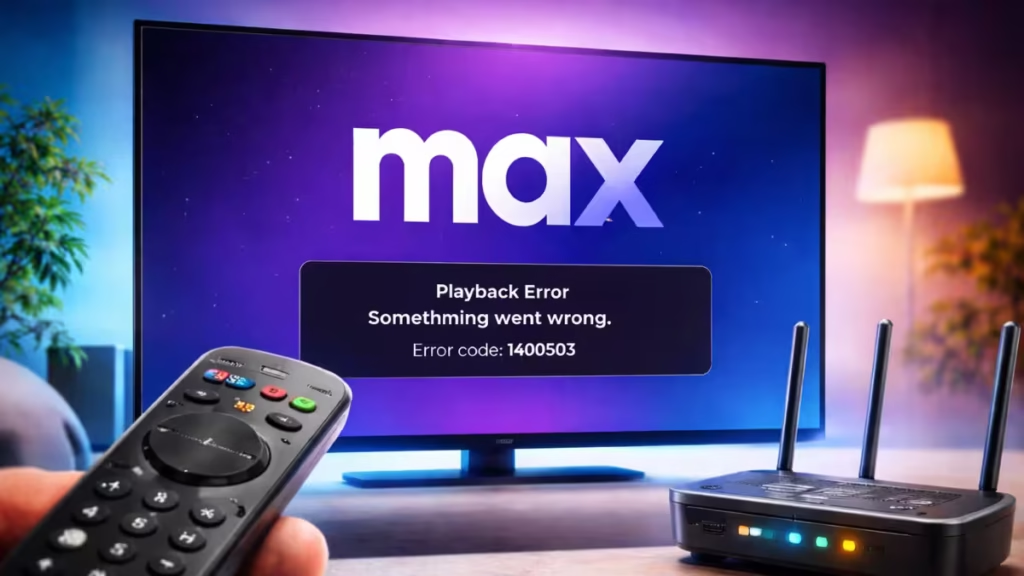
In most cases, HBO Max error code 1400503 occurs because of unstable internet connections, outdated apps, corrupted cache data, or temporary device glitches—not because of a subscription problem. However, you can resolve the error quickly by following the troubleshooting methods below.
Step 1: Fully Restart the App and Your Device
Close the Max app completely. Do not leave it running in the background.
- Force-close the app
- Restart your phone, TV, console, or streaming device
- Relaunch Max and try streaming again
This clears temporary app and memory conflicts that often trigger error 1400503.
Step 2: Check Your Internet Connection Stability
Max needs a steady connection to authenticate playback.
- Switch between Wi-Fi and mobile data (on phones)
- Restart your modem and router
- Avoid crowded networks or public Wi-Fi
If the error disappears after switching networks, the issue is connection-related.
Step 3: Turn Off VPNs, Proxies, and Custom DNS
Max blocks many VPN and proxy connections.
- Disable VPN apps
- Remove custom DNS (like AdGuard, NextDNS, Pi-hole)
- Restart the device after disabling
Try streaming again once your connection returns to default settings.
Step 4: Update the HBO Max (Max) App
An outdated app can break server communication.
- Open Google Play Store, App Store, or device app store
- Search for Max
- Install any available updates
Always keep the app updated, especially after major platform changes.
Step 5: Sign Out and Sign Back In
Session errors can cause error 1400503.
- Open Max settings
- Sign out of your account
- Close the app completely
- Reopen the app and sign in again
This refreshes account authentication and playback permissions.
Step 6: Clear App Cache and Data (Android / Smart TVs)
Corrupted cache files are a common cause.
On Android / Android TV:
- Settings → Apps → Max
- Storage → Clear Cache
- Restart the device
If the issue persists, clear app data and sign in again.
See also: How to Fix Hulu Error Code P-DEV320: Comprehensive Guide
Step 7: Reinstall the Max App
If cache clearing does not work, reinstalling is more effective.
- Uninstall the Max app
- Restart your device
- Reinstall the app from the official store
- Sign in and test playback
This removes hidden corrupted files that updates cannot fix.
Step 8: Test Max on Another Device
Try using the same account on:
- A different phone
- A web browser
- Another TV or streaming stick
If Max works elsewhere, the problem is isolated to one device.
Step 9: Check If Max Servers Are Down
Sometimes the issue is not on your end.
- If many users report playback errors at the same time
- If the error appears suddenly without changes
Wait 30–60 minutes and try again. Server-side issues usually resolve quickly.
Step 10: Contact Max Support (Last Resort)
If nothing works, contact Max support and share:
- Error code: 1400503
- Device model and OS version
- App version
- Network type (Wi-Fi / mobile / ISP)
This helps support identify account- or region-specific issues.
Will HBO Max Error Code 1400503 Fix Itself?
Sometimes, yes.
If the error comes from temporary server issues, waiting a short time can resolve it. However, recurring errors usually require clearing cache, disabling VPNs, or reinstalling the app.
FAQs
What does HBO Max error code 1400503 mean?
HBO Max error code 1400503 means the app cannot properly communicate with Max servers. This usually happens due to network instability, app data corruption, VPN interference, or a temporary service outage.
Is HBO Max error code 1400503 caused by a server outage?
Yes, in many cases. When Max servers experience high traffic or outages, users may see error code 1400503 across multiple devices at the same time. If the error appears suddenly and affects many users, waiting 30–60 minutes often resolves it.
Can a VPN cause HBO Max error code 1400503?
Yes. VPNs, proxies, and custom DNS services frequently trigger error code 1400503. Max may block or restrict connections it cannot verify, which leads to playback or login failures. Turning off the VPN usually fixes the issue immediately.
Does clearing cache fix HBO Max error code 1400503?
Clearing the app cache often fixes error code 1400503, especially on Android phones and smart TVs. Corrupted cache files can prevent the app from authenticating with Max servers during playback.
Why does HBO Max error code 1400503 appear on my TV but not on my phone?
This usually means the issue is device-specific. Smart TVs and streaming devices store app data differently and are more prone to cache or firmware conflicts. Reinstalling the Max app on the TV typically resolves the error.
Will reinstalling the Max app fix error code 1400503?
Yes. Reinstalling the app removes corrupted files that updates and cache clearing cannot fix. This is one of the most reliable solutions if the error keeps returning.
Is HBO Max error code 1400503 related to my subscription?
Usually no. Error code 1400503 is not a payment or subscription cancellation error. However, signing out and signing back in helps refresh account verification and can resolve session-related issues.
Can slow internet trigger HBO Max error code 1400503?
Yes. If your internet connection drops packets or fluctuates during playback, Max may fail to maintain a stable session and show error code 1400503. A stable connection with at least 25 Mbps is recommended for smooth streaming.
Does HBO Max error code 1400503 fix itself?
Sometimes. If the error is caused by a temporary server issue, it may resolve without any action. If the error persists for hours or days, local fixes like disabling VPNs, clearing cache, or reinstalling the app are required.
What should I do if none of the fixes work?
If error code 1400503 continues after trying all troubleshooting steps, contact Max support with your device model, app version, and network type. This helps them identify account- or region-specific issues faster.

