Many users struggle to add contacts in Microsoft Teams, even after syncing Outlook. The most common reason is simple: Teams no longer uses a visible “Add Contacts” button in most layouts. Instead, Microsoft moved contact management to a dedicated People app inside Teams.

This guide explains exactly how to add contacts, why the button may be missing, and what to do if your account blocks contact creation.
Where Microsoft Teams Stores Contacts Now
Microsoft Teams manages contacts through the People app, not the chat screen. This change applies to both desktop and web versions and often causes confusion for users following older tutorials.
Teams supports two contact types:
- Directory contacts (from your organization)
- Local contacts (manually added by you)
Local contacts stay in your Teams account and also appear in Outlook once saved .
How to Open the People App in Microsoft Teams
- Open Microsoft Teams on desktop or web.
- Look at the left sidebar and click View more apps (⋯).
- Search for People.
- Select People and pin it for easy access.
Once pinned, the People app becomes your main contact manager.
How to Add a New Contact in Microsoft Teams
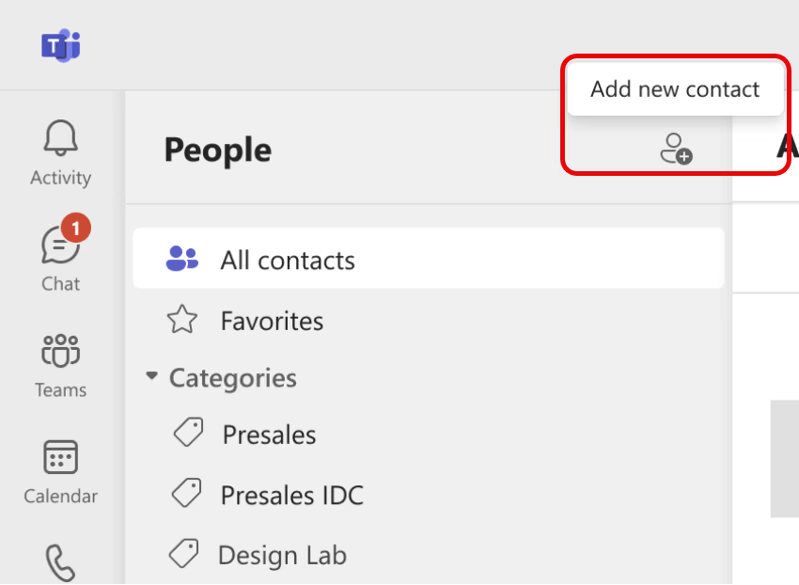
- Open the People app.
- Click Add contact in the top-left corner.
- Enter a name, email address, or phone number.
- Add optional details like company or notes.
- Click Create.
Teams saves the contact instantly. You can now find it under All contacts and search for it in chat.
How to Add People From Your Organization
If your company uses a directory, Teams automatically shows coworkers when you search.
- Open the People app.
- Click Add contact.
- Start typing a coworker’s name.
- Select the suggested profile.
- Save it to your contacts list.
Teams links the contact to the directory and keeps it updated automatically. You can add personal notes, but you cannot edit official fields like name or email.
Why You Don’t See an “Add Contacts” Button
This issue usually happens for one of these reasons:
You Use a Work or School Account
- Your IT admin controls external contacts
- Teams hides the Add Contact option if external access is disabled
- Outlook sync does not override admin restrictions
You Use Microsoft Teams Free
- The People app still exists
- You must add contacts by email or phone number
- Address book sync works mainly on mobile
Does Syncing Outlook Add Contacts Automatically?
No. Syncing Outlook only helps Teams recognize known people. It does not import your entire Outlook contact list by default.
You must still save contacts manually inside Teams using the People app .
How to Edit, Favorite, or Delete Contacts
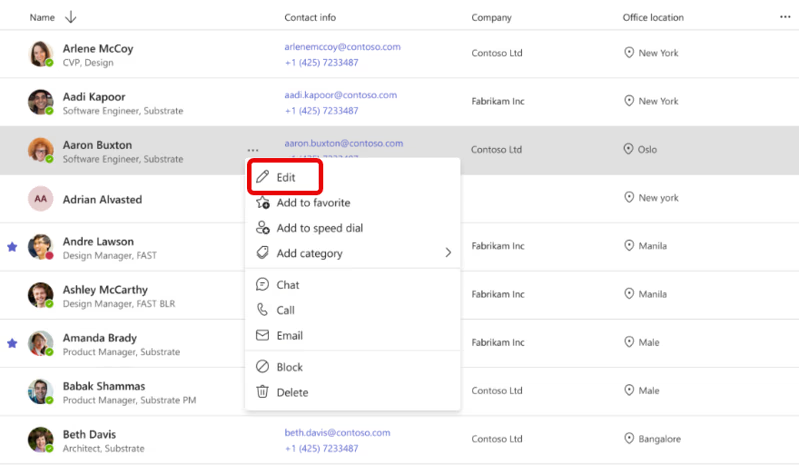
Inside the People app:
- Edit: Open a contact → select Edit contact
- Favorite: Select Add to favorites to pin important people
- Speed Dial: Add contacts for quick calling
- Delete: Remove only your local copy (directory contacts remain)
Favorites and categories apply only to Teams and do not sync elsewhere.
What to Do If You Still Can’t Add Contacts
If the People app does not allow contact creation:
- Confirm whether your account is Work/School or Personal
- Update Teams to the latest version
- Try Teams desktop instead of web
- Contact your IT admin and request:
- External access enabled
- Permission to add local contacts
If you follow an older guide and cannot find Add Contacts, ignore it.
Microsoft replaced that workflow with the People app, and it is now the only supported way to manage contacts in Teams.
