You just installed a new graphics driver, and now your PC crashes with a blue screen or refuses to boot — here’s exactly how to fix it.
A blue screen after installing a graphics driver means the new driver failed to load correctly, the installation became corrupted, or the new package conflicted with existing system files. In some cases, Windows crashes the moment it tries to initialize the GPU, which can trigger boot loops, black screens, or repeated BSOD errors right after login.
The fastest fix is to boot into Safe Mode, remove the faulty driver, and install a stable version. If Windows still fails to start, move to Startup Repair and recovery options. Follow the steps below in order.
Fix Blue Screen After Graphics Driver Install: Quick Steps
Use this fix order:
- Boot into Safe Mode
- Find the BSOD error code
- Roll back the graphics driver
- If rollback is unavailable, remove the driver completely and reinstall cleanly
- Restart Windows normally
- Install a stable driver version
- Use Startup Repair if the system still crashes
- Check whether Windows Update reinstalled the broken driver
Why the blue screen happens after a graphics driver install
The graphics driver loads at the kernel level. If the driver package is broken, incomplete, incompatible, or badly installed, Windows can crash before the desktop becomes stable.
This problem often comes from one of these causes:
- Corrupted graphics driver files
- A failed or incomplete driver installation
- Conflict between old and new GPU files
- A bad driver version
- Conflict between the GPU driver and a recent Windows update
- Third-party utilities interfering with GPU startup
- An incompatible driver blocked by security settings
Step 1: Boot into Safe Mode
If the PC crashes before you can reach the desktop, start in Safe Mode first. Safe Mode loads only essential drivers and services, which makes it much easier to remove the broken graphics driver without triggering another crash.
How to enter Safe Mode
- Force the PC into the Windows Recovery Environment
- Select Troubleshoot
- Open Advanced options
- Choose Startup Settings
- Click Restart
- Press 4 for Safe Mode or 5 / F5 for Safe Mode with Networking
Once Windows opens in Safe Mode, move to the next step.
Step 2: Roll back the graphics driver
If the blue screen started right after the new driver install, rollback is the best first fix. This restores the previous version that worked before the crash started.
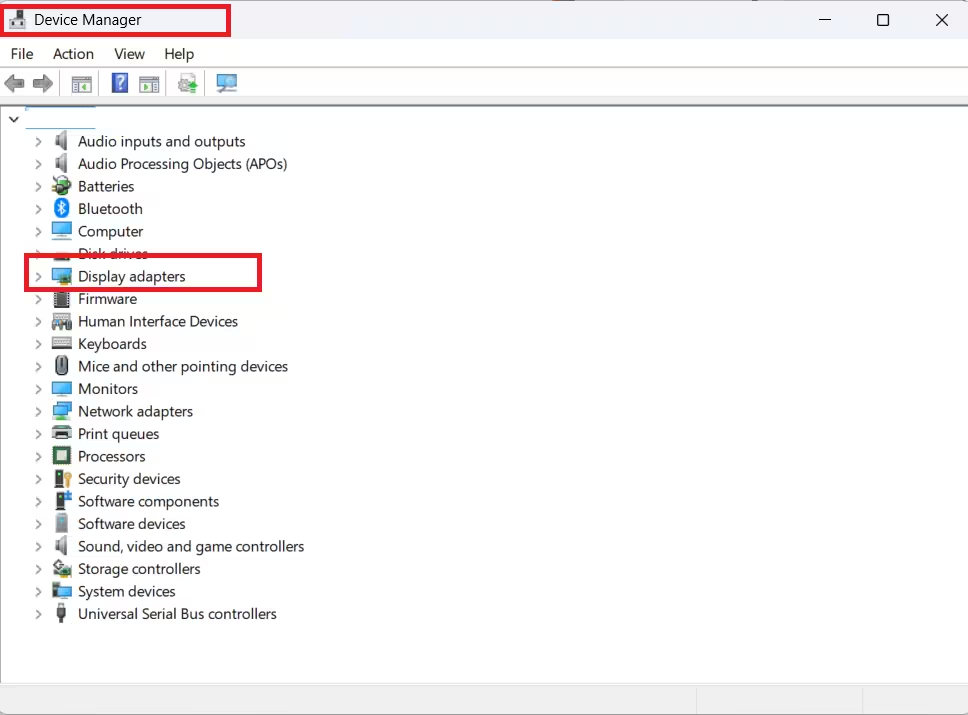
How to roll back the graphics driver
- Press Windows + X
- Open Device Manager
- Expand Display adapters
- Right-click your graphics card
- Select Properties
- Open the Driver tab
- Click Roll Back Driver
- Restart the PC
If the system boots normally after restart, the new driver was the cause.
Step 3: Uninstall the faulty graphics driver
If rollback is unavailable or does not fix the crash, uninstall the graphics driver completely. This removes the failed driver so Windows can fall back to a basic display driver.
How to uninstall the driver
- Open Device Manager
- Expand Display adapters
- Right-click your GPU
- Click Uninstall device
- Confirm the action
- Restart the PC
After restart, Windows should load with a basic display driver. That gives you a stable base for reinstalling the correct GPU package.
Step 4: Install a stable driver version
Do not rush back to the same driver that caused the crash. Install a stable version instead. In many cases, the newest driver is the problem.
Use one of these options:
- The last driver version that worked properly
- The official driver from your laptop manufacturer
- A stable driver delivered through Windows Update
- The latest official GPU driver only after the system becomes stable again
If you use a laptop, start with the OEM driver from the laptop maker. Laptop graphics often depend on custom power and display configurations, especially on systems with hybrid graphics.
Step 5: Do a clean graphics driver reinstall
If normal uninstall and reinstall do not fix the issue, do a clean reinstall. This removes leftover files from the failed install and gives the driver a fresh setup.
Best way to handle a clean reinstall
- Remove the current driver first
- Restart the PC
- Download the replacement driver only from the official source
- Install only the core driver components first
- Restart again after installation
Extra tips before reinstalling
- Disconnect extra monitors
- Close RGB, overclocking, and overlay tools
- Disable background capture software
- Avoid installing extra GPU utilities unless you actually need them
A minimal driver install is often more stable during the first recovery attempt.
Step 6: Run Startup Repair if Windows still crashes
If Windows keeps blue screening before login, use Startup Repair.
How to run Startup Repair
- Open Windows Recovery Environment
- Go to Troubleshoot
- Open Advanced options
- Select Startup Repair
- Let Windows check and repair boot-related issues
Use this when the PC crashes too early for normal troubleshooting.
Step 7: Stop Windows from reinstalling the bad driver
After uninstalling the faulty driver, Windows may try to install another display driver automatically. If that driver is the same broken version, the crash returns.
What to do after reboot
- Open Device Manager
- Check the currently installed driver version
- Open Windows Update
- Pause updates temporarily if needed
- Install the stable driver manually before Windows replaces it again
This step is important when the same BSOD keeps returning after every restart.
Step 8: Check Memory Integrity and driver compatibility
Some graphics drivers fail because Windows blocks them from loading. This usually happens when the driver is outdated or incompatible with current security settings.
How to check
- Open Windows Security
- Go to Device security
- Open Core isolation
- Check Memory Integrity
- Look for a newer compatible graphics driver
Do not force an incompatible driver if Windows blocks it. Replace it with a compatible version instead.
Step 9: Use Clean Boot to check for software conflicts
Sometimes the blue screen appears only after Windows finishes loading startup apps. That points to a conflict from overlays, monitoring tools, RGB apps, motherboard utilities, or third-party tuning software.
How to do a Clean Boot
- Search for msconfig
- Open System Configuration
- Go to the Services tab
- Hide Microsoft services
- Disable the remaining non-essential services
- Open Task Manager
- Disable startup apps
- Restart the PC
If the blue screen stops after a Clean Boot, re-enable apps one at a time until you find the conflict.
Step 10: Use Recovery options if the issue started after a bigger system change
If the crash started after both a Windows update and a graphics driver install, use Windows recovery tools. This step helps when the system changed in more than one way at the same time.
Use this step when:
- A Windows update and GPU driver update happened together
- Safe Mode does not fully solve the issue
- Startup Repair does not help
- The PC became unstable only after a major system change
At that point, recovery tools such as reset options, restore points, or rollback features may be necessary.
Fastest fix order
If you want the quickest path that works in most cases, use this exact order:
- Boot into Safe Mode
- Try Roll Back Driver
- If rollback fails, Uninstall device
- Restart the PC
- Install a stable older driver or OEM driver
- Use Startup Repair if Windows still fails to boot
- Check Windows Update so the same faulty driver does not come back
Laptop GPU issues often behave differently from desktop GPU issues. Many laptops use custom display switching, OEM-tuned power settings, and hybrid graphics profiles. A generic NVIDIA or AMD package can trigger crashes if the laptop expects a manufacturer-tuned version first.
If you use a gaming laptop or a laptop with integrated and dedicated graphics, install the laptop maker’s graphics driver before trying a generic package.
FAQs
Can a graphics driver cause a blue screen?
Yes. A graphics driver runs at a system level, so a broken or incompatible version can crash Windows during boot or shortly after login.
What should I do first after a blue screen caused by a GPU driver?
Boot into Safe Mode and roll back the driver. If rollback is unavailable, uninstall the graphics driver completely.
Should I reinstall the latest GPU driver again?
No. Install a stable version first. Once the system becomes stable again, you can test a newer version later.
What if Windows keeps reinstalling the same broken driver?
Pause Windows Update temporarily, then manually install a stable driver before Windows replaces it again.
Can Startup Repair fix this issue?
Yes, especially when the system crashes before login and you cannot reach Device Manager normally.

