If you’re getting Error Code 2901 (Error Cause 10) in Call of Duty MW3 or Black Ops 6, the game stops you from joining matches and shows: “Lobby not found. Check the code and try again.”
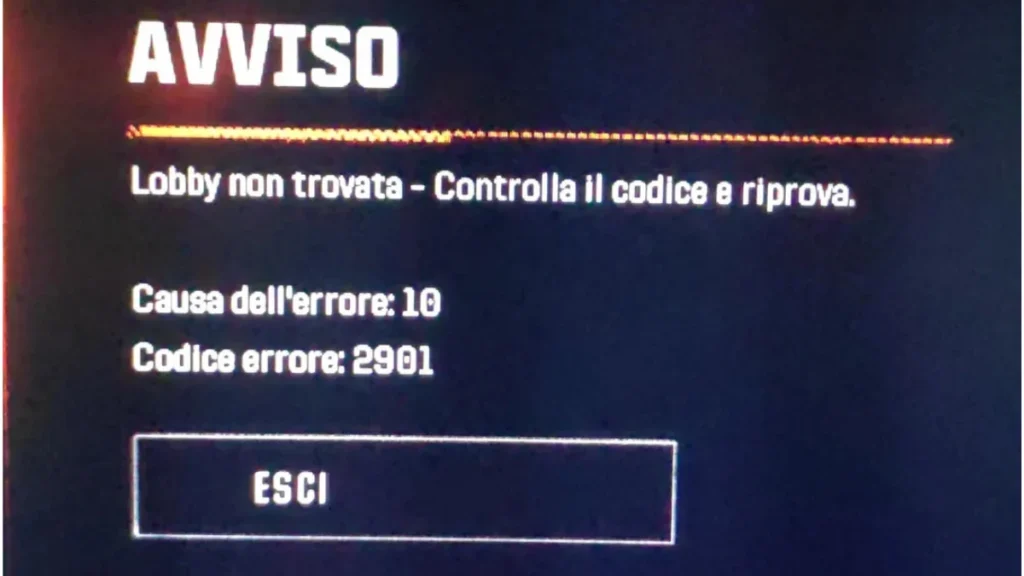
This error usually appears suddenly even when your internet is stable. In most cases, it happens because the game fails to sync your session with Call of Duty servers or cannot verify your account properly. However you can fix this error with the right steps.
Quick Fix That Works for Most Players
Before trying advanced solutions, start with this:
- Close the game completely
- Restart your internet router
- Relaunch Call of Duty and queue again
This refreshes your session and fixes the issue in many cases. If the error still persists, follow the fixes below.
How to Fix Error Code 2901 in Call of Duty
Follow these fixes in order. Do not skip any steps.
1. Check Call of Duty Server Status
Before troubleshooting, first confirm whether the servers are working properly. You can check platforms like Activision Online Services and Downdetector to see the current server status.
If the servers are down or unstable, no local fix will work. In that case, the best option is to wait for about 10–30 minutes and try again later.
2. Restart Your Device and Network Properly
This step clears broken session data.
- Turn off your PC or console completely
- Unplug your router for at least 60 seconds
- Restart everything
This creates a fresh connection with the servers.
3. Update Your Game and System
Running outdated versions can cause matchmaking errors.
- On PC (Steam/Battle.net): Check for updates in launcher
- On Xbox/PlayStation: Update from system settings
Version mismatch often causes lobby errors.
4. Verify and Repair Game Files
Corrupted files are a major reason behind Error Code 2901.
Battle.net
- Open launcher
- Click gear icon → Scan and Repair
Steam
- Right-click game → Properties
- Go to Local Files → Verify Integrity
Xbox App
- Manage → Files → Verify and Repair
This fixes missing or broken files affecting matchmaking.
5. Fix Game Pass Authorization (Xbox Users)
If you’re using Game Pass, this step is critical.
- Press Xbox button
- Go to Settings → Personalization
- Select My Home Xbox
- Enable it
Restart your console after this.
This ensures your account is properly authorized.
6. Avoid Private or Restricted Game Modes
Some modes are more likely to trigger this error:
- Private matches
- Custom lobbies
- Training modes
Switch to:
- Multiplayer
- Zombies
These modes are more stable for matchmaking.
If you still see the error after trying everything, the issue is likely not on your side. Call of Duty servers may be unstable, your session could be temporarily blocked, or matchmaking systems might be overloaded due to high traffic. In such cases, no local fix will work. The best solution is to wait for a while and try again later once the servers stabilize.
FAQs
What is Error Code 2901 in Call of Duty?
It’s a matchmaking error that prevents you from joining a lobby due to session or server issues.
Why does Error Cause 10 appear in MW3 or BO6?
It appears due to server problems, Game Pass authorization issues, or corrupted game files.
How do I fix Error Code 2901 quickly?
Restart your game, reset your internet connection, and try joining a match again.
Can server downtime cause Error 2901?
Yes, if Call of Duty servers are down or overloaded, this error can appear.
Does verifying game files fix Error 2901?
Yes, repairing game files can fix corrupted data that blocks matchmaking.
Is Error Code 2901 permanent?
No, it is usually a temporary issue and gets fixed after restarting or waiting.
Does Game Pass cause Error Cause 10?
Yes, incorrect Game Pass account setup can trigger this error on Xbox.

