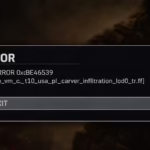
Error code 0xFFFFFFFE can stop Call of Duty from launching or cause the game to crash shortly after startup. Many players began seeing this error after recent updates to Call of Duty HQ and seasonal patches. In most cases, the problem appears when the launcher files or game files become corrupted during an update.
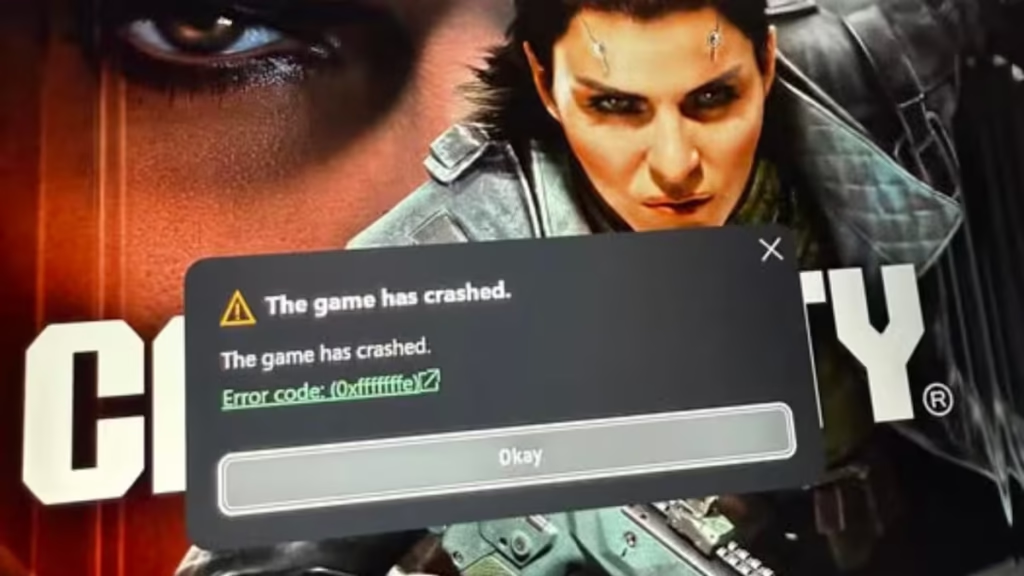
However, you can usually resolve the issue by repairing the launcher, verifying game files, or reinstalling the affected components. This guide explains the most reliable fixes that players use to solve the 0xFFFFFFFE error code on PC.
What Causes Error Code 0xFFFFFFFE in Call of Duty
This error typically appears when Call of Duty HQ cannot properly load the game environment. The issue often occurs after updates that modify launcher files or game assets.
Common causes include:
- Corrupted Call of Duty HQ launcher files
- Broken or missing game files after an update
- Incomplete patch installation
- Launcher conflicts with existing installation files
Because the problem usually originates from the launcher or update process, repairing or verifying files often fixes it quickly.
Fix 1 – Repair the Call of Duty HQ App
Repairing Call of Duty HQ is the most effective solution because many cases originate from corrupted launcher files.
Follow these steps to repair the app:
- Press Windows + I to open Settings.
- Click Apps.
- Open Installed Apps.
- Locate Call of Duty HQ in the list.
- Click the three-dot menu next to it.
- Select Advanced Options.
- Scroll down and click Repair.
Windows will rebuild the launcher files without deleting your game installation. After the repair completes, launch Call of Duty again and check whether the error disappears.
Fix 2 – Verify Call of Duty Game Files
If corrupted game assets cause the problem, verifying the installation will replace damaged files automatically.
Steam
- Open Steam.
- Go to Library.
- Right-click Call of Duty.
- Select Properties.
- Click Installed Files.
- Select Verify integrity of game files.
Steam will scan your installation and download any missing or corrupted files.
Battle.net
- Open the Battle.net launcher.
- Select Call of Duty.
- Click the gear icon next to the Play button.
- Choose Scan and Repair.
- Click Begin Scan.
Once the scan finishes, restart the launcher and launch the game again.
Fix 3 – Reinstall the Call of Duty HQ Launcher
If the repair and verification steps do not resolve the error, reinstalling Call of Duty HQ can rebuild the entire launcher environment.
Follow these steps:
- Open Windows Settings.
- Navigate to Apps → Installed Apps.
- Locate Call of Duty HQ.
- Click the three-dot menu.
- Select Uninstall.
- Restart your PC.
- Reinstall the launcher through Steam or Battle.net.
This process removes any corrupted launcher components that may prevent the game from starting correctly.
Additional Tips to Prevent the Error
You can reduce the chances of seeing this error again by following a few best practices:
- Always allow game updates to finish completely before launching the game.
- Avoid interrupting downloads during large seasonal updates.
- Restart the launcher after installing new patches.
- Keep your launcher and game client updated.
These steps help maintain a clean installation and prevent file corruption.
FAQs
What is error code 0xFFFFFFFE in Call of Duty?
Error code 0xFFFFFFFE appears when Call of Duty fails to launch due to corrupted launcher files or damaged game files after an update.
How do I fix error code 0xFFFFFFFE in Call of Duty?
You can fix the error by repairing the Call of Duty HQ app, verifying the game files through your launcher, or reinstalling the launcher.
Does verifying game files fix the 0xFFFFFFFE error?
Yes. Verifying game files often resolves the problem because it replaces corrupted or missing files that prevent the game from launching.
Why did error code 0xFFFFFFFE appear after an update?
Large updates sometimes overwrite or corrupt launcher files, which can cause the game to fail during startup.