Rockstar Error Code 4 is one of the most frustrating issues players face when trying to launch games like GTA V or Red Dead Redemption 2. The error usually appears during login with a message like “An error occurred while authenticating with Rockstar Games services,” which stops you from accessing online features or even starting the game. Since it looks like a serious system issue, many players assume something is broken on their PC—but that is not always the case.
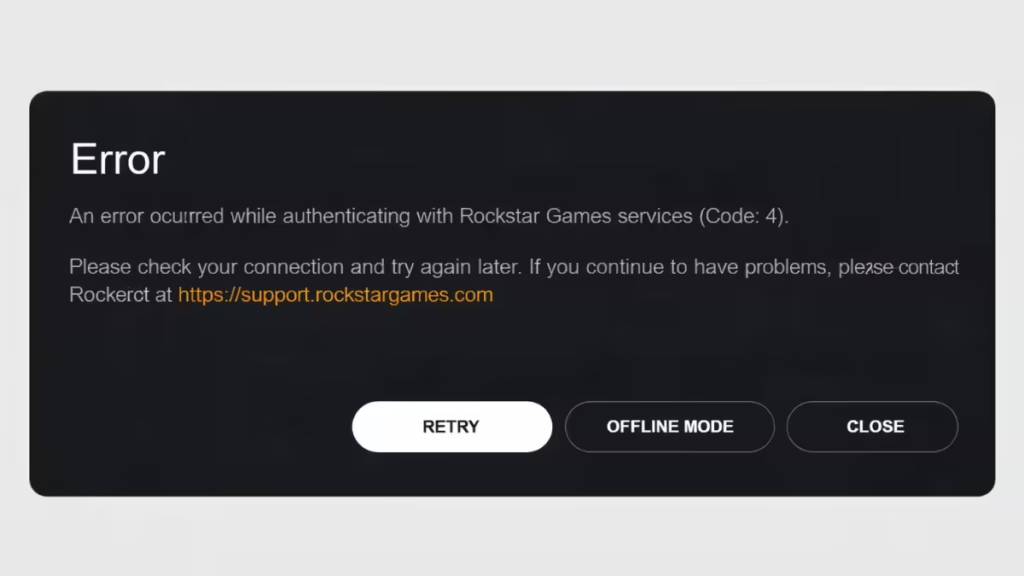
In most situations, this error is caused by simple problems like network restrictions, firewall blocks, or temporary Rockstar server issues. In this guide, you will find clear, step-by-step methods that actually work to fix Rockstar Error Code 4 quickly and get your game running again.
How to Fix Rockstar Error Code 4 (Step-by-Step)
Follow these fixes in order. Do not skip steps, because the issue often resolves early.
1. Check Rockstar Server Status First
Before changing anything on your PC, confirm whether Rockstar servers are working.
- Visit Rockstar Service Status page
- Check GTA Online or Rockstar Launcher status
If servers are down, wait until Rockstar fixes the issue. No local fix will work during downtime.
2. Switch Your Network (Quick Fix)
Network issues are one of the most common causes.
Try this:
- Turn off your current Wi-Fi
- Enable mobile hotspot on your phone
- Connect your PC to mobile data
- Launch the game again
If the game works on hotspot, your ISP or router is causing the problem.
3. Reset Network Settings (Important Step)
If the issue persists, reset your network completely.
Open Command Prompt as Administrator and run:
netsh int ip reset
netsh winsock reset
ipconfig /release
ipconfig /renew
ipconfig /flushdns
Restart your PC after running these commands.
This clears DNS errors, IP conflicts, and connection issues.
4. Allow Rockstar Launcher Through Firewall
Windows Firewall can silently block Rockstar’s authentication requests, which can directly trigger Error Code 4 even when everything else is working.
To fix this:
- Press Windows key
- Search “Allow an app through Windows Firewall”
- Click Change settings
- Find and enable:
- Rockstar Games Launcher
- GTA V / RDR2
- Check both Private and Public
- Click OK
After applying these changes, relaunch the game and check if the issue is resolved.
This step often fixes the error instantly when the launcher is being restricted in the background.
5. Disable VPN or Try a Different One
VPNs can either fix or cause the issue.
- If you are using a VPN, turn it OFF and test
- If you are not using one, try a reliable VPN temporarily
Sometimes Rockstar servers block specific regions or IP ranges.
6. Perform a Clean Reinstall of Rockstar Launcher
If you see “failed to initialize” or “incomplete installation,” this step is required.
Step-by-step:
- Uninstall Rockstar Games Launcher
- Delete leftover folders:
Documents\Rockstar Games\Social ClubDocuments\Rockstar Games\LauncherProgram Files\Rockstar Games\LauncherProgram Files\Rockstar Games\Social ClubProgram Files (x86)\Rockstar Games\Social Club
- Restart your PC
- Download and reinstall the latest Rockstar Launcher
This removes corrupted files completely.
7. Restart Router and Check Internet Stability
If your connection drops frequently, authentication will fail.
- Restart your router
- Avoid unstable Wi-Fi networks
- Use a wired connection if possible
Stable internet is critical for Rockstar authentication.
Best Troubleshooting Order
If you want the fastest fix, follow this order:
- Check server status
- Switch network (hotspot test)
- Reset network settings
- Check firewall
- Test VPN
- Reinstall launcher
This order solves most cases without wasting time.
Why Rockstar Error Code 4 Happens
This error is not always your fault. It can occur due to:
- Temporary server outages
- ISP-level blocking
- Corrupt launcher updates
- Network misconfiguration
That’s why simple fixes like switching networks often work instantly.
FAQs
Is Rockstar Error Code 4 permanent?
No. It is usually temporary and can be fixed using network or reinstall methods.
Does this error mean I am banned?
No. This error is related to connection or installation issues, not account bans.
Can I fix this without reinstalling?
Yes. In many cases, switching networks or resetting DNS fixes the issue.
