If your USB drive shows errors, refuses to open, or needs a fresh start, formatting it fixes most problems instantly. You can also format a USB drive to change its file system for better compatibility with Windows, Mac, TVs, gaming consoles, or large files.
This guide shows you exactly how to format a USB drive on Windows 10, Windows 11, and macOS safely.
When Should You Format a USB Drive?
You should format a USB drive if:
- It shows “USB not recognized”
- It says “You need to format the disk before using it”
- It runs very slow
- You want to remove viruses
- You need to change the file system (NTFS, FAT32, exFAT)
- You want to completely erase everything
Formatting deletes all data permanently. Back up important files before you start.
How to Format a USB Drive on Windows 11 / Windows 10
Step 1: Insert the USB Drive
- Plug the USB drive into your computer.
Step 2: Open File Explorer
- Press Windows + E
- Click This PC
Step 3: Right-Click the USB Drive
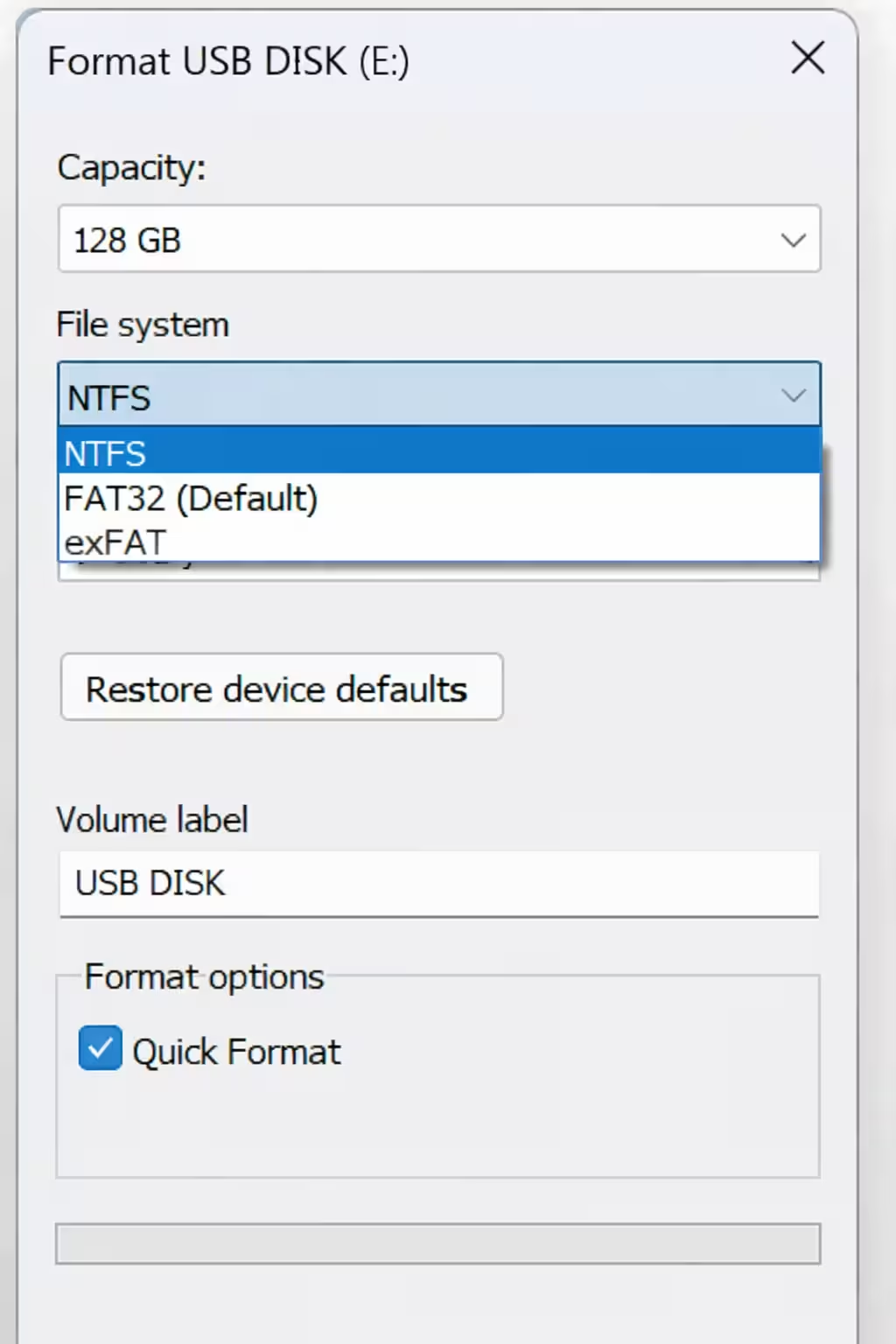
- Find your USB under “Devices and Drives.”
- Right-click it and select Format.
Step 4: Choose the Correct File System
Choose based on your use case:
- NTFS – Best for Windows only and large files
- FAT32 – Best for TVs, older devices, and maximum compatibility
- exFAT – Best for Windows + Mac and files larger than 4GB (Recommended)
If you are unsure, choose exFAT.
Step 5: Keep Default Settings
- Allocation Unit Size: Leave default
- Volume Label: Rename if you want
- Quick Format: Keep it checked
Click Start → Click OK
Windows will format the USB within seconds.
How to Format a USB Drive Using Disk Management (If Normal Method Fails)
If File Explorer does not allow formatting, use this method:
Step 1:
- Press Windows + X → Click Disk Management
Step 2:
- Right-click your USB drive.
Step 3:
If needed:
- Click Delete Volume
- Then click New Simple Volume
Step 4:
- Choose file system → Finish
This method fixes corrupted USB drives.
How to Format a USB Drive on Mac
Step 1:
- Insert the USB into your Mac.
Step 2:
- Press Command + Space → Type Disk Utility
Step 3:
- Select your USB from the left panel.
Step 4:
- Click Erase
- Choose format:
- ExFAT – Best for Windows + Mac
- MS-DOS (FAT) – FAT32 format
- APFS – Mac only
Click Erase
Mac will format the USB immediately.
Which USB Format Should You Choose?
| Use Case | Best Format |
|---|---|
| Windows PC only | NTFS |
| Windows + Mac | exFAT |
| TV / Car / Old Devices | FAT32 |
| Files larger than 4GB | exFAT or NTFS |
Most users should choose exFAT.
FAQs:
How do I format a USB drive on Windows?
Insert the USB drive, open File Explorer, right-click the drive, select Format, choose a file system, and click Start.
How do I format a USB drive on Mac?
Open Disk Utility, select the USB drive, click Erase, choose a format like exFAT, and confirm.
What is the best format when learning how to format a USB drive?
exFAT is the best format if you want compatibility with both Windows and Mac and support for large files.
Does formatting a USB drive delete all data?
Yes, formatting a USB drive permanently removes all files stored on it.
Why can’t I format a USB drive?
You may not format a USB drive if it is write-protected, corrupted, or physically damaged.
How long does it take to format a USB drive?
A quick format usually takes less than one minute, while a full format takes longer depending on size.
Can formatting fix USB errors?
Yes, formatting often fixes file system errors and restores proper functionality.

