If your sound is not working or your PC shows “No audio output device,” you likely need to install the Realtek audio driver. This driver allows Windows to communicate with your speakers, headphones, and sound card.
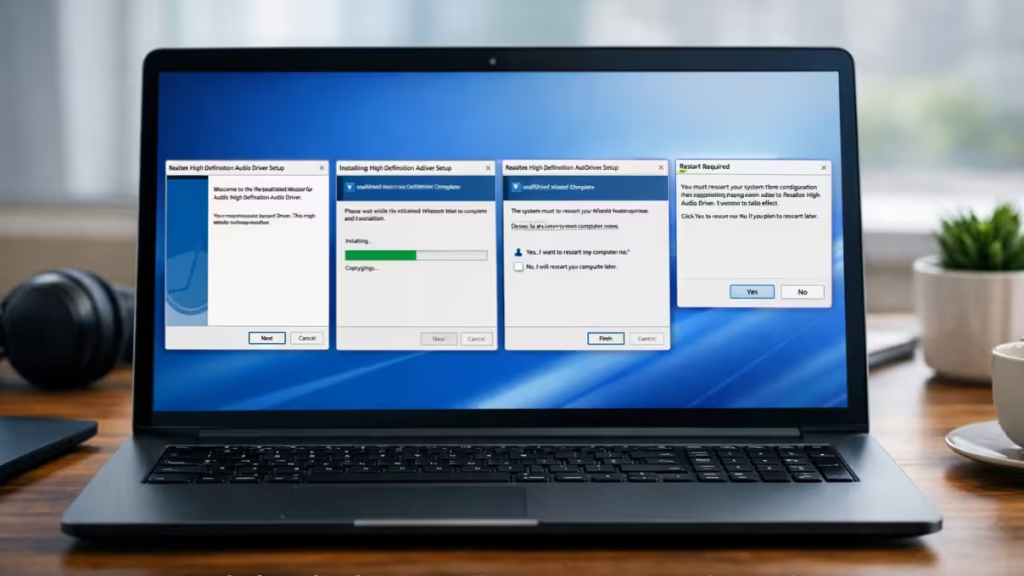
This guide shows exactly how to install the Realtek audio driver on Windows 11 using the safest and fastest method.
Step 1: Download the Correct Realtek Audio Driver
Start by downloading the correct driver for your system.
- Go to your PC or laptop manufacturer website (HP, Dell, Lenovo, ASUS, etc.)
- Enter your model number
- Open Drivers & Downloads
- Select Audio → Realtek Audio Driver
- Download the latest version
Always use the manufacturer driver first because it matches your hardware perfectly.
Step 2: Uninstall the Old Audio Driver
Remove the existing driver before installing a new one.
- Press Windows + X → Device Manager
- Expand Sound, video and game controllers
- Right-click your audio device
- Click Uninstall device
- Restart your PC
This step prevents conflicts and installation errors.
Step 3: Install the Realtek Driver
Now install the new driver.
- Open the downloaded file
- Extract it if it is in ZIP format
- Double-click Setup.exe
- Click Next → Install
- Follow the on-screen instructions
The installer will automatically copy files and configure the driver.
Step 4: Restart Your PC
Restart your system after installation.
- Click Restart when prompted
- Or restart manually
A restart completes the driver setup and activates audio services.
Step 5: Check If Realtek Audio Is Installed
Confirm the installation.
- Open Device Manager
- Expand Sound, video and game controllers
- Look for Realtek(R) Audio
If you see it, the driver installed correctly.
Step 6: Test Your Audio
Make sure everything works.
- Right-click the speaker icon
- Open Sound settings
- Select your output device
- Play any audio
If you hear sound, your setup is complete.
Alternative Method: Install via Windows Update
If you don’t want manual installation, use Windows Update.
- Go to Settings → Windows Update
- Click Check for updates
- Open Advanced options → Optional updates
- Install any Realtek audio driver
Windows can automatically detect and install missing drivers after restart.
Quick Fix If Installation Fails
If the driver does not install properly:
- Run the installer as Administrator
- Disable antivirus temporarily
- Enable Show hidden devices in Device Manager
- Restart and reinstall again
FAQs
How to install Realtek audio driver Windows 11?
Download the driver from your manufacturer site, run the setup file, and restart your PC.
Why is Realtek audio driver not working on Windows 11?
It usually fails due to outdated, corrupted, or missing drivers.
How to reinstall Realtek audio driver Windows 11?
Uninstall it from Device Manager, restart, then install the latest version.
Where to download Realtek audio driver for Windows 11?
Download it from your laptop manufacturer website or Windows Update.
How to fix no sound issue in Windows 11 Realtek audio?
Reinstall the driver and select the correct audio output device.
Does Windows 11 install Realtek audio driver automatically?
Yes, Windows Update can install it automatically in most cases.
What is Realtek audio driver in Windows 11?
It is software that allows Windows to communicate with your audio hardware.
How to update Realtek audio driver Windows 11?
Update it via Device Manager or Windows Update optional updates.
Why is Realtek audio missing in Device Manager?
The driver may be uninstalled, disabled, or corrupted.
Is Realtek audio driver safe to install?
Yes, it is safe if downloaded from official or manufacturer sources.

