Ashes of Creation is now playable through Steam, but access is still tied to your Intrepid Studios account. Whether you purchased the game directly from Intrepid or bought Early Access on Steam, linking both accounts is mandatory to play without issues.
Before You Start: Important Things to Know
Before linking your accounts, keep these points in mind:
- Once linked, Intrepid and Steam accounts cannot be disconnected
- Make sure you are logged into the correct Steam account
- Make sure you are logged into the correct Intrepid account
- Steam will not show Alpha access or entitlements — those remain visible only in your Intrepid Account Inventory
If you are both accounts are correct, proceed with the steps below.
How to Link an Intrepid Purchase to Steam
This method applies if you purchased Ashes of Creation directly from Intrepid Studios and want to add it to your Steam library.
Step-by-Step Instructions
- Log in to your Steam account on the Steam website
Confirm you are using the Steam account you want permanently linked - Log in to your Intrepid account on the official Ashes of Creation website
- Open your Account Dashboard
- From the Account menu, select Account Settings
- Scroll to Account Connections
- Locate Steam Account and click Connect
- You will be redirected to the Steam website
- When prompted to sign into ashesofcreation.com using your Steam account, confirm the displayed Steam username
- If it’s incorrect, click Not You? and sign into the correct account
- Click Sign In and wait for processing
- A Connection Successful message will confirm the link
Once completed, Ashes of Creation will appear in your Steam Library.
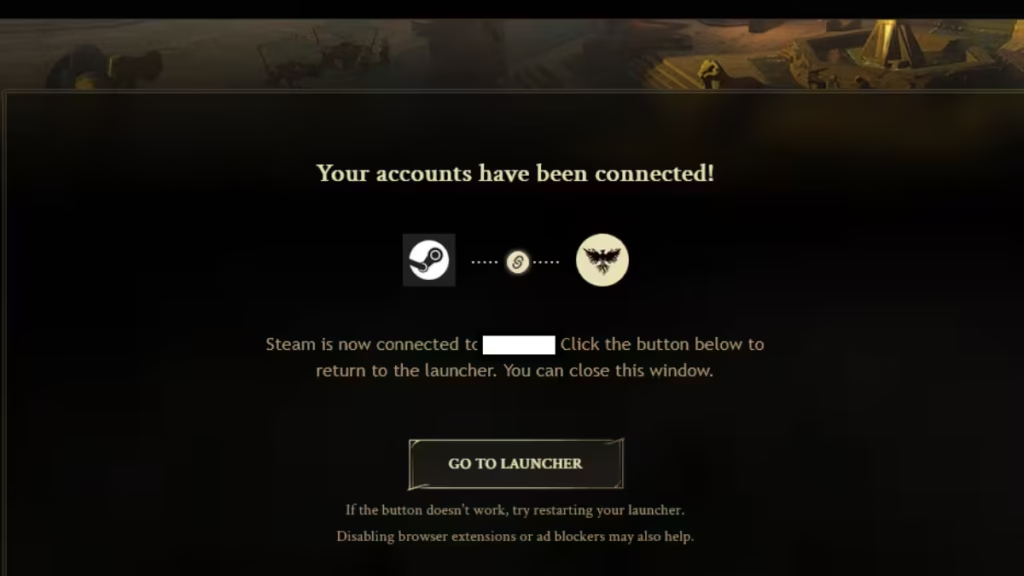
Access details and entitlements remain visible only in your Intrepid Account Inventory.
How to Link a Steam Purchase to Your Intrepid Account
This method applies if you purchased Ashes of Creation Early Access on Steam.
Step-by-Step Instructions
- Install Ashes of Creation through Steam
- Click Play from your Steam Library
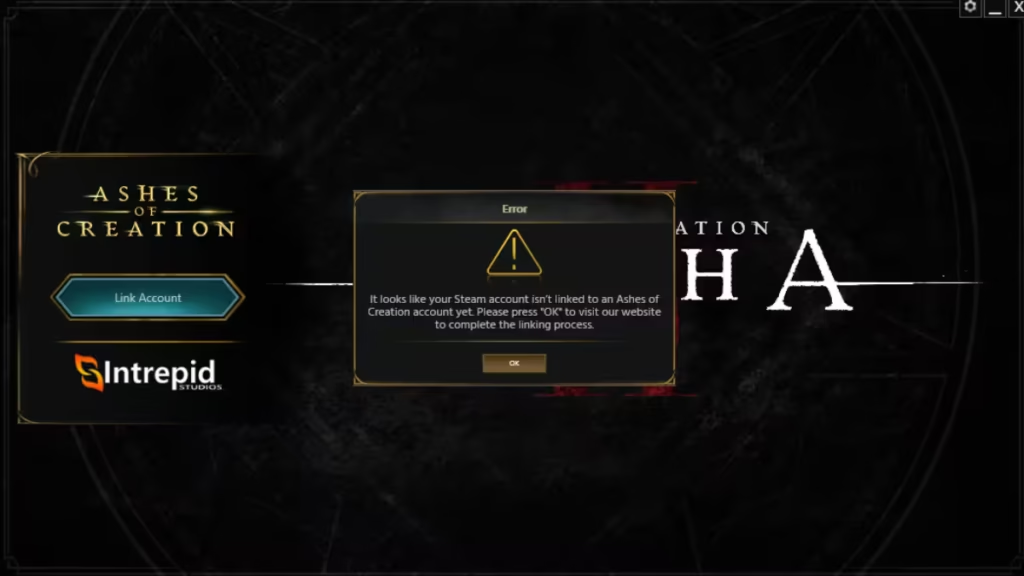
- The Intrepid Launcher will open and prompt you to link an account
- If you already have an Intrepid account, sign in
If not, choose Create an Account and complete the setup - Return to the launcher and click Link Account
- Confirm the correct Steam account is selected
- If not, click Not You? and sign in again
- Click Sign In to authorize the connection
Once completed, your Steam and Intrepid accounts will be linked, and you can return to Steam to continue playing Early Access.
Where to Check Your Access and Rewards
After linking:
- Steam Library: Confirms the game is added
- Intrepid Account Inventory: Shows Alpha access, editions, and rewards
- Steam itself does not display entitlement details
If something appears missing, always verify your Account Inventory first.
Common Issues and Fixes
1. Steam Account Is Wrong: If the wrong Steam account appears during login:
- Click Not You?
- Sign in again before confirming
2. Game Does Not Appear in Steam
- Refresh Steam
- Restart the Steam client
- Confirm the link shows as active in Account Connections
3. Linking Failed or Stuck
- Retry the process from Account Settings
- Ensure you are logged into Steam before starting
- Submit a support ticket if the issue persists
Read More:
- How to Get Prism Scale in Pokémon Legends Z-A & Evolve Feebas
- FC 26 The Little Magician Evolution Best Players and Upgrade Guide
- How to Find and Catch Frigibax in Pokémon Legends Z-A Mega Dimension DLC
- All Path of Exile 2 Druid Skills and Forms
- All No Means Nothing Endings Explained
- How to Romance Marie in Warframe After The Old Peace
- How to Sanctify Gear in Diablo 4 Season 11 and When to Use It
- How to Harvest a Key Chocolate Ingredient in Disney Dreamlight Valley
Linking your Intrepid account with Steam is a one-time, permanent action, but it ensures smooth access to Ashes of Creation across platforms. As long as both accounts are correct before linking, the process is straightforward and secure.
Once connected, you can manage your game entirely through Steam while keeping all access rights tied safely to your Intrepid account.

