Hytale finally lets players jump into the massive world of Orbis, and Creative mode gives you full freedom to explore, build, and experiment without survival pressure. You get unlimited resources, powerful editing tools, and full control over the environment. If you want to learn the game systems, prototype builds, or create cinematic scenes, Creative mode offers the fastest way to do it.
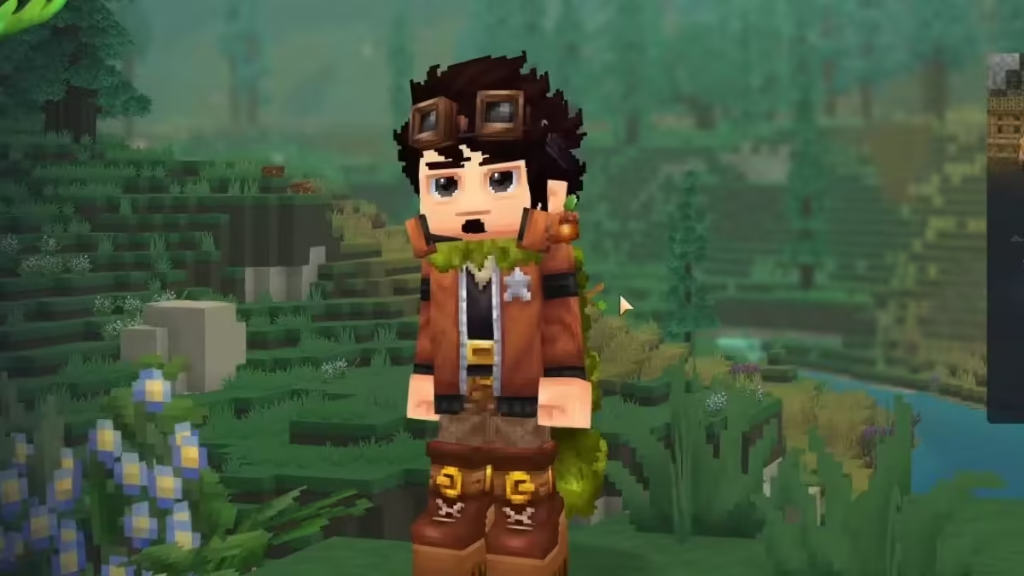
This guide walks you through how to start a Creative world, adjust settings, and use the core tools effectively.
What Creative Mode Does in Hytale
Creative mode removes combat pressure and resource limits so you can focus entirely on building and experimentation.
You can:
- Access all blocks, assets, and weapons instantly.
- Place unlimited materials without gathering or crafting.
- Fly freely to move and build faster.
- Modify terrain, structures, and prefabs in real time.
- Adjust time, NPC behavior, and world parameters.
- Record scenes using built-in machinima tools.
This mode works well for new players learning controls and for advanced builders designing large-scale environments.
How to Create a Creative World in Hytale
Starting a Creative world takes only a few clicks from the main menu.
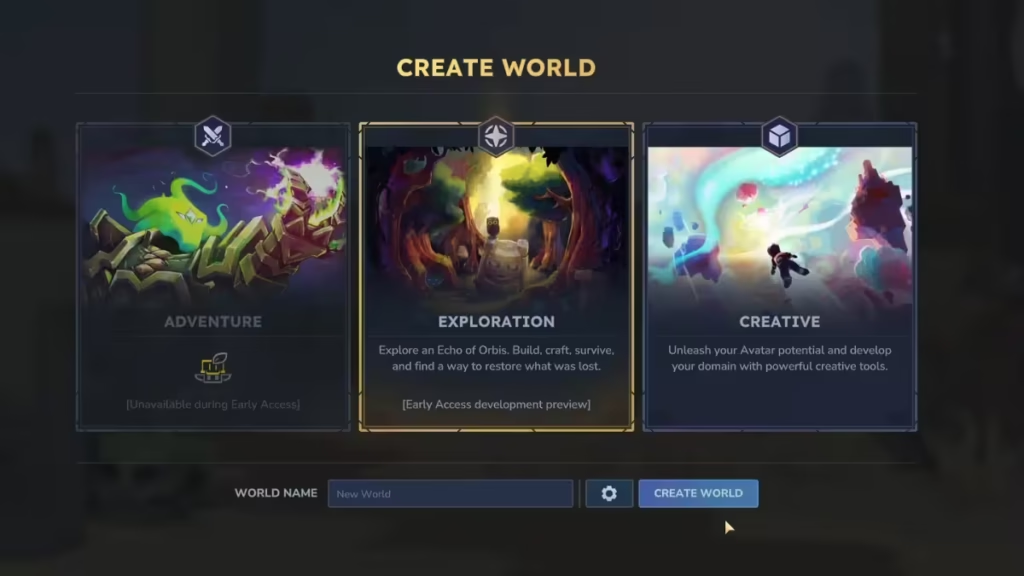
Follow these steps:
- Launch Hytale and open the Worlds tab.
- Select Create World in the bottom-right corner.
- Choose Creative from the list of world types.
- Enter a world name.
- Click Create World to generate the map.
Once the world loads, you spawn directly into Creative mode with full access to tools and blocks.
Adjust World Settings Before You Start
Hytale allows you to customize Creative worlds before generating them.
Click the gear icon next to the Create World button to open advanced settings. From here, you can:
- Enable or disable NPCs.
- Pause or control world time.
- Adjust environmental parameters.
- Change world generation options.
After configuring your preferences, select Apply Settings, then create the world.
You can also right-click any existing world in the Worlds menu later to modify its settings.
Moving and Building Faster in Creative Mode
Creative mode focuses on speed and precision.
Use these mechanics:
- Flight movement: Fly freely to reach high areas and large builds quickly.
- Instant block placement: Place or remove blocks without delay.
- Unlimited inventory: Access every block and item instantly.
- Quick terrain shaping: Sculpt landscapes without tool durability limits.
This workflow helps you prototype structures, cities, and terrain layouts efficiently.
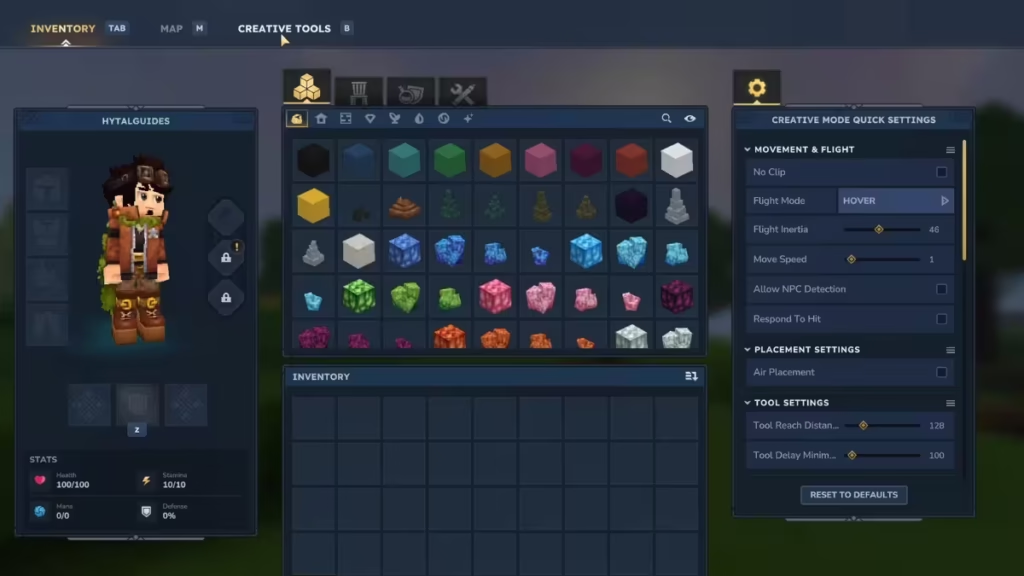
How to Use Creative Tools and Editors in Hytale
Hytale includes powerful in-game tools designed for creators.
1. Live Editing Tools
You can edit assets, prefabs, and models directly inside the world. This allows rapid testing and iteration without restarting the map.
2. Asset and Prefab Management
Save custom structures as prefabs and reuse them across different builds or worlds.
3. Player Model Editing
Modify player appearance and test animations or models instantly.
4. Command System
Use built-in commands to spawn items, control time, teleport, and manage the environment quickly.
5. Machinima Editor
Record cinematic scenes using camera controls and tracking tools. This feature works well for content creators who want to capture gameplay footage or build short films inside the engine.
How to Switch Between Game Modes in Hytale
At launch, Hytale supports two main modes:
- Creative – Full freedom and unlimited resources.
- Exploration – Standard gameplay with progression and combat.
The Adventure mode is planned for future release.
You can change certain parameters on existing worlds from the Worlds menu if you want to experiment with different setups.
When to Use Creative Mode
Creative mode works best when you want to:
- Learn building controls and mechanics.
- Test structures or redstone-style logic systems.
- Design multiplayer maps or custom experiences.
- Record videos or screenshots.
- Experiment with assets without risk.
If you want progression and combat challenges, switch back to Exploration mode.
Creative mode in Hytale gives you complete control over the world of Orbis. You can build massive environments, learn mechanics safely, and create custom content without limits. With flexible world settings, live editing tools, and cinematic features, Creative mode serves both casual builders and advanced creators.
If you enjoy sandbox creativity and fast iteration, this mode delivers everything you need to bring ideas to life. Play Now!

