Modding in Hytale lets you build your own worlds, mechanics, and assets. One of the best beginner projects is creating a custom block that you can place, break, and use inside a Creative World.

This guide walks you through the full process using the in-game Asset Editor, manual folder setup, and texture linking.
What You Need Before You Start
Before you jump in, make sure you have:
- Hytale installed and updated
- A Creative World
- A simple PNG texture file for your block (any square image works)
You don’t need coding experience for this setup. The editor handles most of the heavy lifting.
Step 1: Create a Creative World and Enable Editor Access
Start by setting up a clean testing environment.
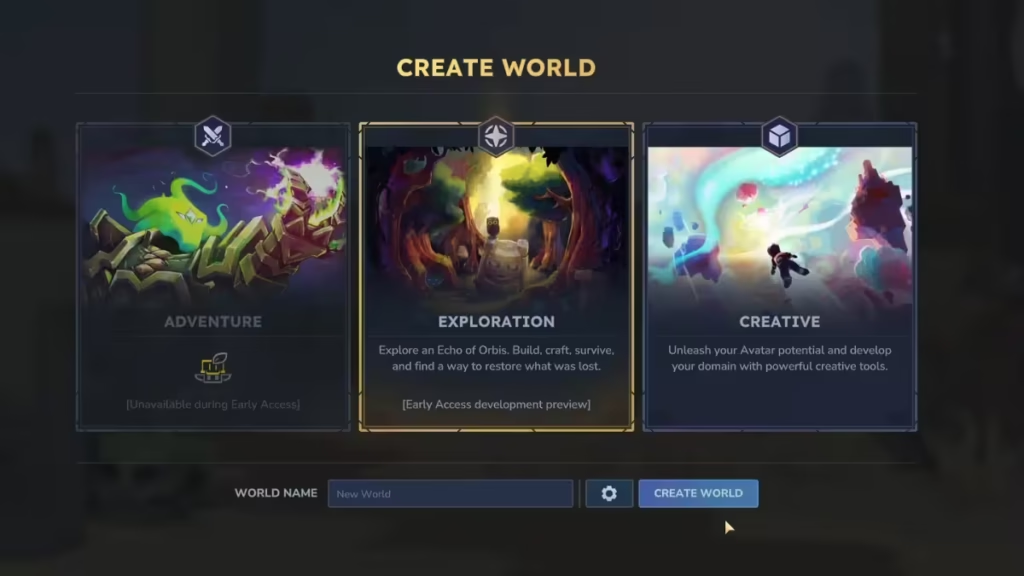
- Open Hytale and go to Worlds.
- Create a new Creative World.
Example name: Creative Test World. - Spawn into the Creative Hub and walk through the portal into the normal world.
- Press
/to open chat. - Type:
/op self - Press Enter to grant yourself operator permissions.
This unlocks the Asset Editor, which controls custom items and blocks.
Step 2: Open the Asset Editor and Create a Mod Pack
Now you’ll create a container for your mod assets.
- Press Tab to open the inventory.
- Go to Creative Tools → Assets → Asset Editor.
- Wait for the editor window to open.
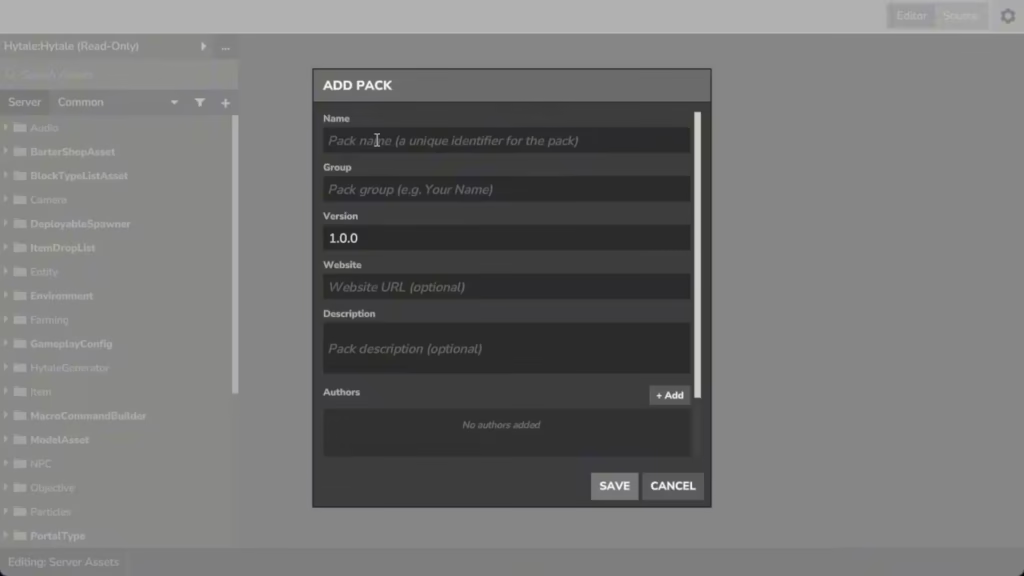
- Click the three-dot menu and choose Manage Packs → Add Pack.
- Enter:
- Pack Name: Any name you want (example: Testing Block Mod)
- Group: Any label you prefer
- Click Save.
You should see the editor header switch from Read Only to your new pack name. This confirms the pack is active. If it does not switch, manually change it from Read Only to your pack name — in this example, Testing Block Mod.
Step 3: Create the Block Asset
Next, you’ll create the asset entry that represents your block.
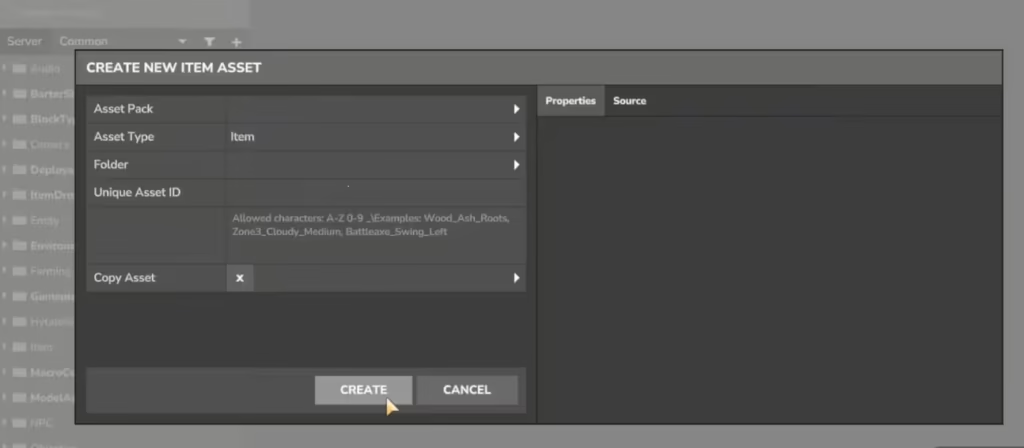
- Click the plus (+) button in the Asset Editor.
- Set Asset Type to Item.
- Enter a unique Asset ID.
Example:custom_block_asset - Click Create.
- Open the Source tab inside the asset.
- Paste the provided block configuration code (from your reference or template).
- Find the
"name"field and set the in-game display name.
Example:"name": "Custom Block" - Click Apply Changes.
You’ll see warnings about missing textures and icons. That’s normal at this stage.
Step 4: Create the Required Folder Structure
The game loads textures directly from your mod folder. You must create this structure manually.
- Press Windows + R.
- Type:
%appdata%- Navigate to:
hytale → user data → saves → [Your Creative World] → mods → [Your Mod Pack Name]- Inside your mod folder, create:
common
 ├── block textures
 └── icons
      └── items generated
This structure tells Hytale where to look for block textures and inventory icons.
Step 5: Add Your Block Texture and Icon
Now place your image files into the correct folders.
- Copy your texture image (example:
texture.png). - Paste it into:
common/block textures- Paste the same image (or a separate icon image) into:
common/icons/items generatedThe second copy controls how the block appears in your inventory.
Step 6: Link Texture Paths in the Asset Editor
Return to the Asset Editor → Source tab and update the file paths.
Update the icon path so it points to:
items generated/texture.pngUpdate the texture path so it points to:
block textures/texture.pngMake sure the filenames match exactly, including lowercase letters.
Click Apply Changes when finished.
Step 7: Restart Hytale to Load the New Asset
Hytale needs a full restart to register new asset files.
- Close the Asset Editor.
- Exit to the main menu.
- Quit Hytale completely.
- Relaunch the game.
- Load your Creative World again.
Step 8: Equip and Place Your Custom Block
Once you’re back in your world:
- Press Tab → Creative Tools → Assets → Asset Editor.
- Use the search bar to find your asset by name.
- Select the asset.
- Click Equip Item.
Your custom block appears in your hand.
You can now:
- Place the block in the world
- Break it normally
- See the icon in your inventory
- Confirm the texture renders correctly on all faces
At this stage, the block behaves like a standard decorative block. You can later add logic, interactions, or behaviors.
See also: How to Play Creative Mode in Hytale (Beginner Guide)
Custom Block Not Showing? Here’s How to Fix It
1 . Block Shows as Missing Texture
- Confirm the PNG file exists in both folders.
- Verify the filename matches the path exactly.
- Restart Hytale after every change.
2. Asset Does Not Appear in Search
- Make sure the mod pack is active in the Asset Editor.
- Confirm you clicked Apply Changes.
- Restart the game.
3. Permission Error in Asset Editor
- Re-enter
/op selfin chat. - Reload the world if needed.
FAQs
How do I add a custom block in Hytale?
Open the Asset Editor, create a new item asset, link your texture files in the mod folder, apply changes, restart the game, and equip the block from the editor.
Where do I place custom block textures in Hytale?
Place the texture file inside common/block textures and the inventory icon inside common/icons/items generated within your mod folder.
Why is my custom block missing its texture?
The texture path usually points to the wrong filename or folder. Check spelling, folder structure, and restart Hytale after applying changes.
How do I equip a custom block in Hytale?
Open the Asset Editor, search for your asset name, select it, and click Equip Item to place the block in your hand.
Do I need coding knowledge to add a custom block in Hytale?
No. The Asset Editor handles most setup. You only edit basic asset values and file paths.
Why does the Asset Editor show Read Only mode?
You must run /op self in chat and switch the editor header to your mod pack name to enable editing.

