Windows 11 update KB5074109 introduced a serious bug that breaks connections to Azure Virtual Desktop (AVD). After installing the update, users see the error:
“An authentication error has occurred (Code: 0x80080005)”
The error appears when users click Connect inside the Windows App or Remote Desktop client. A simple fix is to uninstall KB5074109 or switch to the older Remote Desktop client, which restores normal connectivity.
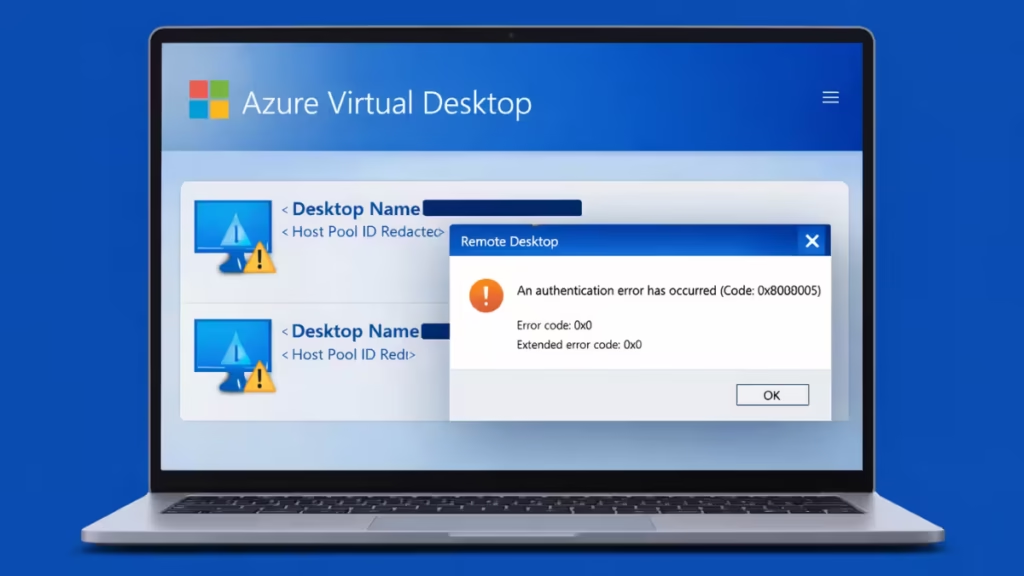
This guide walks you through proven fixes step by step.
Step 1: Confirm That KB5074109 Is Installed
Before applying any fix, confirm that your system installed KB5074109.

Method
- Press Windows + I to open Settings.
- Click Windows Update.
- Select Update history.
- Scroll to Quality Updates.
- Look for KB5074109 in the list.
If you see the update, continue to the next step.
See also: Fix Outlook Freezes After KB5074109 Update on Windows 11
Step 2: Uninstall KB5074109 Using Windows Settings
Uninstalling the update immediately restores Azure Virtual Desktop connectivity on affected machines.
Method
- Open Settings → Windows Update → Update history.
- Scroll down and click Uninstall updates under Related settings.
- Locate KB5074109 in the list.
- Click Uninstall.
- Restart your computer after removal completes.
After reboot, launch your Azure Virtual Desktop session and test the connection.
Step 3: If KB5074109 Does Not Appear in Uninstall List
Some systems hide the update in the uninstall menu. In that case, use the command line.
Method (Admin Command Prompt)
- Press Start, type cmd.
- Right-click Command Prompt → Run as administrator.
- Run this command:
dism /online /get-packages | findstr 5074109- Copy the full package name from the output.
- Run:
dism /online /remove-package /PackageName:<PASTE_PACKAGE_NAME>- Restart the system.
This method forces Windows to remove the update package manually.
Step 4: Temporary Workaround – Install the Older Remote Desktop App
If you cannot uninstall the update immediately, switch to the older Azure Virtual Desktop client.
The legacy client bypasses the authentication failure introduced by KB5074109 and allows users to reconnect without downtime.
When to Use This Option
- You manage production systems.
- You cannot reboot immediately.
- You need quick user recovery.
Install the legacy Remote Desktop client from Microsoft’s official documentation and connect using that client until Microsoft releases a fix.
Step 5: Pause Windows Updates to Prevent Reinstallation
Windows may reinstall KB5074109 automatically during the next update cycle.
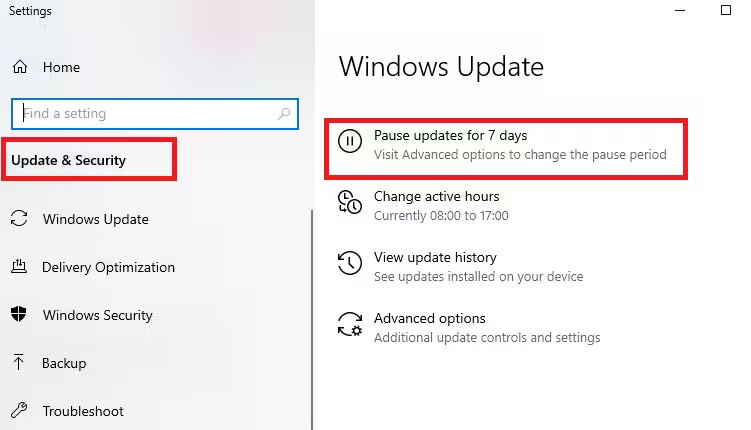
Method
- Open Settings → Windows Update.
- Click Pause updates.
- Choose a pause duration (1–5 weeks).
This prevents accidental redeployment until Microsoft publishes a patched build.
Step 6: Verify the Fix
After uninstalling or switching clients:
- Open the Windows App or Remote Desktop client.
- Click Connect to your Azure Virtual Desktop.
- Confirm successful login without authentication errors.
If the session connects normally, the fix is complete.
Why KB5074109 Breaks Azure Virtual Desktop
KB5074109 modifies authentication and networking components in Windows 11 builds 24H2 and 25H2. The update triggers credential validation failures inside the Windows App when initiating AVD sessions. Administrators observed consistent failures across multiple machines, confirming that the issue originates from the update rather than device misconfiguration.
Microsoft acknowledged the issue and continues to investigate.
FAQs
What causes the KB5074109 Azure Virtual Desktop authentication error?
KB5074109 changes Windows authentication behavior and breaks credential validation inside the Windows App and Remote Desktop client, which triggers the authentication error when users try to connect to Azure Virtual Desktop.
How do I fix the KB5074109 Azure Virtual Desktop authentication error?
Uninstall KB5074109 from Windows Update history and restart the computer. This immediately restores normal Azure Virtual Desktop connectivity on affected systems.
Can I safely uninstall KB5074109 on Windows 11?
Yes. You can safely uninstall KB5074109 if it blocks Azure Virtual Desktop access. Reinstall the update later after Microsoft releases a corrected patch.
Why does Azure Virtual Desktop fail to connect after KB5074109 installs?
The update interferes with authentication services, causing valid credentials to fail verification and triggering error code 0x80080005 during connection attempts.
Does using the older Remote Desktop client fix the KB5074109 error?
Yes. The older Remote Desktop client bypasses the authentication conflict introduced by KB5074109 and allows users to connect successfully.
How do I stop KB5074109 from reinstalling automatically?
Pause Windows Updates in system settings to prevent Windows from reinstalling KB5074109 until a fixed update becomes available.
Which Windows versions are affected by KB5074109?
The issue affects Windows 11 systems running newer builds, including version 24H2 and early 25H2 releases.
Is Microsoft releasing a fix for the KB5074109 authentication issue?
Microsoft acknowledged the problem and continues to work on a permanent fix through a future Windows update.

