Windows 11 modern apps block many older fonts that worked perfectly on Windows 10. When you install these fonts, Windows labels them as “Legacy” in the Fonts settings panel. Modern apps like the new Paint app cannot detect or use them.
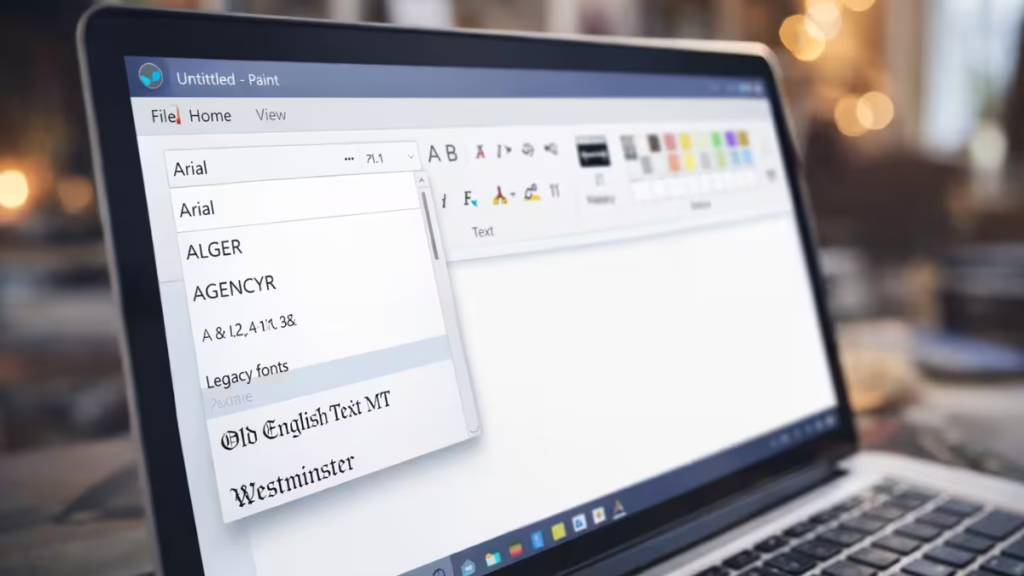
This behavior frustrates designers, retro font users, and anyone working with older projects. Fortunately, most Windows 11 builds still include the classic Paint executable (mspaint.exe), which fully supports legacy fonts. You only need to open it correctly.
Confirm Whether Windows Marked Your Font as Legacy
Before applying any fix, verify the font status.
Steps
- Open Settings.
- Click Personalization → Fonts.
- Search for your font name.
- If Windows displays Legacy under the font name, modern apps will not load that font.
This confirms that the limitation comes from Windows font filtering and not from a corrupted font file.
Why Windows 11 Blocks Legacy Fonts in Modern Apps
Windows 11 ships with a redesigned Paint app built on modern font rendering technology. This rendering system drops support for bitmap fonts, Type 1 fonts, and older raster font formats.
When you install these fonts, Windows marks them as Legacy. The system keeps them available for older desktop applications but hides them from modern apps.
See also: Windows 11 Product Key: Where to Buy Legit Licenses
This design improves security and rendering consistency, but it reduces backward compatibility. Classic desktop applications continue to load these fonts normally.
How to Open Classic Paint in Windows 11
Most Windows 11 installations still include the original Paint executable even though Windows opens the modern Paint app by default.
You do not need to download anything.
Steps
- Press Windows + R to open the Run dialog.
- Type
mspaint- Press Enter.
Windows launches the classic Paint interface.
Open the text tool inside Paint and check the font list. Your legacy fonts should appear immediately.
If mspaint Opens the Modern Paint App
Some systems redirect the command to the Store version.
Use this direct method instead:
This launches classic Paint directly.
- Open File Explorer.
- Navigate to:
C:\Windows\System32\mspaint.exe- Double-click the file.
How to Reinstall Legacy Fonts Correctly
If your fonts do not appear in classic Paint, reinstall them with administrator permissions.
Steps
- Locate your font file (.fon, .ttf, .otf).
- Right-click the font file.
- Click Install for all users.
- Approve the administrator prompt.
- Close and reopen Paint.
This ensures Windows registers the font globally instead of limiting it to a single user profile.
How to Verify That the Font Installed Successfully
Confirm the font installation before troubleshooting further.
Steps
- Open File Explorer.
- Navigate to:
C:\Windows\Fonts- Search for your font name.
- Double-click the font to preview it.
If Windows displays the font preview correctly, the installation succeeded.
What to Do If You Need Legacy Fonts in Modern Apps
Windows does not provide any supported method to force modern apps to load legacy fonts. Microsoft enforces this restriction at the platform level.
You still have two practical options.
Option 1: Convert the Font to TrueType or OpenType
You can convert bitmap or raster fonts into modern formats using font editors such as FontForge.
Converted fonts usually load in modern apps, but pixel quality may change.
See also: Windows 11 Mica Title Bar Returns in Chrome Canary
Option 2: Use Desktop Apps That Still Support Legacy Fonts
Many desktop graphics programs continue to support legacy fonts without restrictions.
Recommended options include:
- Paint.NET
- GIMP
- Inkscape
- Adobe Photoshop
- Other Win32-based editors
These applications allow immediate usage of legacy fonts without conversion.
FAQs
Why are legacy fonts not showing in Windows 11 Paint?
Windows 11 blocks legacy fonts in the modern Paint app because it uses a newer font rendering system that does not support older font formats.
How do I check if a font is marked as legacy in Windows 11?
Open Settings, go to Personalization → Fonts, search for the font name, and check whether Windows displays the Legacy label.
Can I force Windows 11 Paint to load legacy fonts?
No. Windows does not provide any supported method to force the modern Paint app to load legacy fonts.
Does Windows 11 still include classic Paint?
Some Windows 11 builds still include classic Paint, but newer installations may only include the modern Paint app.
What should I do if classic Paint is missing on my PC?
Use desktop editors like Paint.NET, GIMP, or Photoshop, or convert the font to a modern format.
Can converting a legacy font make it work in modern apps?
Yes. Converting a legacy font to TrueType or OpenType allows most modern apps to recognize and use the font.
Is it safe to convert legacy fonts?
Yes, as long as you keep a backup of the original font before conversion.
Why does Windows keep restricting legacy fonts?
Windows restricts legacy fonts to improve security, rendering consistency, and system stability.
Will reinstalling Windows fix legacy font issues?
No. Windows applies the same legacy font restrictions after reinstalling the operating system.
Do Microsoft cloud fonts solve legacy font problems?
No. Cloud fonts only sync Microsoft fonts and do not change legacy font compatibility.

