Losing access to the Microsoft 365 Admin Center can bring your entire business to a halt. You lose control over users, passwords, licenses, and critical settings. This usually happens when the only Global Admin account becomes inaccessible, gets deleted, or is locked out.
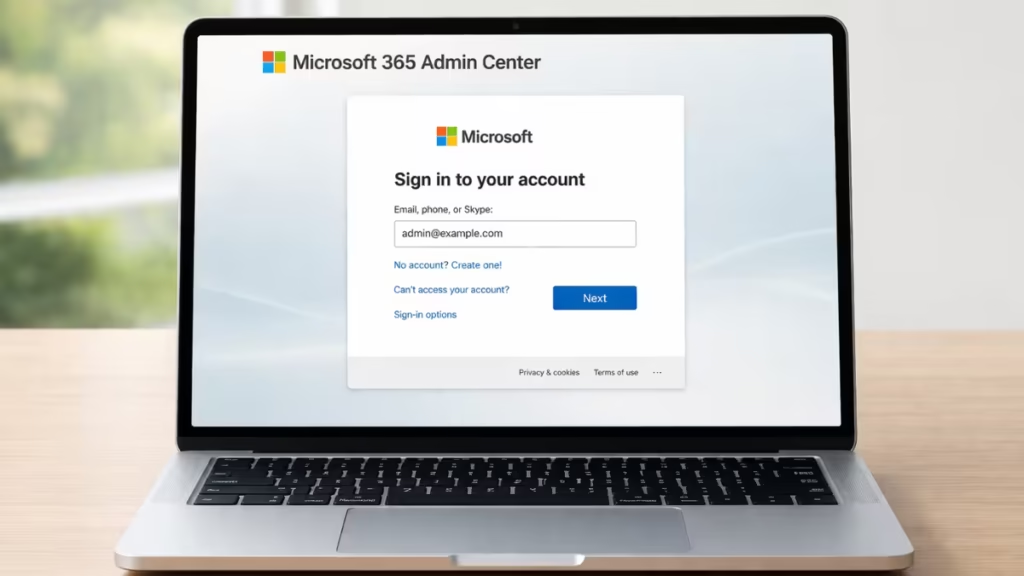
However, recovery is possible. You must follow the correct process to regain admin control quickly and safely.
Why Microsoft 365 Admin Access Gets Locked
Microsoft 365 assigns full control to Global Admin accounts. If no one in your organization has that role, you lose access to the Admin Center. This usually happens when the original admin leaves the company, the admin account gets deleted or disabled, multi-factor authentication blocks login, password recovery fails, or access methods are lost.
In some cases, partner (GDAP) access may expire or get removed, which removes delegated control as well. Without a Global Admin, no one can assign admin roles or approve access requests.
When no admin exists, your Microsoft 365 tenant becomes locked at the administrative level. You can still sign in as a normal user and use apps like Outlook, Teams, and OneDrive, but you cannot open the Admin Center, manage users or licenses, add or remove admins, or fix billing and domain settings. This is not a system error but a security restriction designed to prevent unauthorized access.
Step-by-Step: How to Regain Admin Access
This is the recommended method for a complete admin lockout. Follow each step carefully.
Step 1: Confirm That No Admin Access Exists
Before contacting Microsoft, verify:
- No one can access: https://admin.microsoft.com
- The original admin account does not work
- No other user has admin rights
If even one admin account works, you can fix the issue internally.
Step 2: Contact Microsoft Business Support
You must contact Microsoft directly. Online links often loop without resolving the issue.
Visit the official support page to get the correct contact option for your region:
- https://support.microsoft.com
- Or go directly via Admin Center (if partially accessible): https://admin.microsoft.com/support
This ensures you get the latest phone or callback option.
If you are also experiencing Windows activation errors, see our guide on How to Fix Error 0xC004F050 When Upgrading Windows 11 Home to Pro.
Step 3: Explain the Situation Clearly
Do not give a long explanation. Use a direct statement:
“We lost Global Admin access to our Microsoft 365 tenant. No admin account is accessible. We need admin recovery.”
This helps support route your case faster.
Step 4: Complete Identity Verification
Microsoft will verify ownership before restoring access.
Provide:
- Your company domain name
- Billing or subscription details
- Old admin email addresses
- Business verification documents (if required)
Make sure all details match your tenant records.
Step 5: Wait for Admin Recovery Action
After verification, Microsoft will:
- Restore access to an existing admin account, or
- Assign Global Admin rights to a new account
Recovery typically takes a few hours to 2 business days, depending on how quickly verification is completed.
Why GDAP or Partner Access Will Not Help
Many users assume a Microsoft partner can fix this issue, but that is not correct. If GDAP access has expired, the partner loses admin control and cannot manage your tenant. Any new access request must be approved from the Admin Center, but without admin access, you cannot approve anything. This makes partner access ineffective in this situation.
At the same time, avoid actions that waste time and delay recovery. Do not attempt repeated random password resets, do not create new users expecting admin rights, and do not rely only on support links that lead to loops.
Do not wait passively for email responses without escalation, and do not assume the issue will resolve on its own. These actions do not restore admin access and only slow down the recovery process.
Best Practices to Prevent Microsoft 365 Admin Lockout
Once you regain access, secure your tenant immediately to avoid another lockout. Microsoft 365 admin access issues usually happen due to poor account planning or lack of backup access. Setting up proper safeguards ensures you always retain control, even if one account fails.
- Keep at least two Global Admin accounts active at all times
- Store admin credentials securely using a trusted password manager
- Enable MFA for all admins and configure backup authentication methods
- Assign a secondary admin role to a trusted user in your organization
- Review admin roles regularly and remove unnecessary permissions
- Create a break-glass account using a non-company email (such as Gmail)
- Use this emergency account only for lockout scenarios
- Store its credentials offline in a secure location
These steps ensure you always have a reliable recovery path and prevent complete admin lockout in the future.
FAQs
How long does Microsoft take to restore admin access?
Recovery usually takes a few hours to 2 business days, depending on verification speed.
Can I regain admin access without contacting Microsoft?
No. If no Global Admin exists, only Microsoft can restore access.
Can a Microsoft partner fix this issue?
No. Partner access requires admin approval, which is not possible without an admin account.
Will I lose my data during this issue?
No. Your emails, files, and data remain safe. Only admin control is affected.
What is a break-glass account?
It is an emergency Global Admin account kept only for recovery situations. You should store it securely and avoid daily use.
Losing access to the Microsoft 365 Admin Center may look critical, but you can fix it by following the correct process. You cannot regain admin access internally when no Global Admin exists, as Microsoft must verify ownership and restore control.
Contact support through official channels, complete the verification steps, and follow their instructions carefully. Once access is restored, secure your admin roles and set up proper safeguards to prevent this issue from happening again.

