If Microsoft Edge refuses to sign in to your work or school profile and shows error code 3, 65, 4000, the problem usually sits in authentication tokens, not your Edge profile or sync data. Edge gets stuck at Initializing in edge://sync-internals, even though Windows shows the work account as connected.
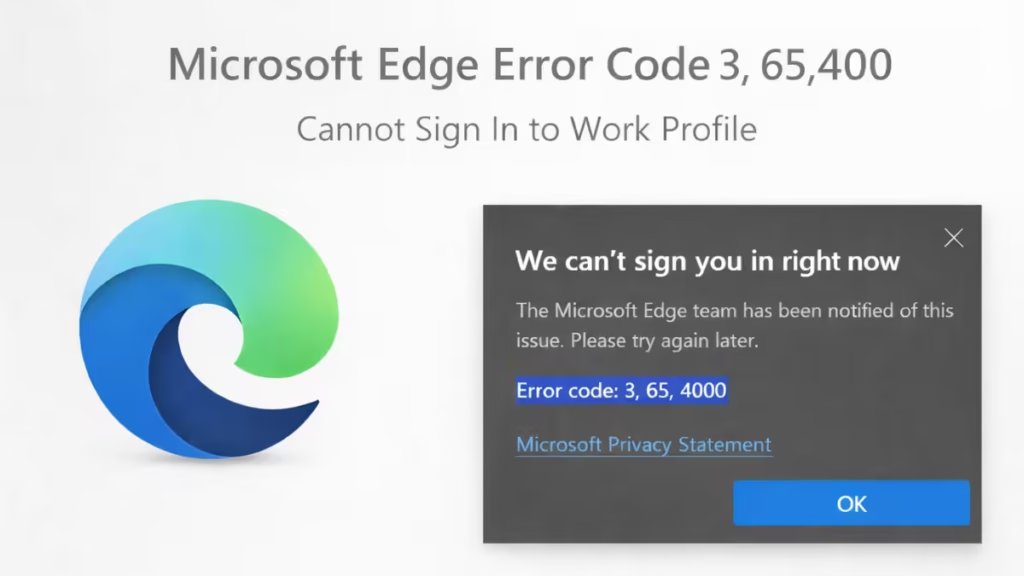
This guide walks you through safe, non-destructive fixes first. You will not lose bookmarks, passwords, or extensions if you follow the steps in order.
Before You Start (Important)
- Close all Edge windows before making changes
- Do not clear Edge sync data from the account portal
- Do not delete the entire Edge User Data folder
Step 1: Confirm the Work Account Is Healthy in Windows
- Open Settings
- Go to Accounts → Access work or school
- Select your work account
Make sure the status shows Connected and no warning messages appear.
If Windows itself shows an error here, fix that first. Edge depends on this connection.
Step 2: Close Edge Completely
Open Command Prompt as Administrator and run:
taskkill /IM msedge.exe /FThis ensures Edge is not holding old tokens in memory.
Step 3: Clear Edge Sign-In Cache (Safe)
This step removes only authentication cache, not browsing data.
- Press Win + R
- Paste and open:
%LOCALAPPDATA%\Microsoft\Edge\User Data\Default- Delete these folders if they exist:
Accounts
Platform Notifications
If you use multiple Edge profiles, repeat this step inside each profile folder.
Step 4: Reset the AAD Broker Plugin (Most Important Fix)
This is the most common fix for error 3, 65, 4000.
- Close Edge
- Press Win + R
- Paste:
%LOCALAPPDATA%\Packages- Delete only this folder:
Microsoft.AAD.BrokerPlugin_cw5n1h2txyewy- Restart the computer
Windows recreates this folder automatically with fresh tokens.
Step 5: Reconnect the Work Account
After reboot:
- Go to Settings → Accounts → Access work or school
- Select the work account
- Click Disconnect
- Restart the PC
- Add the same work account again
This refreshes identity registration without wiping device data.
Step 6: Sign In to Edge (Correct Order)
- Open Edge
- Go to Settings → Profiles
- Sign in using your work or school account
- Allow sync when prompted
- Wait one or two minutes
Now open:
edge://sync-internalsYou should see:
- Transport State: Active
- No “Initializing” loop
If the Error Still Appears
Check Device Registration Status
Open Command Prompt (Admin) and run:
dsregcmd /statusLook for:
AzureAdJoined : YESWorkplaceJoined : YESAzureAdPrt : YES
If AzureAdPrt shows NO, Edge cannot authenticate.
Advanced: Force Token Re-Registration
Use this only if your IT policy allows re-joining the device.
dsregcmd /leave
shutdown /r /t 0
After reboot, reconnect the work account and sign in to Edge again.
What Not to Do
- Do not reset Edge completely
- Do not delete the full Edge profile folder
- Do not clear sync data from the Microsoft account website
Those actions can cause permanent sync data loss.
FAQs
What is Microsoft Edge error code 3, 65, 4000?
Microsoft Edge error code 3, 65, 4000 occurs when Edge fails to authenticate a work or school account due to broken sign-in or Azure AD tokens.
Is Edge error code 3, 65, 4000 a known issue?
Yes. This is a known Edge sign-in issue reported by multiple users, usually caused by corrupted authentication or AAD Broker tokens.
Why does Edge sync stay stuck on “Initializing”?
Edge sync stays stuck on Initializing when Edge cannot obtain a valid sign-in token, even though Windows shows the work account as connected.
Does fixing error code 3, 65, 4000 delete my bookmarks or passwords?
No. The recommended fixes reset authentication components only and do not delete Edge bookmarks, passwords, or extensions.
Can this error happen even if Windows is signed in correctly?
Yes. Windows can show the work account as connected while Edge fails to authenticate, which triggers error code 3, 65, 4000.
What is the fastest fix for Edge error code 3, 65, 4000?
Deleting the Microsoft.AAD.BrokerPlugin cache and restarting the PC resolves most cases of this error.
Do I need to reset or reinstall Microsoft Edge?
No. Reinstalling or resetting Edge is not required and can cause unnecessary data loss.
Is this issue caused by Microsoft servers being down?
No. Error code 3, 65, 4000 is usually a local authentication or token issue, not a Microsoft Edge server outage.
Can Intune or Azure AD policies cause this error?
Yes. Expired or corrupted Azure AD tokens from device registration or policy refresh can block Edge sign-in.
Will this error come back after Windows updates?
It can. Major updates or password changes may invalidate tokens, but repeating the fix usually resolves it quickly.
Edge relies on Windows identity services and cached tokens. When those tokens break, Edge cannot authenticate even though Windows looks fine. Clearing the AAD Broker cache and Edge auth folders forces a clean token rebuild.
If the issue returns after updates or password changes, repeat Step 4. That single step resolves most repeat cases.

