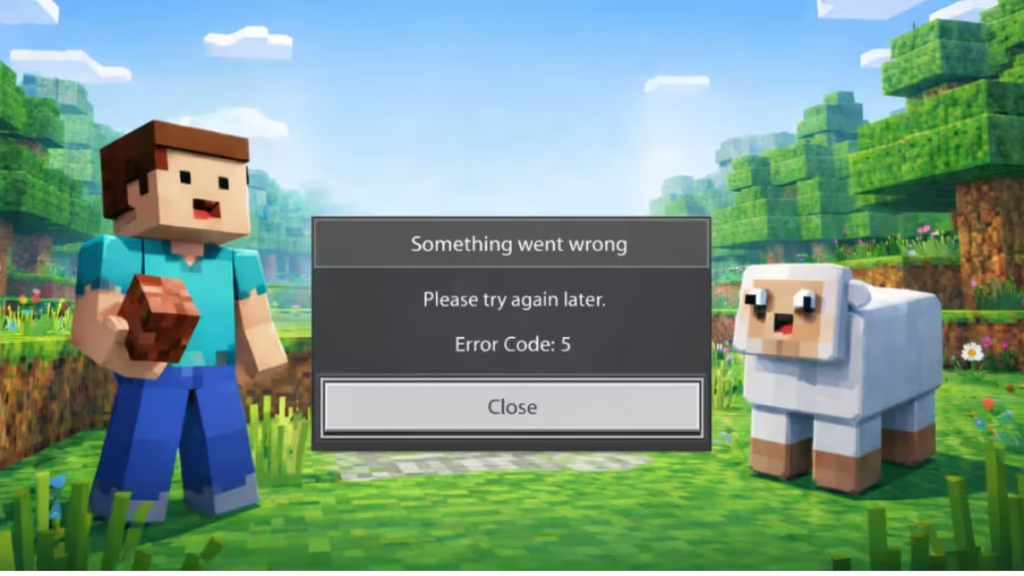
If you see Error Code 5 while joining a Realm, Minecraft fails to restore your connection to Realms servers after a disconnect. This issue mostly affects Bedrock Edition players on console, PC, and mobile. This guide walks you through the exact fixes that help you rejoin your Realm quickly without wasting time on unnecessary steps.
What Causes Error Code 5 in Minecraft Realms
In Minecraft Realms, Error Code 5 indicates a temporary authentication or session failure. Your game client loses its secure connection to Realms servers and cannot rejoin until the session resets.
Common triggers include:
- Sudden disconnects from a Realm
- Expired Microsoft/Xbox authentication token
- Short Realms or Xbox Live service instability
- Network interruptions on your console or PC
This is not a corrupted game or launcher problem.
Fix 1: Restart Minecraft and Your Device (Most Effective)
- Close Minecraft completely
- Restart your console or PC
- Launch Minecraft again
- Rejoin the Realm
This refreshes the Realms session token and resolves Error Code 5 in most cases.
Fix 2: Sign Out and Sign Back Into Your Microsoft Account
- Open Minecraft
- Go to Settings → Profile
- Sign out of your Microsoft account
- Close the game
- Reopen Minecraft and sign back in
- Try joining the Realm again
Authentication issues often cause this error, especially after long play sessions.
Fix 3: Check Minecraft Realms Service Status
Sometimes Error Code 5 appears due to server-side issues.
- If Realms services are unstable, local fixes will not work
- Wait 30–60 minutes and try again
These outages usually resolve without updates or patches.
Fix 4: Disable VPN, DNS Filters, or Network Blockers
Realms requires a direct connection.
Temporarily turn off:
- VPNs
- DNS-based blockers (AdGuard, NextDNS, Pi-hole)
- Router-level firewalls
Restart Minecraft after disabling them and retry the Realm.
Fix 5: Clear Cached Network Data (Console Fix)
For PlayStation and Xbox users:
- Open Network Settings
- Go to Advanced Settings
- Clear the Alternate MAC Address
- Restart the console
This removes cached routing data that can block Realms reconnections.
Fix 6: Test With a Different Network
- Connect using a mobile hotspot
- Try another Wi-Fi network
If the Realm loads correctly, your primary network or ISP causes the issue.
What Will NOT Fix Minecraft Realms Error Code 5
- Reinstalling Minecraft
- Repairing game files
- Updating Java
- Removing mods or resource packs
These apply to launcher errors, not Realms authentication problems.
FAQs
Is Minecraft Realms Error Code 5 permanent?
No. It is temporary and usually resolves with a restart or re-login.
Does this affect Java Edition?
No. This error mainly affects Bedrock Realms.
Can reinstalling Minecraft fix Error Code 5?
No. Reinstallation rarely helps with Realms authentication errors.
Does signing out of a Microsoft account help fix Error Code 5?
Yes, signing out and signing back into your Microsoft account helps reset authentication and often resolves Minecraft Realms Error Code5.
Is Minecraft Realms Errors permanent?
No, Minecraft Realms Error Code 5 is temporary and usually resolves after restarting, re-signing in, or waiting for Realms services to stabilize.

