When Outlook shows “Disconnected” or stays stuck on “Trying to connect…”, it blocks email completely. You cannot send or receive messages, even though your internet works perfectly.
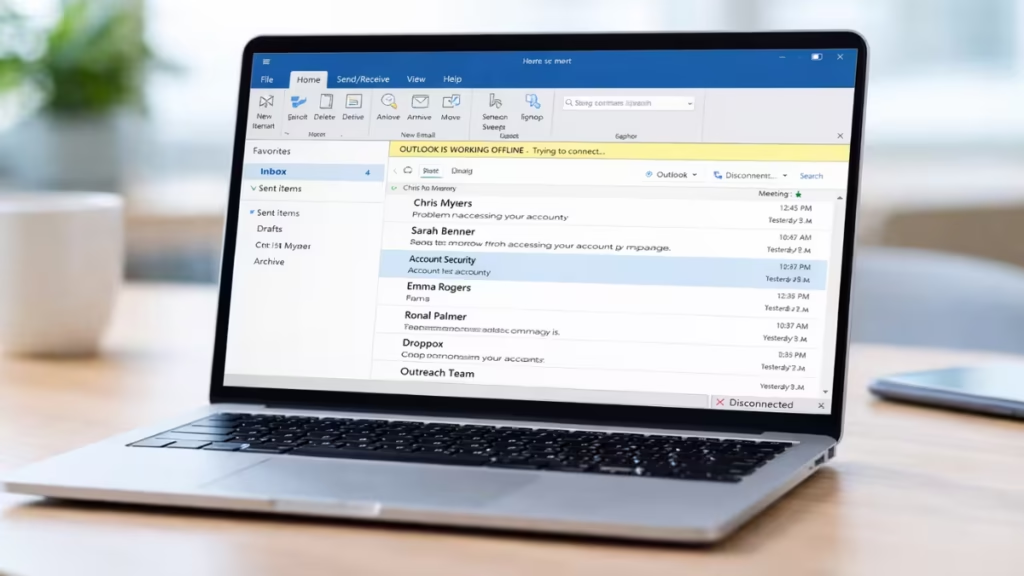
This issue usually appears suddenly often after a password change, Windows update, or network switch — and affects only the Outlook desktop app.”. Other apps like Teams and browsers continue working normally.
Note: These steps apply to classic Outlook (desktop app). If you are using the New Outlook interface, the steps may differ slightly. Check your version under File → Office Account.
Quick Solutions to Fix Outlook Disconnected Error
If you want a fast solution, use this table:
| Fix | Best For |
|---|---|
| Clear Credentials | Most cases — outdated login data |
| Disable Work Offline | Outlook manually set to offline |
| New Profile | Corrupted profile settings |
| Disable Add-ins | Third-party add-in conflict |
| Repair Office | Damaged installation files |
Why Outlook Shows Disconnected Even With Internet
Outlook does not disconnect because of your internet connection. It disconnects because it cannot authenticate your account. Windows stores Outlook login credentials locally, and when these credentials become outdated or corrupted, Outlook keeps trying to connect using invalid data. As a result, Outlook shows Disconnected, email synchronization stops, and the status remains stuck on Trying to connect.
If your Microsoft 365 subscription or admin access is also affected after the upgrade, see How to Regain Admin Center Access in Microsoft 365 When No One Has Admin Rights.
Fix 1: Clear Outlook Credentials (Most Effective Solution)
This fix resolves the issue in most cases.
Step 1: Close Outlook
Close Outlook completely.
Open Task Manager and confirm Outlook is not running in the background.
Step 2: Open Credential Manager
Press the Windows key, search for Credential Manager, and open it.
Step 3: Remove Outlook Credentials
Go to Windows Credentials.
Look for entries such as:
- MicrosoftOffice16_Data
- MS.Outlook
- Any Microsoft account entries
Expand each entry and click Remove.
Step 4: Restart Outlook
Open Outlook again and sign in.
Outlook creates fresh credentials and reconnects successfully.
Fix 2: Disable Work Offline Mode
Outlook may appear disconnected if offline mode is enabled.
Open Outlook → go to the Send/Receive tab.
If Work Offline is highlighted, click it once to disable it.
Fix 3: Create a New Outlook Profile
If the issue continues, your Outlook profile may be corrupted.
Steps:
- Open Control Panel
- Go to Mail
- Click Show Profiles
- Click Add
- Create a new profile and add your account
After creating the profile:
- Go back to Show Profiles → Properties
- Select Always use this profile
- Choose your new profile
Now launch Outlook using the new profile.
Fix 4: Disable Add-ins
Some add-ins interfere with Outlook’s connection.
Go to: File → Options → Add-ins → Manage COM Add-ins → Go
Uncheck all add-ins and restart Outlook.
Disabling add-ins does not delete them. You can re-enable them one by one after Outlook reconnects to identify the problematic one.
Fix 5: Repair Microsoft Office
If Outlook files are damaged, repair Office.
Steps:
- Open Settings → Apps → Installed Apps
- Select Microsoft Office
- Click Modify
- Choose Quick Repair
If needed, use Online Repair.
Things You Should Not Do When Outlook Shows Disconnected
Avoid these common mistakes:
- Do not reinstall Windows
- Do not reset network settings
- Do not change DNS or firewall randomly
- Do not delete system files
This issue is not related to your internet.
FAQs
Why does Outlook show Disconnected when my internet works?
Outlook does not disconnect due to internet failure. It disconnects when stored login credentials become outdated or corrupted. Clearing credentials from Windows Credential Manager fixes this in most cases.
Will clearing credentials delete my emails?
No. Your emails are stored on the server. Removing credentials only clears saved login data. All emails return once Outlook reconnects.
How do I know if Work Offline mode is enabled?
Open Outlook and click the Send/Receive tab. If the Work Offline button appears highlighted or pressed, offline mode is active. Click it once to disable it.
Does creating a new Outlook profile delete old emails?
No. Your emails remain on the server. The new profile simply rebuilds local configuration from scratch.
Why does this happen after a password change?
Windows stores your old password in Credential Manager. After a password change, Outlook keeps trying to connect using the outdated password, causing the disconnected status. In some cases, Microsoft 365 admin or agreement issues can also cause Outlook to lose connection. See How to Fix Microsoft 365 Agreement Popup Without Accept Button if Outlook prompts you with a popup you cannot dismiss.
Outlook shows Disconnected when it cannot authenticate your account, not when your internet fails. In most cases, clearing stored credentials resolves the issue quickly by forcing Outlook to create a fresh connection. If that does not work, creating a new profile or repairing Office restores a clean configuration. Once Outlook reconnects properly, email sync resumes immediately without further issues.
If you manage your organization’s Microsoft 365 tenant, you may also find this helpful: How to Regain Admin Center Access in Microsoft 365 When No One Has Admin Rights.
