If you try to join a Roblox game and suddenly see “Connection Failed – Failed to connect to the experience (Error Code: 2)”, the game cannot connect your device to the Roblox server. This issue usually appears when launching a game or switching servers.
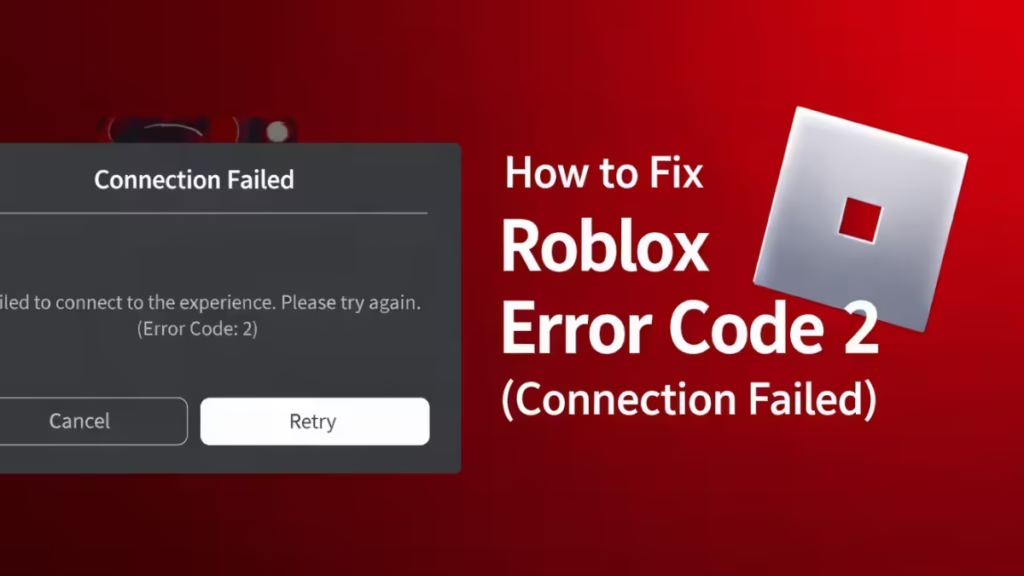
In most cases, Roblox Error Code 2 happens because of server outages, unstable internet connections, or DNS configuration problems. However, you can resolve this issue quickly by following the methods below.
This guide explains the exact steps to resolve Roblox Error Code 2 on PC, mobile, and other devices.
How to Fix Roblox Error Code 2
Follow these solutions in order. Most players resolve the error after completing the first few steps.
1. Check Roblox Server Status
Roblox sometimes experiences server outages during updates, maintenance, or traffic spikes. When that happens, players cannot connect to games.
Steps
- Open a web browser.
- Visit the Roblox Status page or check platforms like Downdetector.
- Look for reports of outages or degraded performance.
- Wait until Roblox resolves the issue if servers show problems.
If servers are operational, continue with the next fixes.
2. Restart Your Internet Connection
Network instability often interrupts communication with Roblox servers.
Steps
- Turn off your router or modem.
- Wait 30–60 seconds.
- Turn the router back on.
- Connect to the internet again.
- Launch Roblox and try joining a game.
You can also switch from Wi-Fi to mobile hotspot to test whether your network causes the issue.
3. Change Your DNS Settings
DNS servers translate domain names into IP addresses. If your ISP’s DNS responds slowly or incorrectly, Roblox may fail to connect.
Switching to Google DNS usually improves connection stability.
Steps (Windows)
- Press Windows + S and search Control Panel.
- Open Network and Sharing Center.
- Click Change adapter settings.
- Right-click your active network and select Properties.
- Select Internet Protocol Version 4 (IPv4).
- Click Properties.
Enter the following DNS values:
Preferred DNS: 8.8.8.8
Alternate DNS: 8.8.4.4- Click OK and close all windows.
- Restart Roblox and test the connection.
4. Flush DNS Cache
Your computer stores DNS information locally. If the cache becomes outdated or corrupted, Roblox may connect to incorrect servers.
Clearing the DNS cache forces your system to request fresh data.
Steps
- Press Windows + S.
- Type Command Prompt.
- Right-click it and select Run as administrator.
- Enter the following command:
ipconfig /flushdns- Press Enter.
- Restart Roblox and try joining a game again.
5. Disable VPN or Proxy Connections
VPN services sometimes block or reroute Roblox traffic, which leads to connection errors.
Fix
- Turn off your VPN temporarily.
- Disable proxy settings in your network configuration.
- Relaunch Roblox and test the connection.
If Roblox works normally after disabling the VPN, the VPN server caused the issue.
6. Update or Reinstall Roblox
A corrupted Roblox installation can also trigger Error Code 2.
Steps to reinstall Roblox
- Open Settings → Apps → Installed Apps.
- Locate Roblox.
- Click Uninstall.
- Restart your computer.
- Visit the official Roblox website.
- Download and install the latest version.
After reinstalling, launch the game and join a server again.
7. Check Firewall and Security Software
Windows Firewall or antivirus software may block Roblox connections.
Steps
- Open Windows Security.
- Go to Firewall & Network Protection.
- Select Allow an app through firewall.
- Ensure Roblox Player is allowed on both private and public networks.
After allowing Roblox through the firewall, restart the game.
Additional Fixes for Mobile Devices
If you see Roblox Error Code 2 on Android or iPhone, try these quick solutions:
- Turn Airplane Mode ON and OFF
- Switch from Wi-Fi to mobile data
- Restart the device
- Update the Roblox app
- Clear the Roblox app cache (Android)
If the error still appears, reinstall the Roblox app.
When Roblox Error Code 2 Cannot Be Fixed
Sometimes no local fix works because the problem originates from Roblox servers. In that situation:
- Wait until Roblox resolves the issue
- Follow Roblox’s official status updates
- Try again later
Server outages usually resolve within a few hours.
Roblox Error Code 2 usually appears when the game cannot connect to the server. Most players fix the issue by restarting their internet connection, changing DNS settings, or reinstalling Roblox.
If none of the fixes work, the problem likely exists on Roblox’s servers. In that case, waiting for the platform to restore service is the only solution.