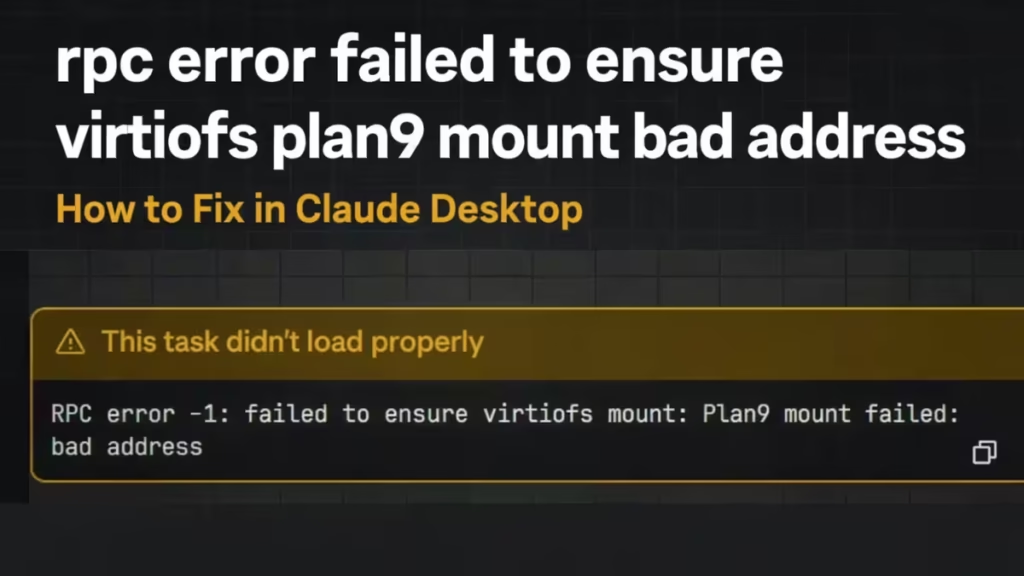
The error rpc error failed to ensure virtiofs plan9 mount bad address usually appears in Claude Desktop when the Cowork virtual machine fails to mount the shared filesystem. This problem happens when the VM service crashes, the temp mount cache becomes corrupted, or leftover Claude processes block the filesystem.
You may see this error after sleep mode, crash, forced close, or system restart. The good news is that you can fix it without reinstalling Claude.
Why rpc error failed to ensure virtiofs plan9 mount bad address happens
Claude Desktop uses a small VM called Cowork VM to run code safely. The VM mounts your project folder using VirtioFS / Plan9 filesystem sharing.
The error appears when:
- CoworkVMService stops working
- Temp mount files get corrupted
- Claude processes stay stuck in memory
- VM runtime cache breaks
- Project folder path causes mount failure
Once this happens, the VM cannot mount the shared folder and shows:
rpc error failed to ensure virtiofs plan9 mount bad addressFix 1 — Restart Cowork VM service (Fastest fix)
This fix works because the error often happens when the Cowork VM service stops responding or the filesystem mount stays locked after a crash. Restarting the service forces Claude to rebuild the VirtioFS mount.
Steps to restart Cowork VM service
1. Close Claude Desktop
Make sure Claude is not running.
2. Open PowerShell as Administrator
Search PowerShell → Right-click → Run as Administrator
3. Run this command
taskkill /F /IM Claude.exe 2>$null
taskkill /F /IM claude.exe 2>$nullnet stop CoworkVMService
net start CoworkVMService
4. Open Claude again
Try running Cowork.
If the error still appears, use Fix 2.
Fix 2 — Clear corrupted temp mount cache
This fix works because the VirtioFS / Plan9 mount uses temporary files. If these files become corrupted, the VM cannot attach the shared folder and shows the bad address error.
Steps to clear temp cache
1. Open PowerShell as Administrator
2. Run
net stop CoworkVMService

rmdir /S /Q "%TEMP%\claude" 2>$null

taskkill /F /IM Claude.exe 2>$null
taskkill /F /IM cowork-svc.exe 2>$null

net start CoworkVMService
3. Restart Claude Desktop
The VM will rebuild the mount automatically.
If the error still happens, use Fix 3.
Fix 3 — Reset Cowork VM runtime (Best fix for repeated error)
This fix works because the VM runtime folder may contain broken mount data. Removing it forces Claude to create a fresh VM environment.
Steps to reset Cowork VM runtime
1. Close Claude Desktop
2. Open PowerShell as Administrator
3. Run
net stop CoworkVMService

rmdir /S /Q "%APPDATA%\Claude\claude-code-vm" 2>$null
rmdir /S /Q "%APPDATA%\Claude\vm_bundles" 2>$null

net start CoworkVMService
4. Start Claude again
The VM will rebuild cleanly.
First launch may take longer than usual.
Fix 4 — Move project folder out of OneDrive
VirtioFS sometimes fails when the project is inside cloud folders.
Bad location example:
C:\Users\Name\OneDrive\ProjectGood location:
C:\Work\ProjectMove the folder and try again.
Fix 5 — Avoid special characters in path
The mount may fail if the folder name contains special symbols.
Avoid:
C:\Users\Name\My Project (Test)#1Use:
C:\Work\MyProjectFix 6 — Kill stuck Claude processes
Open Task Manager → Details tab
End all:
Claude.exe
claude.exe
cowork-svc.exe
Then reopen Claude.
Fix 7 — Reboot PC (temporary fix)
Restarting clears the VM mount state.
If reboot fixes the error but it comes back later, use Fix 3.
Why this error keeps coming back
This error often repeats because:
- VM cache does not reset automatically
- Temp mount state stays after crash
- Service does not restart correctly
Resetting the VM runtime usually fixes it permanently.
The error rpc error failed to ensure virtiofs plan9 mount bad address happens when Claude Desktop fails to mount the Cowork VM filesystem. Restarting the VM service, clearing temp cache, or resetting the VM runtime fixes the problem in most cases. If the error keeps returning, move the project folder to a simple local path and rebuild the VM cache.

