Getting stuck in the “Something happened and your PIN isn’t available” loop is one of the most frustrating Windows sign-in issues. Windows blocks the PIN, then fails when you try to set it up again, leaving you locked out in a loop.
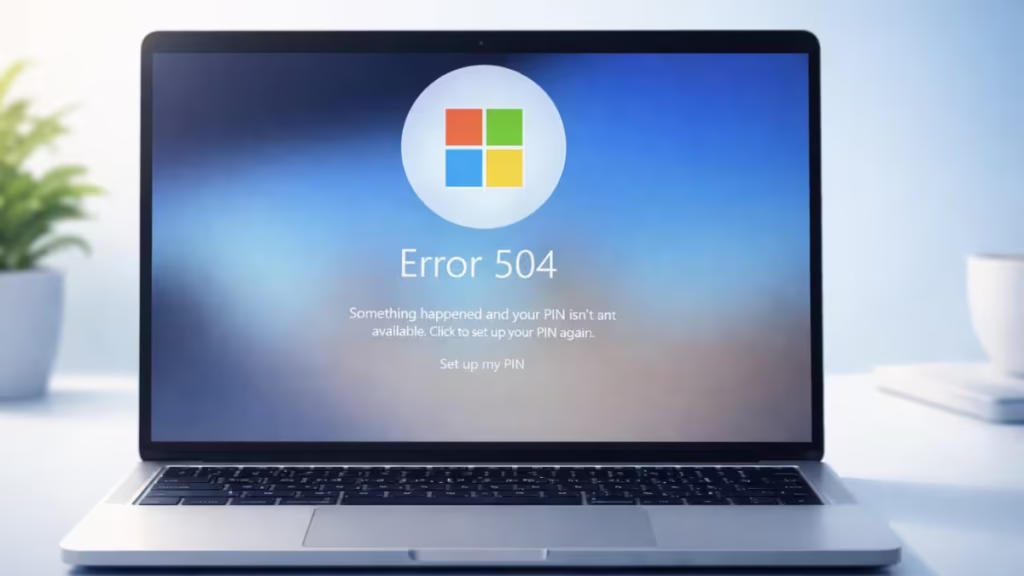
This guide shows exact, working steps to break the loop and restore Windows Hello PIN access without resetting your PC.
Why This Error Happens
This issue appears when Windows Hello PIN data becomes corrupted. Common triggers include:
- Interrupted or failed Windows updates
- Forced shutdowns or power loss
- Account sync issues with Microsoft account
- Permission problems in Windows Hello system folders
When this happens, Windows can’t read or recreate PIN data correctly.
Step 1: Sign In Using Your Password (Not PIN)
You must access Windows first.
- On the sign-in screen, click Sign-in options
- Select the password icon
- Enter your account password
If you sign in successfully, continue to Step 2.
If Windows doesn’t allow any sign-in, jump to Step 5 (Safe Mode).
Step 2: Delete Corrupted Windows Hello PIN Data
This is the most important step.
- Open File Explorer
- Paste the following path into the address bar:
C:\Windows\ServiceProfiles\LocalService\AppData\Local\Microsoft- Locate the Ngc folder
- Take ownership of the folder if Windows blocks access
- Delete the Ngc folder completely
- Restart your PC
Why this works:
The Ngc folder stores all Windows Hello PIN data. Removing it forces Windows to rebuild fresh PIN files.
Step 3: Create a New PIN After Restart
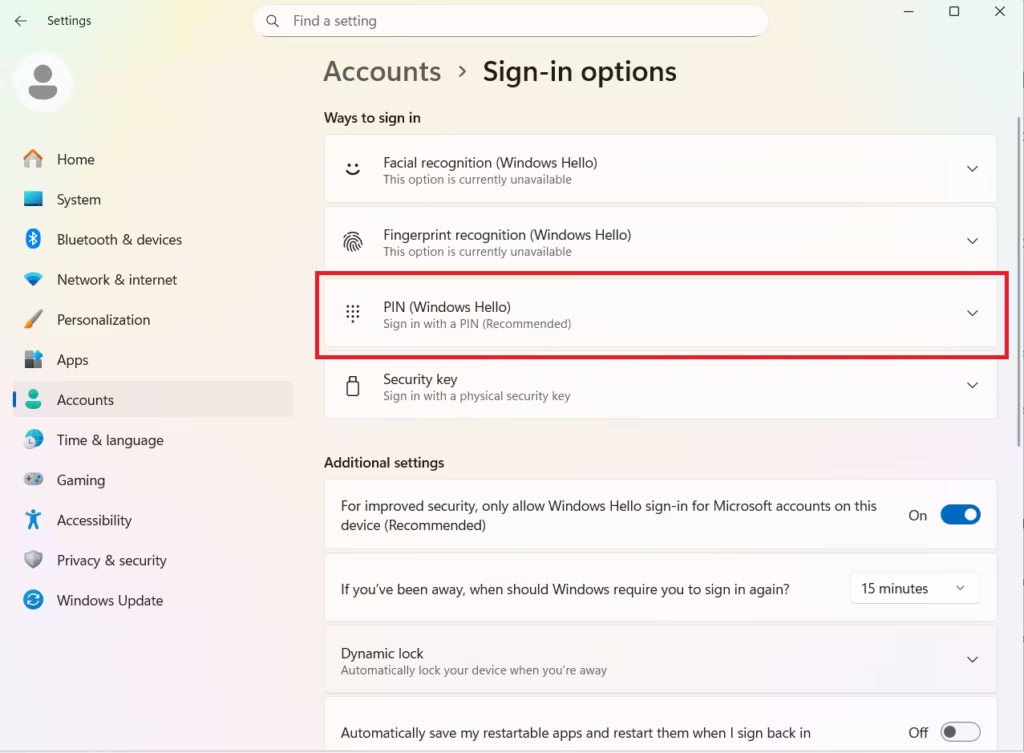
After reboot:
- Open Settings
- Go to Accounts → Sign-in options
- Select PIN (Windows Hello)
- Click Add
- Create a new PIN
Do not reuse your old PIN.
Step 4: Verify Account and System Settings
To prevent the issue from returning:
- Confirm date and time are correct
- Make sure your Microsoft account is verified
- Install all pending Windows updates
- Avoid shutting down your PC during updates
Step 5: If You’re Completely Locked Out (Safe Mode Fix)
If Windows never lets you sign in:
- Power on your PC
- When the Windows logo appears, hold the power button to force shutdown
- Repeat this three times
- Windows opens Recovery Mode
- Go to:
- Troubleshoot
- Advanced options
- Startup Settings
- Restart
- Press 4 to boot into Safe Mode
In Safe Mode:
- Sign in using your password
- Delete the Ngc folder (Step 2)
- Restart normally
When a Windows Reset Is Required
If Windows still shows the same PIN loop after all steps:
- Open Recovery Mode
- Choose Reset this PC
- Select Keep my files
Use this only as a last option.
FAQs
What does “Something happened and your PIN isn’t available” mean in Windows?
This error means Windows cannot access or rebuild your Windows Hello PIN data. Corrupted system files, failed updates, or permission issues usually cause the problem and force Windows into a PIN setup loop.
Why am I stuck in a PIN setup loop in Windows 10 or 11?
You get stuck in a loop when Windows blocks PIN sign-in but also fails to create a new PIN. Broken Windows Hello files inside the Ngc folder usually trigger this behavior.
How do I fix “Something happened and your PIN isn’t available” without resetting Windows?
Sign in using your password, delete the Ngc folder, restart your PC, and create a new PIN. This method fixes the issue in most cases and does not delete personal files.
Can I fix the Windows PIN not available error if I can’t sign in?
Yes. Boot into Safe Mode, sign in with your password, delete the Ngc folder, then restart normally. Safe Mode bypasses the PIN lock and allows repairs.
What is the Ngc folder and why does deleting it fix the PIN error?
The Ngc folder stores all Windows Hello PIN data. When those files break, Windows can’t validate or recreate the PIN. Deleting the folder forces Windows to rebuild clean PIN files.
Does this PIN error affect both Windows 10 and Windows 11?
Yes. The “Something happened and your PIN isn’t available” error affects both Windows 10 and Windows 11 because both versions use the same Windows Hello PIN system.
Will deleting the Ngc folder remove my files or apps?
No. Deleting the Ngc folder only removes PIN and Windows Hello data. Your personal files, apps, and settings remain untouched.
Why does this error appear after a Windows update?
Interrupted or failed updates often corrupt Windows Hello permissions. When this happens, Windows cannot read existing PIN data or create new credentials.
When should I reset Windows to fix the PIN loop?
Reset Windows only if Safe Mode and Ngc folder deletion fail. Choose Reset this PC → Keep my files to avoid data loss. Treat this as a last resort.
Can Microsoft Support fix this PIN loop for me?
Microsoft Support does not manually reset PIN loops. They usually recommend the same steps shown in this guide or suggest a system reset.
The “Something happened and your PIN isn’t available” loop looks serious, but it is usually caused by corrupted Windows Hello files. Deleting the Ngc folder and recreating the PIN fixes the problem in most cases.
If you still face issues or get stuck at any step, comment below and we’ll help you fix it.

