If Windows 11 shows an internet verification error during activation, it means your system is unable to validate the license with Microsoft’s activation servers. This problem commonly appears after updates, hardware changes, network restrictions, or incorrect system settings.

Follow the steps below in order to resolve common causes of Windows 11 activation verification errors.
Step 1: Check Your Internet Connection
Windows activation requires stable internet access.
- Ensure your device is connected to a working network
- Avoid metered or restricted connections
- Restart your router and PC once
After reconnecting, go to Settings → System → Activation and try again.
Step 2: Turn Off VPN, Proxy, or Network Filters
VPNs and proxies often block activation traffic.
- Open Settings → Network & Internet
- Turn off any active VPN
- Open Proxy and disable all proxy options
- Temporarily disable third-party firewall or DNS filtering apps
Restart the PC and retry activation.
Step 3: Sync Date, Time, and Region
Incorrect time settings can break online verification.
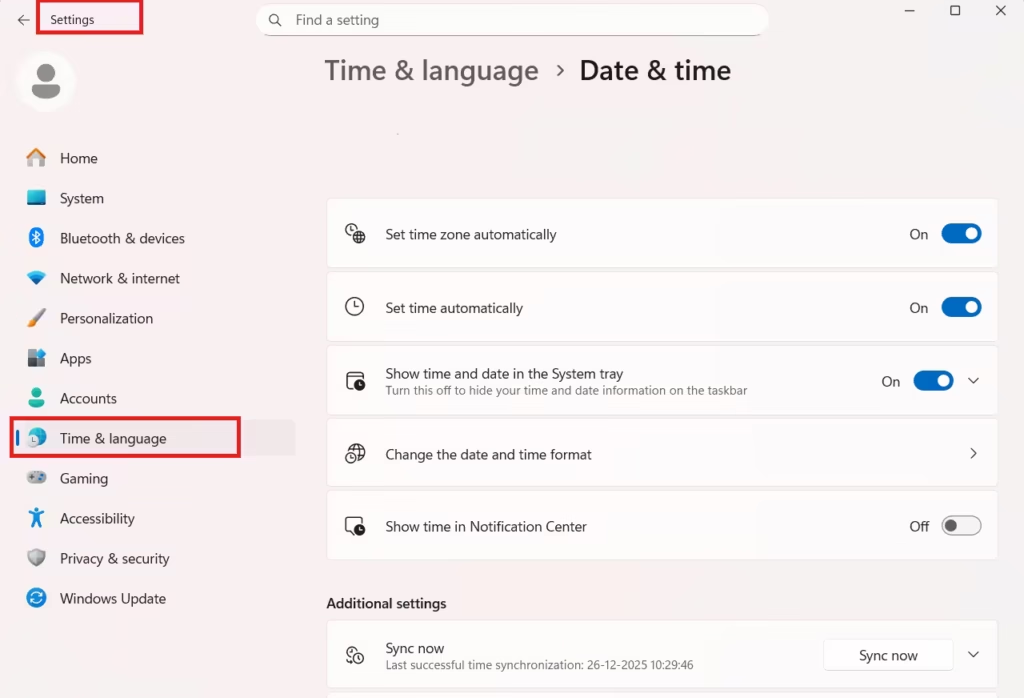
- Open Settings → Time & Language → Date & Time
- Enable:
- Set time automatically
- Set time zone automatically
- Click Sync now
- Confirm the correct Region is selected
Restart the system.
Step 4: Restart Windows Activation Services
Activation depends on background services running correctly.
- Press Win + R, type
services.msc, press Enter - Restart these services:
- Software Protection
- Windows License Manager Service
- Set both to Startup type: Automatic
Close Services and retry activation.
Step 5: Use the Windows Activation Troubleshooter
Windows includes a built-in repair tool.
- Go to Settings → System → Activation
- Click Troubleshoot
- Sign in with your Microsoft account if prompted
This step is critical after hardware changes or upgrades.
Step 6: Activate Windows Using Command Prompt
Manual activation often bypasses UI errors.
- Open Command Prompt as Administrator
- Run:
slmgr /ipk YOUR-PRODUCT-KEY
slmgr /ato- Wait for the activation confirmation message
Make sure the product key matches your Windows edition.
Step 7: Verify Windows Edition Compatibility
Activation fails if the key doesn’t match the installed edition.
- Open Settings → System → About
- Check Windows specifications
- Confirm your key matches:
- Home → Home
- Pro → Pro
Edition mismatch causes permanent activation failure.
Step 8: Sign In With the Microsoft Account Linked to the License
Digital licenses are account-based.
- Open Settings → Accounts
- Sign in using the Microsoft account used during purchase
- Run the Activation Troubleshooter again
This step restores licenses after hardware replacement.
Step 9: Clear and Rebuild the Activation Cache (Advanced)
If licensing files are corrupted, verification fails.
- Open Command Prompt (Admin)
- Run:
net stop sppsvc- Navigate to:
C:\Windows\System32\spp\store\2.0- Rename
tokens.dat - Restart the PC and retry activation
This forces Windows to regenerate licensing data.
When to Contact Microsoft Support
Contact Microsoft if:
- Activation fails after all steps
- The license was transferred to new hardware
- The key was previously activated on another device
Only Microsoft can manually reset blocked licenses.
FAQs Windows 11 Activation Internet Verification Error
Why does Windows 11 show an internet verification error during activation?
Windows 11 shows an internet verification error when it cannot connect to Microsoft’s activation servers. This usually happens due to network restrictions, VPNs, incorrect system time, firewall blocks, or temporary server issues.
Can Windows 11 activation fail even with a working internet connection?
Yes. Even if the internet is working, activation can fail if VPNs, proxies, DNS filters, or security software block Microsoft’s verification servers.
Does a VPN cause Windows 11 activation internet verification errors?
Yes. VPNs frequently cause Windows 11 activation errors by routing traffic through restricted servers. Disabling the VPN often fixes the issue immediately.
How do I fix Windows 11 activation internet verification error permanently?
To fix it permanently, disable VPN or proxy connections, sync date and time, restart activation services, run the Activation Troubleshooter, and ensure the product key matches the installed Windows edition.
Can incorrect date and time cause Windows 11 activation failure?
Yes. Incorrect system date, time, or region can prevent Windows from verifying licenses online, resulting in an internet verification error.
Does reinstalling Windows 11 fix activation verification errors?
Not always. Reinstalling Windows does not fix activation errors if the license is invalid, mismatched, or blocked. Activation depends on license verification, not the installation itself.
What Windows services are required for activation to work?
Windows activation requires the Software Protection service and Windows License Manager Service to be running. If these services are stopped or disabled, activation will fail.
Can a Windows edition mismatch cause internet verification errors?
Yes. Using a Windows 11 Home key on Windows 11 Pro (or vice versa) causes activation failure, even with a valid internet connection.
Is a Microsoft account required to fix Windows 11 activation errors?
A Microsoft account is required if the license is a digital license linked to your account, especially after hardware changes like a motherboard replacement.
Will Microsoft block activation attempts?
Yes. Too many failed activation attempts or hardware changes can temporarily block verification. Waiting a few hours or contacting Microsoft Support may be required.
Does Windows 11 need constant internet to stay activated?
No. Internet is only required during activation and license verification. Once activated, Windows remains activated offline.
When should I contact Microsoft Support for activation issues?
Contact Microsoft Support if activation fails after troubleshooting, the license was previously used on another device, or hardware changes triggered license invalidation.

